What to check before buying
Direct monitor connections
Choose when: You want two external monitors without relying on a separate dock. ASUS documents display output on two Thunderbolt 4 ports for a specified ExpertBook B5604 configuration.
Allow for: Port layouts vary by configuration, and the intended simultaneous resolution and refresh rate still need checking against the exact laptop and monitors.
A dock-centred desk
Choose when: You regularly reconnect monitors and other desk peripherals through a dock.
Allow for: A dock adds hardware, and its display specification depends on the connected laptop. Lenovo says its USB-C dock requires a host port with suitable USB-C Alt Mode or Thunderbolt support.
Laptop plus one monitor
Choose when: Your two work areas can be the laptop’s own screen and one external display.
Allow for: This is not the same as keeping two external monitors available alongside the laptop screen.
For tracking project spending, settle the number of external screens first. Then compare the following needs against the exact configuration you intend to buy.
| Concern |
What to check |
Who this matters to |
| Two-screen connections |
Confirm the number of simultaneous external displays and their required resolution and refresh rate on the exact laptop, dock and monitor combination. |
I need two external spreadsheets or dashboards visible at my desk, so the connection arrangement determines my choice; around 36% of consumers put reliable two-external-monitor connections first. |
| Memory and file capacity |
Compare the exact configuration’s RAM and SSD capacity with your applications and locally stored files; check whether memory can be upgraded if that matters to you. |
With spreadsheets, accounting tools and project records open together, I need a configuration that fits my workload. Roughly 29% of consumers make multitasking and file headroom their primary concern. |
| Moving between desks |
Check the laptop’s size and weight, its display-port layout and how it reconnects to the regular workspace. |
I take spending records to meetings but also work at a larger desk, so carrying the laptop and reconnecting it both matter; approximately 21% of consumers prioritise that flexibility. |
| Project-file protection |
Check storage-encryption support and establish how recovery credentials and tested backups will be handled. |
If my laptop holds personal or confidential project records, I need a workable way to protect and recover them. For around 14% of consumers, that protection is the leading concern. |
Joybuy product choices
These laptops offer different approaches to two work areas, including a Zenbook DUO with two built-in screens. For any setup using external monitors, check the exact configuration against the number of displays you need.
 No image available
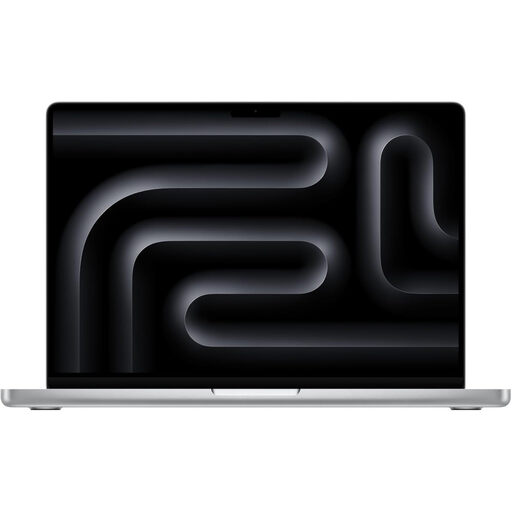
Apple MacBook Pro 14.2-inch (M5 Pro), 24GB/2TB, Silver
Consider this configuration for a desk where you plan to use external monitors, subject to checking the simultaneous resolution and refresh rate of your intended arrangement.
The listed variant has a 15-core CPU, 16-core GPU, 24GB memory and 2TB storage. Check compatibility with your project-spending applications, and set up suitable encryption and backups before storing sensitive records.
View on Joybuy
 No image available
ASUS Zenbook DUO UX8406CA-QL135W, 14-inch dual OLED, 16 GB/1 TB
Its two built-in screens provide two work areas without requiring an external monitor. That is a different arrangement from two external monitors; check simultaneous external-display support if the latter is what you need.
The listed variant has an Intel Core Ultra 7 255H, 16 GB LPDDR5X memory and a 1 TB SSD. Confirm the screen resolution for the exact configuration, and arrange encryption and backups if it will hold sensitive project records.
View on Joybuy
 No image available
ASUS ProArt P16 H7606WW-SE006W, 16-inch 4K OLED, Black
Consider this configuration if its larger built-in screen and listed memory and storage suit your work, but confirm simultaneous external-display support before planning a two-external-monitor desk.
The listed variant includes an AMD Ryzen AI 9 HX 370, NVIDIA GeForce RTX 5080 16GB, 64GB RAM, a 2TB SSD and Windows 11 Home. Check your application requirements and arrange encryption and backups for sensitive records.
View on Joybuy
Questions about two-screen setups
Can any USB-C laptop run two external monitors?
No: the USB-C connector alone does not establish the video capability needed for two external monitors. Lenovo says its USB-C docks require a suitable USB-C Alt Mode or Thunderbolt host connection, with actual output depending on the system. Check the exact laptop, dock and displays together at your intended resolution and refresh rate.
How do I arrange the screens after connecting them in Windows?
Use Windows display settings to identify and arrange the connected screens. Microsoft Support describes these controls under Settings, System and Display; check the arrangement after connecting or reconnecting your project-spending workspace.
What if the laptop stores personal project-finance information?
Plan for storage encryption, secure sign-in, recovery credentials and tested backups before storing the records. The Information Commissioner’s Office advises enabling storage encryption on laptops holding personal information and says organisations processing personal data need security measures appropriate to the risks involved.
Does a two-screen spending setup require Windows 11?
The screen arrangement alone does not decide which operating system to buy. Check the requirements of your accounting and project applications first; if you choose Windows 11, Microsoft lists TPM 2.0 among its system requirements, not as a measure of suitability for a spreadsheet-heavy workload.


