What to check before buying
Decide what counts as your two screens, then check software compatibility and the connections needed at your desk. Each concern below describes consumers who would put that need first.
| Concern |
What to check |
Who this matters to |
| Screen arrangement |
Specify one external monitor or two. For two external monitors, check the exact laptop configuration, supported resolution and refresh rate, and any dock or adapter. |
If I need my tree and source documents on two external monitors, I want confirmation that both will extend as planned. Around 46% of consumers put that display certainty first. |
| Genealogy software |
Check your applications against the operating system, including requirements for moving an existing tree. |
Changing laptops is disruptive if my existing tree or preferred application cannot move with me. For around 36% of consumers, keeping their genealogy workflow is the primary concern. |
| Desk routine |
Choose between a direct monitor connection and a compatible dock; plan where the screens and input devices will sit. |
During long record-comparison sessions, I would rather have a straightforward desk setup than more external screens. A simple routine comes first for around 18% of consumers. |
Joybuy laptop options
These laptops offer different ways to approach the workspace: two screens built into the ASUS model, or an M5 MacBook Air for a macOS setup with compatible external monitors. Decide which arrangement you want before comparing the models.
 No image available
ASUS Zenbook DUO UX8406CA-QL135W dual 14-inch OLED touch laptop, 16 GB, 1 TB SSD
Consider this model if you want two work areas built into the laptop rather than relying on a separate monitor.
The listed configuration has an Intel Core Ultra 7 255H processor, 16 GB LPDDR5X memory and a 1 TB SSD. Check the exact screen resolution before ordering, as the configuration information gives conflicting descriptions.
If you intend to add two external monitors as well, confirm support for that separate arrangement and its required connections.
Joybuy
 No image available
Apple 13-inch MacBook Air M5, 24 GB, 1 TB SSD, Midnight
Consider this variant if your genealogy workflow runs on macOS and you want to use compatible external monitors. Apple UK specifies support for up to two external displays on the M5 MacBook Air.
The listed variant has 24 GB memory and a 1 TB SSD. Check the cables, adapter or dock against your monitors and confirm the requirements of your chosen genealogy applications.
Joybuy
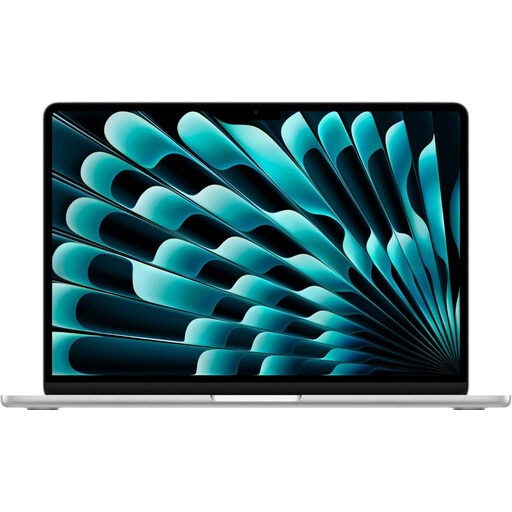 No image available
Apple 15-inch MacBook Air M5, 16 GB, 1 TB SSD, Silver
Consider this variant if you prefer the listed 15-inch built-in screen for your macOS genealogy workflow. Apple UK specifies support for up to two external displays on the M5 MacBook Air.
The title identifies a 16 GB memory and 1 TB SSD variant; confirm that these are the specifications of the configuration supplied. Check your monitor connection plan and application requirements before buying.
Joybuy
Questions about two-screen genealogy work
Does two screens mean I need two external monitors?
No. Your two screens could be the laptop display and one monitor, or two external monitors. Decide which layout you mean before checking a laptop’s display specifications; Microsoft Support explains how connected Windows displays can be identified, arranged and extended.
Can an M5 MacBook Air run two external monitors?
Apple UK specifies support for up to two external displays on the M5 MacBook Air, including two displays up to 6K at 60Hz. Check the exact model, your monitors’ requirements and the cables, adapter or dock you plan to use; display support does not establish genealogy-software compatibility.
Would a dock help with a family-tree workstation?
A compatible dock can give you a repeatable desk connection for displays and peripherals. Dell UK lists multiple display modes for its Pro Thunderbolt 4 Smart Dock, but you must check those modes against the laptop and monitors you select.
Can I use Family Tree Maker on either Windows or Mac?
Family Tree Maker 2024 has separate Windows and macOS versions, so check the requirements for the version you intend to use. Software MacKiev lists Windows 10 x64 or later for its Windows version; also check your tree-transfer and backup options before switching operating systems.
How should I set up the screens for long research sessions?
Place the screens where you can read and compare records comfortably, and change activity or take breaks during extended sessions. The Health and Safety Executive warns that poorly designed display-screen workstations can contribute to discomfort and fatigue.


