For a Windows-based home-maintenance desk, an exact laptop configuration with HDMI and video-capable USB-C offers direct connection options; if your records and applications work on macOS, Apple says the M5 MacBook Air supports up to two external displays. A compatible hub can make reconnecting at a desk simpler, but its display outputs do not establish what the laptop itself can drive. Decide whether you need the laptop screen plus one monitor or two external monitors, then check the exact machine, cables and essential software against that arrangement.
Who is this setup for?
Two-screen home organisers
If you keep a maintenance tracker open beside invoices, manuals, a calendar or browser research, establish whether your second workspace will be an external monitor or a second built-in screen. Two external monitors in addition to the laptop screen call for a different display check.
Windows spreadsheet and document users
If your records depend on Windows applications, folders, PDFs and browser accounts, check software compatibility before choosing a connection arrangement. For external displays, verify the exact laptop’s HDMI and USB-C video capabilities rather than relying on the laptop family name.
Portable household administrators
If you move between a desk and other places where you handle household paperwork, consider both the built-in screen and what happens when you reconnect your monitors. Microsoft Support describes Windows settings for arranging detected displays to match their physical positions.
What should you check before choosing?
Settle the number of screens you want to use at once, then check the laptop’s display outputs and your everyday applications. Only then decide whether direct cables or a compatible hub make more sense for your desk.
| Concern |
What to check |
Who this matters to |
| Display connections |
Check the exact configuration’s external-display count, USB-C video capability and supported monitor connections. |
I want my tracker and reference documents visible together, so I need the intended screens to work simultaneously. Around 36% of consumers put display connectivity first. |
| Software fit |
Confirm that essential spreadsheet, document, account and peripheral software works on the operating system you choose. |
If my maintenance records rely on a particular application, changing operating systems could disrupt the workflow. For around 29% of consumers, software compatibility is the primary concern. |
| Use away from the desk |
Compare built-in screen size and carrying needs; check how your display arrangement behaves when monitors are reconnected. |
I also handle paperwork away from my usual desk, so the laptop has to remain useful on its own. Portability comes first for around 21% of consumers. |
| Desk setup |
Match existing monitor inputs to the required cables or adapters, and check a hub’s video and charging compatibility if using one. |
I would rather settle the cables and charging arrangement before setting up a permanent workspace. Around 14% of consumers chiefly want a straightforward desk setup. |
Common setup mistakes
-
Assuming every USB-C socket carries monitor video
A USB-C socket alone does not establish that the selected laptop can drive another display. Lenovo notes that ports can vary between ThinkPad E14 Gen 7 Intel configurations.
Check the exact part number for USB-C or Thunderbolt video support and the stated external-display arrangement before ordering.
Choosing a connection that cannot carry the required video may mean changing the adapter, dock or laptop.
-
Planning the laptop but not its connections
A one-cable desk setup still depends on the laptop, hub, monitors and charging equipment working together. HP describes display outputs and USB-C power pass-through for its Universal USB-C Multiport Hub, but those hub features alone do not establish laptop compatibility.
List your monitors’ inputs and the cables, adapters and charging equipment needed for the complete arrangement.
A hub and suitable display cables may be additional items to obtain.
-
Ignoring where the screens will sit
Even connected screens can feel awkward when the on-screen arrangement does not match their positions on the desk.
After connecting displays to a Windows laptop, use the display settings described by Microsoft Support to identify and arrange them, then check that the pointer moves between screens as expected.
Relevant brands to consider
Lenovo
A reference point for a Windows desk setup is the ThinkPad E14 Gen 7 Intel. Lenovo UK lists configuration 21SX0046UK with Windows 11 Pro, 16 GB memory and a 512 GB SSD.
- Lenovo PSREF describes HDMI and USB-C/Thunderbolt connections and external-display support for specified E14 Gen 7 Intel configurations.
- Some ports are limited to selected models, so confirm the exact part number and intended display arrangement.
Apple
The M5 MacBook Air is a macOS option if your household records and essential applications work on that platform.
- Apple UK says the M5 MacBook Air supports up to two external displays while its built-in display remains active.
- Plan for compatible USB-C/Thunderbolt display connections or adapters rather than a built-in HDMI connection, and check any Windows-only software you need.
ASUS
ASUS has Windows laptop configurations worth checking when you want stated display connections or two built-in work areas.
- Joybuy describes the Zenbook 14 OLED UX3405CA-QL241W with HDMI 2.1 and two Thunderbolt 4 ports; the Zenbook DUO UX8406CA-QL135W is identified as a dual-screen laptop.
- Ports or two built-in screens do not by themselves establish how many additional monitors an exact configuration can drive. Check the model documentation against your intended setup.
Joybuy laptop choices for this workspace
These laptops represent different ways to keep home-maintenance records visible: M5 MacBook Air models for a macOS setup, a Zenbook DUO with two built-in screens, and a Windows Vivobook for which you should check the intended external-monitor arrangement. Choose by the screens and applications you actually need, not by port names alone.
 No image available
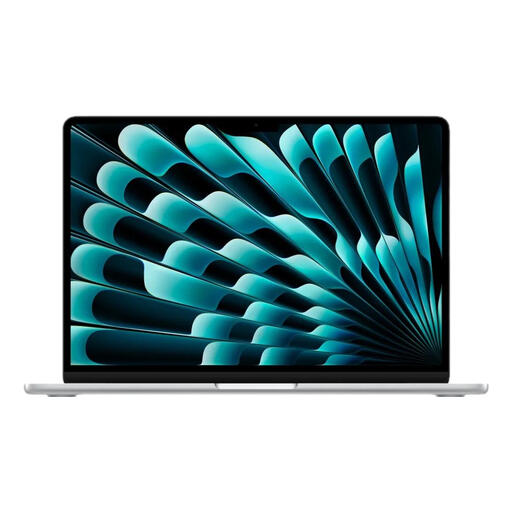
Apple MacBook Air 13-inch (2026, M5), 16GB, 1TB SSD, Silver
Consider this 13-inch macOS laptop if your maintenance applications work on macOS and you want to connect external displays. Apple UK states that the M5 MacBook Air supports up to two external displays alongside its built-in screen.
This variant has a 10-core CPU, 10-core GPU, 16GB memory and a 1TB SSD. Check your monitors’ connections, cables and any essential Windows-only software before choosing it.
Joybuy
 No image available
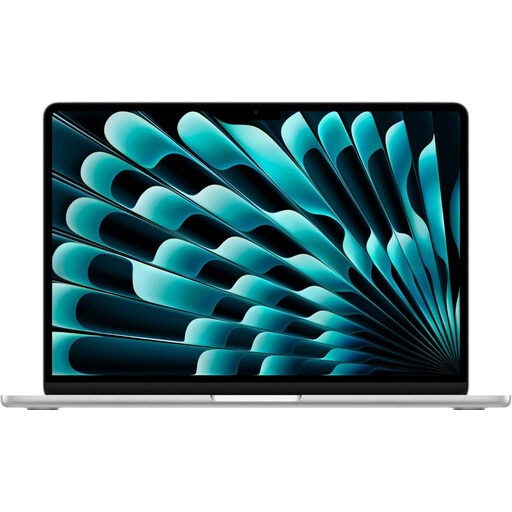
Apple MacBook Air 15-inch (2026, M5), 16GB, 1TB SSD, Silver
The 15-inch built-in screen gives you a larger workspace when the external monitors are disconnected. Apple UK states that the M5 MacBook Air supports up to two external displays while its built-in screen remains active.
This variant specifies a 10-core CPU, 10-core GPU, 16GB memory and a 1TB SSD. Confirm the required monitor connections and compatibility of your maintenance applications.
Joybuy
 No image available
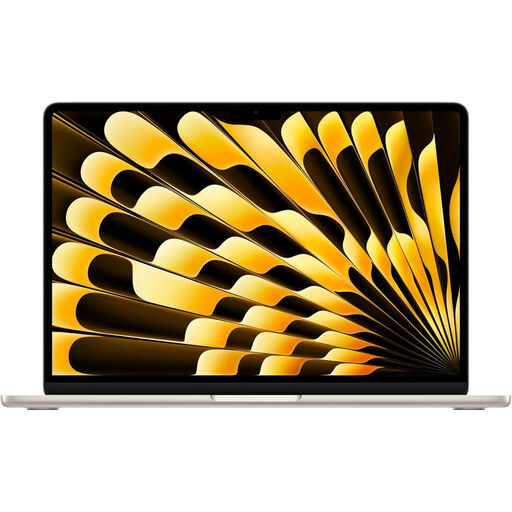
Apple MacBook Air 15-inch (2026, M5), 16GB, 512GB SSD, Starlight
This 15-inch option suits a macOS record-keeping setup if your applications are compatible and you want a larger built-in screen away from the desk. Apple UK documents support for up to two external displays on the M5 MacBook Air.
The listed configuration has a 10-core CPU, 10-core GPU, 16GB memory and a 512GB SSD. Match your monitor inputs to suitable cables or adapters before ordering.
Joybuy
 No image available
ASUS Zenbook DUO UX8406CA-QL135W 14-inch Dual OLED Touch, 16 GB, 1 TB SSD
Choose this route to consider two built-in work areas rather than starting with a separate monitor. Its name identifies a dual OLED touch laptop with an Intel Core Ultra 7 255H processor and 16 GB LPDDR5X RAM.
Confirm the exact screens’ resolution before purchase. If you mean two external monitors in addition to the laptop, check that capability separately for this configuration.
Joybuy
 No image available
ASUS Vivobook 14 X1407QA-LY003W Copilot+ PC, Snapdragon X, 16GB, 512GB SSD, Quiet Blue
Consider this Windows laptop if your home-maintenance work depends on Windows applications and you plan to connect it to a desk display. The named configuration has a 14-inch form factor, Snapdragon X processor, 16GB memory and a 512GB SSD.
Before choosing cables or a hub, confirm the exact configuration’s video outputs and whether it can drive your intended monitors simultaneously at their required resolutions.
Joybuy
Questions about two-screen laptops
Do I need two HDMI ports to use two screens?
No. Depending on the laptop and the number of external monitors you intend to use, a setup can combine HDMI with video-capable USB-C or Thunderbolt, or use a compatible dock. Lenovo PSREF describes HDMI and USB-C/Thunderbolt connections for specified ThinkPad E14 Gen 7 Intel configurations; confirm the exact laptop’s simultaneous display support before choosing cables.
How do I arrange two screens on a Windows laptop?
Once Windows detects the connected displays, open Settings, then System and Display to identify and arrange them to match their positions on your desk. Microsoft Support also describes settings for remembering window locations when monitors are reconnected.
Can an M5 MacBook Air use two external monitors?
Yes. Apple UK says the M5 MacBook Air supports up to two external displays while its built-in display remains active. Check your monitors’ inputs, the required cables or dock, and any application compatibility you depend on before purchase.


