Decide whether your two screens will be the laptop and one monitor, two external monitors, or two built-in laptop displays before choosing a model. A laptop-and-monitor setup needs a confirmed display output; two external monitors require the exact laptop configuration to support both, along with any dock or adapters you plan to use. If you often work without a monitor, weigh the built-in screen against how easily you need to move the laptop.
Who each setup suits
Fixed-desk account reviewers
If you reconcile statements, bills and spreadsheets at one desk, decide whether the laptop screen will be part of your working area or whether you need two external monitors. That choice determines what display support to check.
Portable account keepers
If you review accounts in different rooms but connect a monitor at home, a compact laptop may suit your routine. Check the exact model's display-capable ports before relying on a direct cable or dock.
On-laptop spreadsheet users
If you regularly enter figures away from an external monitor, give the built-in display more attention. Keep external-display compatibility as a separate check for the times you return to your desk.
What matters when choosing
Laptop screen plus one monitor
Choose this when: You want a spreadsheet on one screen and statements or bills on the other, without buying a second external monitor.
Check: The selected laptop needs a display output that works with your monitor and cable; the shape of a USB-C port alone does not establish video support.
Two external monitors
Choose this when: You want both working screens at a fixed desk, whether the laptop stays open or closed.
Check: Confirm the laptop's supported external-display count and the complete dock, cable and monitor arrangement. Lenovo notes that its USB-C Dock Gen 2's actual video output depends on the connected computer.
| Concern |
What to check |
Who this matters to |
| Display compatibility |
For the exact laptop configuration, confirm the required number of display outputs and whether its HDMI, USB-C or Thunderbolt connections support your intended monitors. |
If I keep accounts at a desk, I need to know that both screens will work before choosing a dock or cables. Around 50% of consumers put confirmed display compatibility first. |
| Built-in screen comfort |
Compare the selected variant's screen size, resolution and finish, and confirm its memory configuration. |
When I enter figures without a monitor, I want enough room on the laptop display to read statements and work in a spreadsheet. Built-in screen comfort comes first for around 30% of consumers. |
| Moving between rooms |
Check the exact variant's size and weight, then whether its display-capable port works with your home monitor or dock. |
I put the laptop away or carry it to another room, but still want a straightforward way to connect a screen at my desk. Around 20% of consumers prioritise that portable setup. |
Mistakes to avoid
-
Assuming every USB-C port carries video
A USB-C connector does not, by itself, establish compatibility with an external display. Lenovo states that its cited dock requires a laptop with the relevant USB-C display mode or Thunderbolt support.
Read the ports specification for the exact laptop configuration before choosing a USB-C monitor cable, adapter or dock.
-
Relying on the dock's monitor claim alone
Lenovo says its USB-C Dock Gen 2 can support up to two 4K displays at 60 Hz, but that actual video output depends on the computer. The dock's stated capability is not a guarantee for every laptop.
Check the laptop, dock, monitor resolutions and cables together against the arrangement you intend to use.
-
Choosing by screen size or memory alone
A larger built-in screen and the memory you want for standalone work do not establish whether the laptop can drive your external monitors.
Confirm display-output support for your setup, then compare screen and memory configurations for the work you do away from the desk.
-
Overlooking the exact variant
Port and memory configurations can differ between models in the same range. A specification for one variant should not be applied to another without checking its model number.
Before ordering, match the seller's model number to the manufacturer's display specifications and check the listed keyboard, charger and warranty details.
Relevant brands to consider
Lenovo
The ThinkPad E14 Gen 6 Intel is a useful specification reference for a desk setup involving external monitors.
- Lenovo PSREF lists HDMI, display-capable USB-C and Thunderbolt 4/USB4 connections, with support for up to four independent displays including the laptop panel.
- Check the current model number and its own display documentation before applying those capabilities to a laptop you plan to buy.
ASUS
The Zenbook 14 UX3480 is relevant when you want a compact laptop with several documented direct display-connection options.
- ASUS lists HDMI 2.1 TMDS, Thunderbolt 4 with display support and another display-capable USB-C port for the UX3480.
- ASUS lists 16 GB of onboard memory as the model's maximum total system memory; choose a different configuration or model if a later RAM upgrade is essential.
Dell
Latitude 3550 configurations are relevant if you frequently work on the laptop display without a monitor.
- Dell lists 15.6-inch Full HD IPS anti-glare display options and multiple memory configurations for the Latitude 3550.
- Confirm the exact configuration's external-display support and current availability before planning a two-monitor desk around it.
HP
HP's laptop range includes models that can be considered when filtering for a USB-C or Thunderbolt desk connection.
- HP Store UK groups Thunderbolt-capable laptops in its listings, providing a starting point for identifying individual models to examine.
- Check the exact laptop's specifications for its external-display count, resolution and refresh-rate support before choosing monitors or a dock.
Joybuy product choices
These choices cover a laptop to consider for use with an external monitor and a laptop with two built-in screens. Confirm the exact external-display support before planning to connect further monitors or a dock.
 No image available
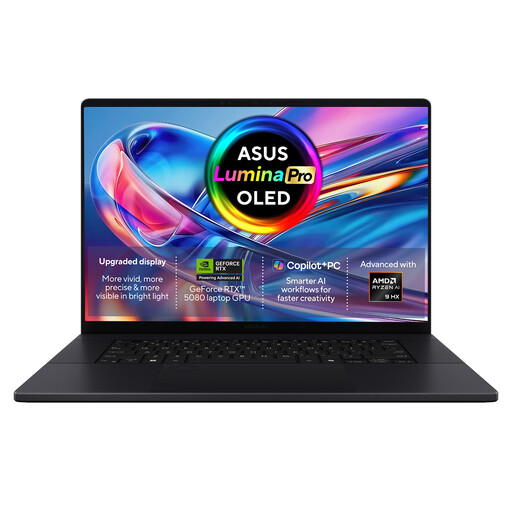
ASUS ProArt P16 H7606WW-SE006W, 16-inch 4K OLED touchscreen
Consider this model if you want to work on its built-in screen alongside an external monitor, subject to confirming the connection for your monitor. The named variant has 64 GB RAM and a 2 TB SSD. Check its supported external-display arrangement separately if you need two external monitors.
View on Joybuy
 No image available
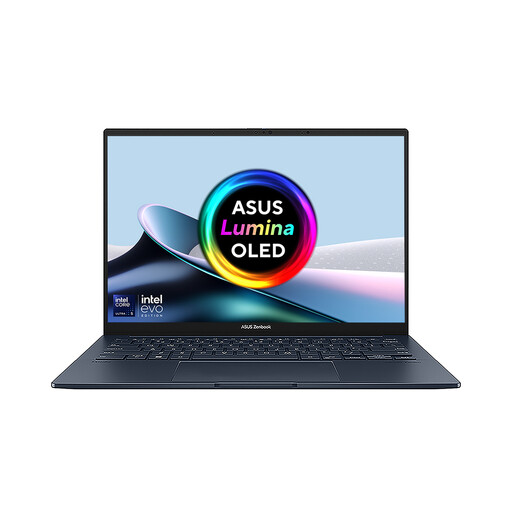
ASUS Zenbook DUO UX8406CA-QL135W, dual 14-inch OLED screens
Its two built-in screens offer a way to view an accounts spreadsheet and supporting documents without an external monitor. The named Intel Core Ultra 7 255H variant has 16 GB RAM and a 1 TB SSD. Confirm the exact panel resolution and external-display support if you intend to add a monitor.
View on Joybuy
Common questions
Does a two-screen setup need one external monitor or two?
Either arrangement can give you two working screens. A laptop display plus one monitor needs one compatible display output; two external monitors require the exact laptop configuration to support both, including through any dock you use.
Can a USB-C dock connect two monitors to my laptop?
It can if the laptop, dock and intended displays are compatible. Lenovo says its USB-C Dock Gen 2 can support up to two 4K displays at 60 Hz, but actual video output depends on the computer, so check the laptop's USB-C display mode or Thunderbolt support.
How do I arrange the screens in Windows?
After connecting the displays, open Windows display settings and arrange them to match their positions on your desk. Microsoft Support explains that Windows 11 lets you adjust settings for each connected display.
Should I buy display adapters before choosing a laptop?
Choose the exact laptop configuration and confirm its video-capable ports first. Then match the monitor inputs and any adapter to those ports; do not assume that a USB-C connector supports video solely because a plug fits.


