Choose the screen arrangement before comparing laptop specifications. For a fixed desk with two external monitors, look for a laptop with documented independent display output and check the complete connection path, including any dock. If you work away from a desk, an integrated dual-screen laptop or a conventional laptop with a portable monitor may suit you better, provided its layout works for your plotting software and data.
Who needs which setup?
Desk-based weather-data plotters
If you compare charts, raw observations and spreadsheets at a fixed workspace, decide whether you need two external monitors rather than two screens in total. Check that the laptop, connection path and monitors can provide the extended layout you intend to use. Lenovo Support GB advises checking the connectors documented for the exact PC.
Portable field-to-desk analysts
If you review weather records away from a permanent workspace, consider whether a compact portable monitor or an integrated dual-screen laptop gives you enough room for both charts and source data. ASUS lists dual-display Zenbook DUO models, while Dell offers a portable monitor; either route calls for a check of the working layout and connections.
What matters when choosing?
Decide whether you need two external monitors or two screens in total, then confirm the laptop’s display outputs before matching its configuration to your applications and data.
| Concern |
What to check |
Who this matters to |
| Independent display output |
Check the exact laptop configuration’s supported external-display count and resolution. If using a dock, check its compatibility with the laptop, monitors and cables. |
If I keep charts and raw observations on separate external monitors, I need both to extend my workspace rather than merely mirror it. Roughly 42% of consumers put confirmed independent output first. |
| Plotting-workload fit |
Check the system requirements of your plotting, spreadsheet, coding or GIS applications against the processor, memory and storage configuration. |
When I work with larger weather files or several applications at once, I need a laptop configuration that fits those tasks. Around 33% of consumers prioritise workload fit. |
| Portable second screen |
Check screen size, working layout, video connections and power needs for an integrated second display or portable monitor. |
When I review records away from my desk, I want charts beside the source data without carrying two desktop monitors. Roughly 25% of consumers make a portable second screen their primary concern. |
Mistakes to avoid
-
Assuming every USB-C port carries video
A USB-C connector alone does not establish that a laptop can output a display signal. ASUS ROG UK Support notes that not all USB-C connectors support displays.
Check the exact laptop model’s technical specifications or manual for video output and the number of external displays it supports.
-
Checking the dock but not the laptop
A dock’s published display capability does not establish what every connected laptop can deliver. Lenovo Support GB advises checking the PC’s connectors in its user guide.
Confirm the laptop’s documented output alongside the specific dock, monitor inputs, cables and intended resolution.
-
Choosing specifications before defining the workload
The configuration needed for spreadsheet charts may differ from one needed for larger datasets or simultaneous plotting, coding and GIS tasks.
List the applications, expected file sizes and concurrent tasks, then compare the laptop configuration with the applications’ system requirements.
-
Confusing two screens with two external monitors
An integrated dual-screen laptop, a laptop with one portable monitor and a laptop driving two external monitors provide different physical layouts.
Decide which displays need to be separate from the laptop before choosing the machine and accessories.
Relevant brands to consider
ASUS
A reference point for an integrated dual-screen laptop rather than a setup built around two external monitors.
- ASUS lists Zenbook DUO models with two 14-inch displays and multiple operating modes.
- Check the exact configuration, its connections and your software requirements; the product-line description does not establish support for additional external displays.
Dell
A reference point for dock-based desk setups and portable-monitor accessories.
- Dell specifies dual 4K displays at 60 Hz for its SD25TB4 dock and a 14-inch, 1920 × 1200 display for its P1425 portable monitor.
- Those accessory specifications do not establish that a particular laptop can drive the intended display arrangement.
HP
A reference point if you are considering a multiport hub for two external displays.
- HP lists HDMI 2.0, DisplayPort 1.2 and dual 4K display support for its Universal USB-C Multiport Hub.
- Match the hub’s published capability to the host laptop’s video output and the intended monitors.
Lenovo
A reference point for checking a conventional laptop’s documented monitor connections model by model.
- Lenovo Support GB directs users to the relevant PC user guide to check its available connectors.
- That guidance does not mean every Lenovo laptop supports two external displays; confirm the exact model and configuration.
Joybuy products for this setup
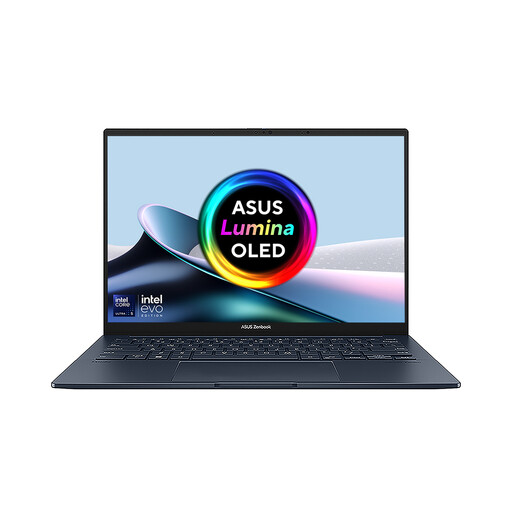
This integrated dual-screen laptop is an option if you want two built-in displays for plotting and reviewing records without carrying a separate monitor. Check your software requirements and the exact screen configuration before deciding whether it suits your work.
 No image available
ASUS Zenbook DUO UX8406CA-QL135W, 14-inch dual OLED touch
Consider this integrated dual-screen design if you want separate plotting and data views without a portable external monitor.
The listed configuration has an Intel Core Ultra 7 255H processor, 16 GB LPDDR5X RAM and a 1 TB SSD. Check those specifications against your plotting applications and datasets.
Confirm the exact panel resolution before purchase, as the listing’s descriptions and detailed specifications disagree. If you also intend to attach external monitors, check support for their number and resolution separately.
Joybuy
Common questions
Will any USB-C laptop run two external monitors?
No: a USB-C connector does not by itself confirm video output or support for two external monitors. ASUS ROG UK Support notes that not all USB-C connectors support displays; check the exact laptop configuration’s documented output and supported display arrangement.
Do I need a dock for two external displays?
Not necessarily: direct connections are an option if the laptop has two suitable, documented video-output paths. If you prefer a dock, check both its display specification and compatibility with the host laptop; Dell lists dual 4K at 60 Hz for its SD25TB4 dock, but that dock specification alone does not establish what a given laptop can output.
How do I arrange the screens after connecting them?
In Windows, open Settings, then System and Display to identify and arrange the connected screens, as described by Microsoft Support. Check the physical connections first, then select an extended layout if you want charts and source data on separate workspaces rather than duplicated screens.
What else should I check for a complete two-screen setup?
Check which monitors, video cables or adapters, dock connections and power arrangements your chosen layout requires. Do not assume the laptop comes with the dock or adapter needed for your intended connections.


