If you usually lay out forms at one desk, choose an exact laptop and monitor setup with documented support for two simultaneous external displays. A built-in dual-screen laptop makes more sense when the second working panel must travel with you; a MacBook Air is another desk-based option if your tools work on macOS and its documented display limits match your monitors.
Who each setup suits
Desk-based web layout workers
If your form editor, browser preview and references stay open at one desk, focus on an exact laptop and connection setup that supports your two external monitors. Microsoft Support documents how to arrange connected displays in Windows, while dock capabilities vary by device and configuration.
Mobile two-screen designers
If you need an editor and preview visible between workspaces, a laptop with two built-in screens lets you use both panels without carrying separate monitors. Check whether its screen sizes and keyboard arrangement suit the way you work.
macOS-first interface workers
If your design, browser-testing and collaboration tools work on macOS, a MacBook Air can be considered for a docked two-monitor workspace. Apple UK documents support for two external displays on its current MacBook Air specifications; match the exact model and connected equipment to your intended setup.
What to check before choosing
Decide whether the second screen needs to travel with the laptop. Then check the complete display arrangement—not just a port name—against the monitors and applications you plan to use.
| Concern |
What to check when buying |
Who this matters to |
| Two external displays at a desk |
Check the exact laptop’s simultaneous display limits and the dock’s supported modes at your monitors’ resolutions and refresh rates. |
I want a separate form editor and browser preview at my regular desk, without finding that the connected screens cannot run as intended. Around 50% of consumers put dependable desk-based dual-monitor output first. |
| A portable second screen |
Check the built-in panels’ size and arrangement, including how the keyboard is positioned. |
When I work away from my desk, I need a second panel I can take with the laptop rather than relying on a monitor being available. For around 30% of consumers, that portable workspace is the primary need. |
| macOS with two monitors |
Confirm your required apps work on macOS and match the exact Mac model’s display limits to your monitors and connections. |
My existing layout and team tools need to work on macOS, but I still want an editor and preview on separate external screens. Keeping that workflow is the first concern for around 20% of consumers. |
Setup mistakes to avoid
-
Assuming a USB-C port guarantees two-monitor support
The laptop, dock, cables and monitors must work together at the intended display settings; the connector alone does not establish that they will.
Check the exact laptop’s simultaneous display specification and the dock’s supported resolutions, refresh rates and connection requirements before choosing either device.
An incompatible connection may mean changing the dock, adapters or cables.
-
Choosing built-in dual screens for work that stays at a desk
A portable second panel addresses a different need from two separately positioned desk monitors. ASUS describes the Zenbook DUO UX8406’s detachable keyboard and kickstand, an arrangement worth considering alongside your usual working position.
If you rarely work away from your desk, compare that arrangement with a conventional laptop connected to your intended monitors.
-
Duplicating displays instead of extending the desktop
Duplication shows the same content on both screens, rather than giving your form editor and browser preview separate spaces.
In Windows display settings, choose an extended layout and arrange the detected screens to match their positions on your desk, as described by Microsoft Support.
Relevant brands to consider
ASUS
The Zenbook DUO line is worth considering when both working screens need to be part of a portable laptop.
- ASUS describes the Zenbook DUO UX8406 with two OLED touchscreens, a detachable keyboard and a built-in kickstand.
- Check whether its panel sizes and keyboard placement suit your work; built-in screens do not offer the same positioning as separate desk monitors.
Apple
MacBook Air is a route for people whose contact-form tools work on macOS and who want two external displays at a desk.
- Apple UK’s current MacBook Air specifications state support for up to two external displays.
- Check the selected model’s display limits and your monitor and dock connections, as well as application compatibility.
Lenovo
ThinkPad T-series laptops offer a Windows business-laptop route for a planned desk and dock setup.
- Lenovo publishes display-output configurations for ThinkPad systems in docking and non-docking setups.
- Match the precise laptop variant and dock to your monitors; a configuration documented for one ThinkPad setup should not be assumed for another.
HP
An OmniBook Ultra configuration is another conventional Windows-laptop option to examine for external-display work.
- HP Store UK states that its listed OmniBook Ultra 14 configuration can connect up to two 4K displays through a single Thunderbolt 4 cable.
- That capability is specific to the stated configuration; confirm the exact OmniBook model and connected equipment before relying on it.
Joybuy products for a portable setup
This built-in dual-screen option is for contact-form work when the second panel needs to travel with the laptop.
 No image available
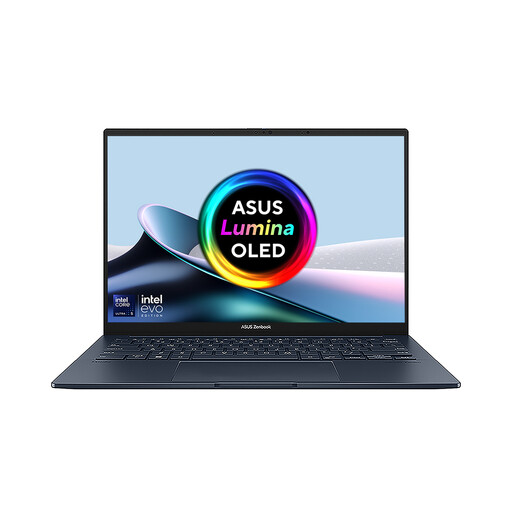
ASUS Zenbook DUO UX8406CA-QL135W, 14-inch dual OLED touch laptop
Consider this built-in dual-screen model if you need a form editor and preview while working away from a fixed monitor setup.
The listed configuration has an Intel Core Ultra 7 255H processor, 16 GB LPDDR5X RAM and a 1 TB SSD.
Confirm the exact screen resolution before ordering. If you also plan to connect two external monitors, check this configuration’s simultaneous display support against your dock, cables and monitors.
View on Joybuy
Questions about two-screen setups
Will any laptop with USB-C run two external monitors?
No: a USB-C connector alone does not establish two-monitor support. Check the exact laptop’s simultaneous display limits, the monitors’ resolutions and refresh rates, and the capabilities of the port, dock and cables.
How do I give the form editor and preview separate screens in Windows?
Use an extended desktop rather than duplicated displays. Microsoft Support advises arranging detected screens in Windows display settings so their on-screen positions match the physical monitors.
Can a MacBook Air use two external monitors alongside its own screen?
Apple UK’s current MacBook Air technical specifications state support for up to two external displays while using the built-in display. Check the exact model’s stated resolutions and refresh rates against your monitors and connections before buying.
Do I need a dock for two external monitors?
Not necessarily; it depends on the laptop’s supported connections and how you want to connect your monitors and other desk equipment. If you use a dock, check both its display modes and its compatibility with the exact laptop rather than relying on the dock’s outputs alone.


