Handout writers comparing documents
Keep a handout open on one screen while referring to PDFs, browser pages or a school platform on the other. Native resolution matters when you want room for text and tables.


For document-heavy handout preparation, two 27-inch QHD monitors provide more native pixels per screen than a 27-inch Full HD option. Check that your computer or dock supports two external displays before choosing direct connections or a USB-C and DisplayPort daisy chain. If video calls are equally important, an integrated webcam may matter more to you than the extra document space.
Keep a handout open on one screen while referring to PDFs, browser pages or a school platform on the other. Native resolution matters when you want room for text and tables.
Video, charging and peripherals may share a connection, but check the laptop's external-display limit and the required ports and cables before planning a daisy chain.
A built-in webcam, microphone or speakers may reduce separate equipment. Decide whether those features matter more than additional pixels for documents.
Confirm support for two external displays first; then choose the resolution, connections and physical layout that fit your handout workflow.
| Concern | What to check | Who this matters to |
|---|---|---|
| Two-display connections | Check the computer's external-display limit and the ports, dock and cables needed for the intended arrangement. Do not assume a USB-C socket supports video or a DisplayPort MST chain. | If I need a handout and reference material on separate extended screens, the connection must work with my laptop or dock. Around 36% of consumers put reliable two-display connectivity first. |
| Document space | Compare native resolution, not just screen size: the 27-inch Dell U2724D and BenQ GW2790QT are 2560 × 1440 QHD, while the 27-inch LG 27BA850-B is 1920 × 1080 Full HD. | When I edit text beside tables or source material, I want enough pixels on each screen without making the content uncomfortable to read. Around 29% of consumers prioritise document space. |
| Desk fit and adjustment | Measure room for both stands and cables; check height and pivot adjustment if you want to turn a screen towards portrait pages. | I need both displays, my papers and my input devices to fit without an awkward viewing position. For around 21% of consumers, physical placement is the main concern. |
| Call equipment | Decide whether you need a built-in webcam, microphone, speakers or wired-network connection. LG lists these features for the 27BA850-B, which has a Full HD panel. | If I regularly move from handouts to online meetings, I may value fewer separate peripherals. Around 14% of consumers put integrated call equipment first. |
A USB-C connector alone does not establish video output or the number of displays a computer supports. BenQ lists DisplayPort-out MST for the GW2790QT, but that monitor feature cannot establish compatibility with every laptop or dock.
Check the computer and dock specifications for the exact two-display arrangement before choosing cables.
Depending on those connections, you may also need a dock, adapter or additional cable.
A 27-inch Full HD screen has fewer native pixels than a 27-inch QHD screen. That distinction matters when document space, rather than integrated call equipment, drives your choice.
Compare native resolutions alongside the text-scaling setting you would find comfortable.
Adjustment and portrait rotation are useful only if both screens have enough clearance on your desk.
Measure usable width and depth, including cable space, and check each stand's footprint or mounting requirements before ordering.
A compatible monitor arm may be needed if the stands do not fit your planned layout.
A Joybuy page for the Dell U2724D lists that product as unavailable; a past listing cannot establish what you can order now.
Check the full model number, current availability, seller and warranty details on the product page before purchasing.
Dell's UltraSharp U2724D is a reference point for a matching QHD document-work setup.
The GW2790QT is relevant when a QHD document screen and fewer laptop connections are both priorities.
The 27BA850-B combines a document display with equipment for video calls and laptop connections.
These monitors offer different screen sizes and resolutions for a two-screen handout workspace. Choose the connection layout separately according to what your computer or dock supports.
 No image available
Consider this IPS WQHD model when document space is a priority. If you plan to charge a laptop through the monitor, confirm that its USB-C power delivery meets the laptop's requirements; also check support for two external displays.
 No image available
This IPS QHD model is another option for a handout and reference-screen layout. Check the exact model's USB-C connection before relying on it, and confirm that your computer or dock can run both displays.
 No image available
Its listed 27-inch QHD resolution makes it an option for document viewing alongside a second screen. The 240Hz specification is gaming-focused rather than a requirement for preparing handouts; check your computer's two-display connections.
 No image available
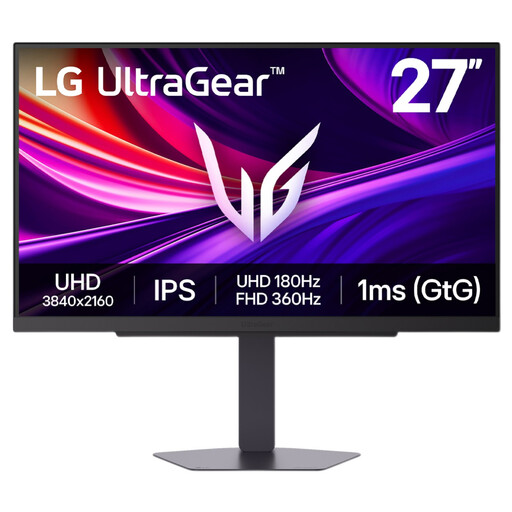
The listed 27-inch 4K UHD screen is an option if native resolution is central to your document setup. Confirm the stand's pivot specification if portrait handouts matter, as well as your computer's support for two displays.
 No image available
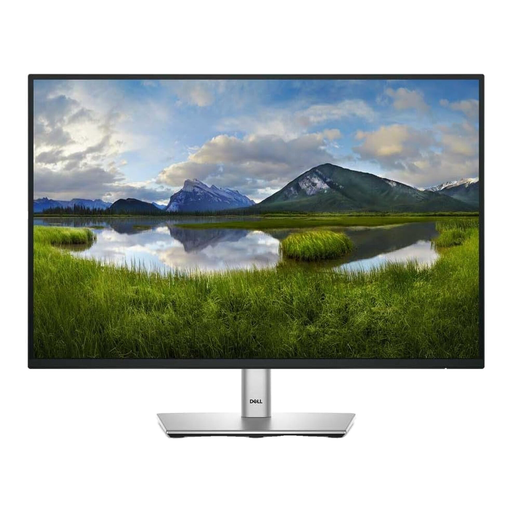
Consider this 24-inch model if that screen size suits your available desk space. Confirm its connection options, particularly USB-C if you need it, and check that your computer or dock supports the planned second display.
No. Check the laptop or dock's supported number of external displays and its ports before buying monitors or adapters. Apple Support advises checking the display limit for your particular Mac; Microsoft Support explains how to arrange connected screens in Windows.
It can only do so when the computer or dock supports the intended arrangement. BenQ UK lists USB-C DisplayPort Alt Mode and DisplayPort-out MST for the GW2790QT, but those monitor-side ports do not establish what a particular laptop can drive.
Set the connected displays to an extended desktop rather than mirroring. Microsoft Support advises identifying and arranging them in Windows display settings so the on-screen positions match their physical placement.
GOV.UK says a seller must provide a full refund if an item is faulty, not as described or does not do what it is supposed to. A change-of-mind return is a separate question: check the applicable rules and the retailer's voluntary policy without treating that policy as a limit on remedies for faults.