Choose a laptop with two built-in displays if the second workspace needs to travel between rehearsals and venues. If most programme editing happens at a desk, a conventional laptop with confirmed support for two external monitors is another route; in either case, check the required software and file workflow before choosing the hardware.
Who each setup suits
Mobile programme coordinators
If you move between rehearsal rooms, backstage areas and venues while editing copy, performer lists and schedules, two built-in displays give you a second work area without relying on a venue monitor. ASUS and Lenovo both describe integrated dual-screen laptop options.
Desk-based programme editors
If most editing happens at a venue office or home desk, external monitors can keep the programme document, correspondence and reference material visible together. Microsoft describes how to arrange connected displays in Windows, while Apple specifies support for two external displays on the M5 MacBook Air.
What to check before buying
Decide whether the second screen must travel with the laptop or stay at a desk, then check the software and connections for the exact setup you intend to use.
Built-in dual-screen Windows laptop
Choose when: Programme copy and schedules need separate work areas as you move between locations; ASUS and Lenovo describe models with two integrated 14-inch displays.
Allow for: The screen and keyboard arrangement must suit sustained editing, and two displays alone do not establish software compatibility.
Windows laptop with external monitors
Choose when: Most editing takes place at one desk and you want to arrange separate monitors around the programme workspace using Windows display settings, as described by Microsoft Support.
Allow for: The laptop, any dock, cables and monitors must support the intended arrangement together.
MacBook Air with external monitors
Choose when: Your programme tools and shared files work on macOS and editing happens mainly at a desk; Apple specifies up to two external displays with the M5 MacBook Air’s built-in display active.
Allow for: External displays and the necessary connections remain part of the desk setup, not a second screen that travels inside the laptop.
| Concern |
What to check |
Who this matters to |
| Portable second workspace |
Check the exact model’s two-display layout and whether its keyboard arrangement suits sustained editing. |
When I am editing programme copy between rehearsal rooms, I need my sources visible without setting up a separate monitor. Around 40% of consumers would put a portable second workspace first. |
| Two-monitor desk setup |
Check the laptop’s external-display support and the intended monitors, cables and dock as one setup. |
At a regular editing desk, I would rather arrange the document and reference material across separate monitors. For around 30% of consumers, a dependable desk setup is the main concern. |
| Software and file compatibility |
Confirm the application version and operating-system support, plus the file, font, printing and peripheral requirements of your workflow. |
If collaborators depend on particular programme files or tools, I need those to work before screen layout matters. Software and file compatibility would come first for around 30% of consumers. |
Buying pitfalls
-
Assuming any USB-C port or dock will run two monitors
A dock’s display specification does not establish what every connected laptop and monitor combination can deliver. Microsoft Support also notes that Windows display arrangement begins after the screens are connected.
Check the exact laptop, monitor inputs, cable types and any dock against the resolutions and refresh rates you intend to use.
A dock, adapters and cables add equipment to manage at the desk.
-
Choosing the screens before checking programme software
Two displays do not tell you whether the required notation, publishing or scheduling application will run on the laptop, or whether collaborators can use its files.
Identify the application and version, then confirm operating-system support, file exchange and any required fonts, licences, printers or peripherals before choosing Windows or macOS hardware.
-
Assuming built-in displays will replace desk monitors
Integrated screens travel with the laptop, but their layout may not be the one you want for longer editing sessions at a fixed desk.
Work out where most programme preparation will happen and compare the usable screen and keyboard arrangement there, not just the number of panels.
Relevant brands to consider
ASUS
The Zenbook DUO range offers a Windows route for carrying two laptop displays between work locations.
- ASUS specifies dual 14-inch displays for the Zenbook DUO UX8406 and lists two Thunderbolt 4 ports, USB-A and HDMI in its UX8406 material.
- Check the exact model configuration, screen layout and required programme application before choosing a variant.
Lenovo
The Yoga Book 9i Gen 10 is another portable Windows approach with two integrated displays.
- Lenovo’s UK listing specifies two 14-inch 2.8K OLED touch displays and a bundled Bluetooth keyboard for the cited configuration.
- That configuration lists soldered memory, so select the memory and storage configuration with the intended applications in mind.
Apple
The M5 MacBook Air is a conventional-laptop route for a macOS-compatible workflow using external displays at a desk.
- Apple specifies support for up to two external displays while the built-in display remains active.
- Confirm that the programme tools and files work on macOS, and plan the required monitors and connections separately.
Joybuy products for mobile two-screen work
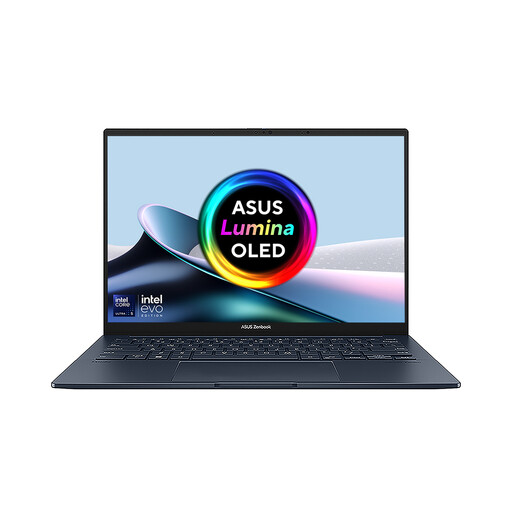
This integrated dual-screen laptop is relevant if programme copy and reference material need to stay visible while you move between locations. Check your application requirements and the exact display configuration before buying.
 No image available
ASUS Zenbook DUO UX8406CA-QL135W, dual 14-inch OLED touchscreens, 16 GB, 1 TB SSD
The two built-in displays suit programme editing when a separate monitor cannot travel with you.
- Detachable keyboard and Intel Core Ultra 7 255H.
- Confirm that 16 GB memory meets the requirements of your applications and files.
- Check the display resolution for this exact configuration, along with programme-software and peripheral compatibility.
Joybuy
Questions about two-screen setups
Do I need a laptop with two built-in screens?
Not if most concert-programme work happens at a desk: a laptop with confirmed support for two external monitors is another option. Built-in displays are more relevant when the second work area needs to travel with you; check the software requirements for either setup.
What should I check before connecting two external monitors?
Check the exact laptop’s external-display specification alongside the monitor inputs, cables and any dock. A dock’s stated capability alone does not establish what the complete setup will support; Microsoft Support describes how to detect and arrange displays in Windows after connection.
Can an M5 MacBook Air use two external monitors while its own screen stays on?
Yes. Apple specifies support for up to two external displays while the M5 MacBook Air’s built-in display remains active. Before choosing it for concert-programme work, confirm that the required applications and shared files work on macOS.
Can a retailer take back my old laptop when I buy a new one?
GOV.UK says a retailer must accept an equivalent old electrical product free of charge on a like-for-like basis when you buy a new electrical product. Check the retailer’s take-back arrangements when organising the replacement.


