Two matching 27-inch QHD monitors are a practical option if you want minutes on one screen and reference material on the other, provided your desk and computer can accommodate two independent extended displays. A compatible USB-C hub or daisy-chain setup may simplify cabling, but check the laptop, dock and connections before buying; screen positioning matters just as much during long editing sessions.
Who is this setup for?
Minutes editors who cross-reference documents
Keep the minutes open on one display while consulting an agenda, action log, transcript or earlier minutes on the other. An extended desktop lets you arrange these as separate work areas; Microsoft Support explains how to arrange multiple displays in Windows.
Laptop-based hybrid workers
If you reconnect a work laptop at a desk, a monitor hub or suitable dock may make the setup tidier. Check the laptop’s external-display support, the dock’s connections and any charging requirement before choosing the screens.
Long-session document workers
Editing and proofreading lengthy minutes calls for a layout you can position comfortably. The Health and Safety Executive’s display screen equipment guidance covers screen placement and workstation assessment, including work carried out at home and in the workplace.
What matters when choosing?
Decide whether you need two separately positioned screens or whether stacked windows on one display would suit the task. Then confirm the computer can drive the layout before comparing monitor features.
Two separate monitors
Choose when: You want the minutes and supporting material visible on independently positioned screens.
Allow for: Desk width and a computer or compatible dock that can drive two extended displays.
One display with stacked windows
Consider when: Desk width matters more than having two physical panels, and you can work with windows above and below each other.
Accept: Windows on one panel cannot be positioned independently like two monitors. LG’s DualUp 28MQ780-B illustrates the layout, but LG UK labels that model discontinued.
| Concern |
What to check |
Who this matters to |
| Independent displays |
Check the computer’s supported external-display count and the intended dock or output connections. Microsoft Support notes that a splitter duplicates a signal rather than creating two independent displays. |
If I need to edit minutes while keeping an agenda visible, both screens must show different content. Around 31% of consumers put independent-display compatibility first. |
| Screen positioning |
Check desk depth and the stand’s adjustment options. The Health and Safety Executive advises placing the top of the screen around eye level and the screen about an arm’s length away. |
During long editing sessions, I need to position the displays without continually turning or reaching awkwardly. Comfortable placement comes first for around 25% of consumers. |
| Document workspace |
Compare native resolution and whether the secondary screen can pivot if you want to read long references vertically. Check the operating system’s display arrangement and scaling controls. |
When I compare draft minutes with a transcript or action log, I want both documents arranged so I can follow the text. Around 25% of consumers prioritise visible document workspace. |
| Desk and cables |
Measure the space for both screens and check whether a compatible USB-C hub, dock or daisy-chain connection meets the laptop’s display and power requirements. |
At a desk where I regularly reconnect a laptop, I want the screens to fit without making every connection cumbersome. A manageable footprint and cable layout lead the choice for around 19% of consumers. |
Mistakes to avoid
-
Assuming a splitter creates two workspaces
Microsoft Support explains that a splitter duplicates one display signal; it does not create two independent extended desktops for minutes and reference documents.
Check the computer’s supported external-display count and plan connections that allow Extend mode.
A compatible dock, graphics adapter or different cabling may be needed for the intended arrangement.
-
Choosing screen size without checking placement
Two panels can be difficult to position comfortably if the desk lacks width or depth. The Health and Safety Executive advises considering the screen as part of the whole workstation.
Measure the desk, decide which screen you will face most often and check stand adjustment or monitor-arm compatibility.
A suitable arm or riser may be needed if the supplied stands cannot position the screens as required.
-
Assuming every USB-C connection does the same job
A monitor’s charging or daisy-chain feature does not establish that a particular laptop can power the monitor connection or drive both displays.
Match the exact monitor variant, laptop, dock and cables to the required display count and charging needs before ordering.
-
Treating one tall display as two separate monitors
Stacked windows may suit some documents, but they do not provide two independently positionable panels. LG UK also marks the DualUp 28MQ780-B discontinued.
Use a single-display layout only if stacked windows meet your workflow; for a requirement to position two screens separately, choose two monitors.
Monitor lines to consider
Dell UltraSharp
Dell’s U2724DE is an example of a 27-inch QHD hub monitor for a laptop-based two-screen desk.
- Dell UK lists Thunderbolt 4, up to 90 W power delivery, digital daisy chaining and height, pivot, swivel and tilt adjustment for the U2724DE.
- Confirm that your laptop and any dock support the intended two-display connection; the monitor’s features alone cannot establish that.
Lenovo ThinkVision
The ThinkVision P27q-30 illustrates a 27-inch QHD route for a matching pair, with DisplayPort output for a compatible multi-screen connection.
- Lenovo UK specifies DisplayPort input and output, HDMI and a USB hub for this model.
- Check device compatibility and current availability before planning a pair around the P27q-30.
BenQ
BenQ’s GW2790QT combines a 27-inch QHD display with connection and stand features relevant to a document-editing desk.
- BenQ UK specifies 65 W USB-C power delivery, a hub, daisy chaining and height, tilt, pivot and swivel adjustment for the GW2790QT.
- Check whether the laptop supports the intended display connection and can use the stated charging capability.
HP E-Series
HP’s E27q G5 is an example to consider when adjustable 27-inch QHD screens matter more to your plan than a monitor-based hub.
- HP specifies a 2560 × 1440 panel, an anti-glare finish and height, tilt, swivel and pivot adjustment for the E27q G5.
- If your setup needs laptop charging or daisy chaining through the monitor, check the exact model’s connections before purchase.
LG Ergo
LG’s 27QP88DP-BS offers a desk-mounted approach for buyers considering a clamp or grommet fitting.
- LG UK lists a C-clamp and grommet mounting option, USB-C power delivery and DisplayPort daisy chaining for the 27QP88DP-BS.
- Check the desk’s suitability for the mount and the computer’s support for the intended connections. LG’s separate DualUp 28MQ780-B illustrates a stacked single-screen layout but is labelled discontinued.
Joybuy monitors for a two-screen setup
These monitors are individual display choices for a minutes-editing desk. If you plan to use two, check how each screen will fit and connect as a pair; a monitor’s listed features do not confirm that your computer can drive two independent extended displays.
 No image available
ASUS ProArt PA278CV IPS WQHD
Consider this as a document-editing screen if its position and connections suit your planned pair.
The product name identifies an IPS WQHD variant. Check the exact connections and your computer’s two-display support before buying.
View on Joybuy
 No image available
ASUS ProArt PA278CFRV IPS QHD 100Hz
Consider this QHD screen for minutes and supporting documents if it fits your desk and display connections.
The product name specifies an IPS panel and 100Hz refresh rate. Confirm the exact regional variant’s USB-C connection and charging capability if either is important to your setup.
View on Joybuy
 No image available
Samsung Odyssey G6 S27DG612 27-inch QHD OLED
Its stated size and QHD resolution make it a candidate for one position in a document-editing pair, subject to desk fit.
The product name also specifies 240Hz and 0.03ms, though those gaming-oriented figures do not establish an advantage for editing minutes. Check your computer’s support for two extended displays.
View on Joybuy
 No image available
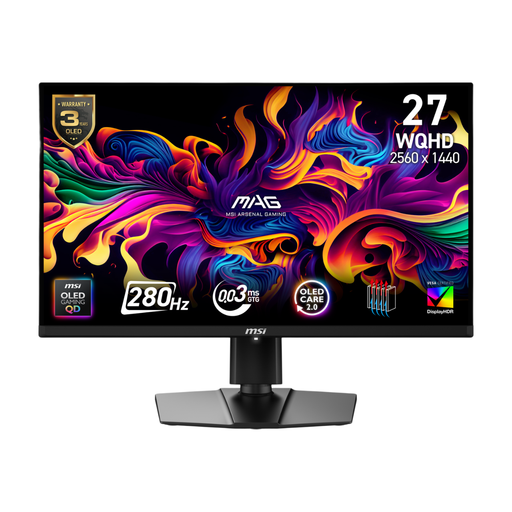
MSI MAG 271QP QD-OLED X28 QHD
Consider this QHD display as one screen for minutes or references if its dimensions work alongside your other monitor.
The product title calls it 27-inch, while its technical details specify a 26.5-inch panel; confirm the size if you want closely matched screens. Its listed USB-C power delivery is 15 W, so check the laptop’s charging requirement separately.
View on Joybuy
 No image available
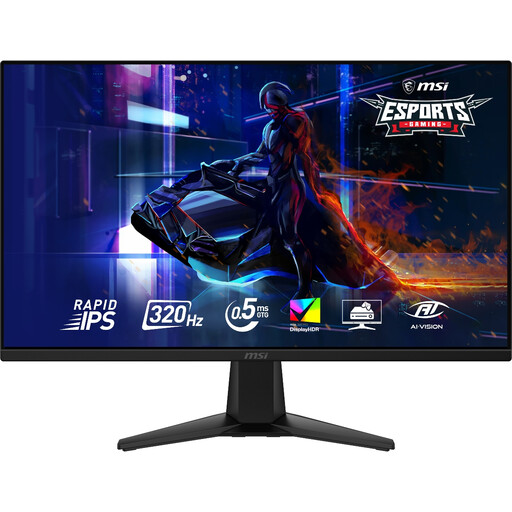
MAG 275QF X32 27-inch WQHD Rapid IPS
This 27-inch WQHD display is another candidate for a two-screen document layout if its connections match your computer.
The product name specifies 2560 × 1440 resolution. Check whether its stand and your desk allow the placement you need, particularly if you want one screen in portrait orientation.
View on Joybuy
Frequently asked questions
Can any laptop run two external monitors for editing meeting minutes?
No; the laptop’s graphics hardware and any dock must support the number of external displays you intend to use. Microsoft Support advises checking the display adapter’s capabilities and explains that a simple splitter duplicates a signal rather than creating two independent work areas.
How do I show different content on each screen in Windows?
Use an extended desktop rather than a duplicated display. Microsoft Support advises identifying the connected monitors in Windows display settings and dragging their on-screen arrangement to match their positions on the desk.
Does screen placement matter if I work from home?
Yes; screen placement is part of the workstation setup at home as well as in an office. The Health and Safety Executive says assessments should cover both settings when workers use display screen equipment in each, and advises positioning the top of the screen around eye level and the screen about an arm’s length away.
How should I position two monitors for long editing sessions?
Position the screen you consult most directly in front of you, then arrange the second so you can refer to it without sustained twisting. Check both displays against the Health and Safety Executive’s general screen-positioning guidance and adjust the desk, stands and input devices as a complete workstation.


