Frequent side-by-side reviewers
If the source, draft and terminology resources need to stay visible throughout a review, separately arranged display areas reduce the need to keep switching windows.


For frequent comparisons between a source text and a translation draft, choose two independently positioned displays if your computer supports them and your desk has room. A laptop plus one external monitor keeps two screens in use with less additional equipment, but you must check display and connection support. One tall monitor can give long documents more vertical space, though its windows cannot be positioned independently like two physical screens.
If the source, draft and terminology resources need to stay visible throughout a review, separately arranged display areas reduce the need to keep switching windows.
An external monitor can hold the main draft while the laptop shows source text or notes. Check the laptop's supported external-display count, ports and required cables before choosing a connection.
A tall panel can make room for vertically arranged documents on one screen. It does not offer the independent placement of two monitors.
Decide whether independently placed source and draft windows matter more than desk space, then check that your computer can drive the arrangement you want.
Choose when: You compare source and draft throughout the day and want to position each screen separately.
Allow for: Desk width, two monitor positions and a computer or dock that supports both external displays.
Choose when: The laptop screen can hold reference material while a larger external screen holds the draft.
Allow for: The laptop and monitor may sit at different heights; USB-C alone does not establish video or charging compatibility.
Choose when: Vertical document space matters more than having two independently placed screens.
Allow for: Split windows share one panel and cannot be moved or angled separately.
| Concern | What to check | Who this matters to |
|---|---|---|
| Separate source and draft | Check the computer's supported display count and whether each document can remain visible at a comfortable text size. | If I compare wording and punctuation line by line, I want both documents in view without covering either one. Around 31% of consumers put that separation first. |
| Vertical space on a compact desk | Compare aspect ratio and resolution, then check the stand or arm dimensions against your desk. | When desk width is tight, I would rather see more of a long passage than spread windows across two stands. Roughly 23% of consumers prioritise that compact, vertical workspace. |
| Computer and cable compatibility | Confirm external-display support, video output through the intended port and, if needed, USB-C charging requirements. | I need the screen to connect to my existing laptop without relying on a port's shape as proof of what it can do. About 23% of consumers make connection compatibility their primary concern. |
| Workstation adjustment | Check screen height and angle adjustment, and consider reflections from your room lighting. | For sustained document review, I want to position the screen and manage glare as part of the whole desk setup. Around 23% of consumers place workstation adjustment first. |
A USB-C connector does not establish video-output capability, supported external-display count or whether a monitor's power delivery meets the laptop's requirements.
Check the exact computer model, monitor connection and cables before ordering. Apple Support advises Mac users to check their model's display support, ports and adapters.
Depending on the connection, you may also need a compatible cable, adapter, dock or separate laptop charger.
A 3:2 or 16:18 screen can accommodate vertically arranged documents, but both windows remain on the same physical panel.
Choose separate monitors when you need to adjust each screen's height or angle independently; consider a tall panel when desk space and vertical reading room take priority.
The Health and Safety Executive's display screen equipment guidance considers the workstation, lighting and work routine together, rather than the monitor alone.
Plan screen position, lighting and input devices together. Where the display screen equipment rules apply to your work, use your employer's workstation assessment process.
A laptop riser, external keyboard, mouse or changes to the desk arrangement may also be needed.
LG UK identifies the DualUp 28MQ780-B as discontinued. Its specifications can illustrate the 16:18 format without establishing that the model is currently available.
Confirm the exact model and current availability before using it as an alternative to a monitor you can buy now.
Dell's UltraSharp U2725QE illustrates a conventional 27-inch monitor for a laptop-plus-monitor desk or a separately assembled pair.
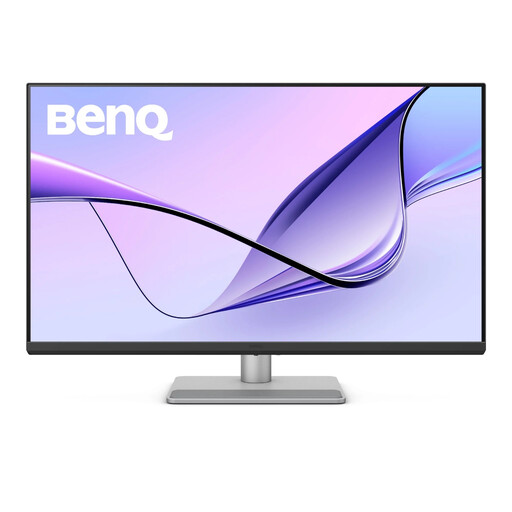
BenQ's RD280UA is a reference for buyers considering a taller screen for long documents rather than two conventional monitors.
LG's DualUp 28MQ780-B illustrates a 16:18 screen for vertically arranged documents or Picture-by-Picture working.
These individual 4K monitors are options for an external screen alongside a laptop or as one screen in a separately assembled pair. Check your computer's display support, connections and available desk space before choosing.
 No image available
Consider this as an external draft screen while keeping source material on a laptop or another display.
The title specifies an IPS panel, USB-C and a height-adjustable stand. Check USB-C video and charging compatibility with your computer, and whether a glossy screen suits your lighting.
 No image available
This is an option for keeping a translation draft on an external display while another screen shows the source.
The title specifies an IPS panel, USB-C with 65 W power delivery and Google TV. Confirm that the intended USB-C connection carries video and that 65 W meets your laptop's charging needs.
 No image available
Consider it as one display in a two-screen document-checking arrangement.
The title specifies an IPS panel, HDMI and DisplayPort connections, and 60 Hz refresh rate. Check that your computer has a compatible video connection; if you need USB-C video or laptop charging, confirm those requirements separately.
 No image available
This conventional-format screen is an option for viewing a source document or draft beside another display.
The title specifies a 16:9 aspect ratio. Check the video connection your computer will use and confirm USB-C video and power delivery if your laptop setup requires them.
 No image available
Consider the larger screen if you want an external document view and have room for it on your desk.
The title specifies an IPS panel, USB-C and a height-adjustable stand. Check the computer's display and charging requirements, the monitor's dimensions and whether a glossy surface suits your lighting.
No: the computer must support video through the intended port and the planned number of external displays, while its charging requirements must match the monitor's power delivery. Apple Support advises Mac users to check the exact model's display support, ports, cables and adapters.
Extend the desktop if you need the source and draft visible independently; mirroring shows the same desktop on both screens. Microsoft Support and Apple Support describe display-arrangement controls for Windows and Mac respectively, so set the on-screen layout to match the physical screens.
The Health and Safety Executive's display screen equipment guidance does not prescribe a particular monitor size, resolution or brand. In Great Britain, its rules cover workers who use display screen equipment daily for continuous periods of an hour or more; employers must assess the whole workstation and manage the risks, rather than treating monitor choice as the assessment.
No. Eye-care modes are product features or manufacturer claims, whereas Health and Safety Executive guidance addresses screen arrangement, lighting, the wider workstation and breaks or changes of activity. Assess how the screen fits your working position rather than relying on a mode name.