What to check before choosing
Decide how both screens will connect before choosing their size or desk mount. Separately connected monitors, a daisy chain and a shared-arm package solve different parts of the setup question: a shared arm positions screens, but does not establish that the computer can drive them.
| Concern |
What to check |
Who this matters to |
| Two-screen connection |
Confirm the computer or dock supports two external displays at the intended settings. For daisy-chaining, check the exact monitor's video output, cable path and stated resolution limit. |
If the second screen cannot run as intended, I cannot keep a form and its supporting records visible together; around 33% of consumers put connection reliability first. |
| Readable document space |
Compare each screen's stated resolution with its physical size, and check that both screens fit on the desk. Consider whether the required display scaling makes forms and tables comfortable to read. |
When I move between a questionnaire and a spreadsheet or map, I want enough readable space on each display; for around 27% of consumers, that workspace is the primary need. |
| Screen positioning |
Check stand adjustment and usable desk width and depth. A shared C-clamp or grommet arm also needs a suitable mounting position. |
Long stretches of entering responses make it important to place both screens for the task and avoid awkward positioning; around 27% of consumers chiefly prioritise workstation adjustment. |
| Calls and desk accessories |
Check whether you need an integrated camera, microphone, speakers, Ethernet or USB-C charging, and whether the laptop supports the required connection and power delivery. |
If I also coordinate the survey through regular video calls, I may want fewer separate devices on the desk; collaboration and accessory consolidation come first for around 13% of consumers. |
Brands relevant to these setups
These named product lines illustrate different ways to build a two-screen desk; a brand name alone does not establish the connection or mounting features of another model.
Dell
Dell's Pro 27 Plus QHD USB-C Hub Monitor P2725DE is an example of a standalone screen for a matching pair.
- Dell lists a 27-inch QHD IPS panel and a stand with height, tilt, swivel and pivot adjustment for the P2725DE.
- A pair still requires a computer or dock that can drive two displays; the monitor model does not establish that capability.
LG
LG has both the shared-arm 27QP88D-BS dual-monitor configuration and standalone USB-C models with desk-connection features.
- LG specifies two 27-inch QHD panels and QHD/60Hz daisy-chaining for the 27QP88D-BS. Its 27BA850-B lists a webcam, microphone, speakers, Ethernet and USB-C power delivery up to 90W.
- Check desk compatibility for the shared mount and computer compatibility for the intended video and charging connections.
HP
HP offers named professional-monitor options with conferencing or multiple-monitor connection features.
- HP states that the Series 5 Pro 527pm can daisy-chain another compatible Series 5 Pro monitor and lists 100W USB-C power delivery. Its Series 7 Pro 727pu lists DisplayPort input and output.
- Confirm support for the intended display arrangement on the connected computer and the exact second monitor.
Lenovo ThinkVision
ThinkVision includes QHD monitors that Lenovo describes for multiscreen desk workflows.
- Lenovo describes DisplayPort daisy-chaining on the ThinkVision T27h-30 as a way to connect multiple screens from one device.
- Lenovo documents a P27h-30 daisy-chain case in which the second monitor could not reach native resolution. Check the exact computer, cable and display configuration.
Individual monitors to consider
These are individual monitors to consider for separately connected screens, not complete two-monitor packages. Check the computer's two-display support before choosing a pair; if you want daisy-chaining, confirm that capability for the exact arrangement separately.
 No image available
ASUS ProArt PA278CV IPS WQHD
Consider this individual WQHD screen if you are assembling a matching pair for documents and reference material.
The product title identifies an IPS panel. Confirm the required video connections and stand adjustment for your desk, as well as the computer's support for both displays.
Joybuy
 No image available
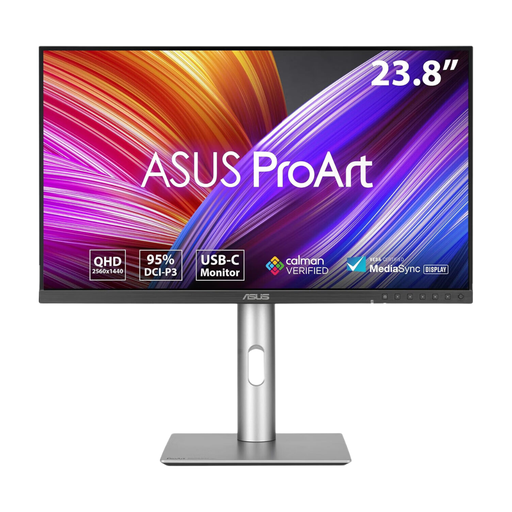
ASUS ProArt PA24ACRV IPS QHD
Consider this individual QHD monitor where a matching pair suits your document layout.
The product title identifies an IPS panel. Check the screen dimensions against your desk and viewing preferences, and confirm the connection and charging requirements of any laptop you plan to use.
Joybuy
 No image available
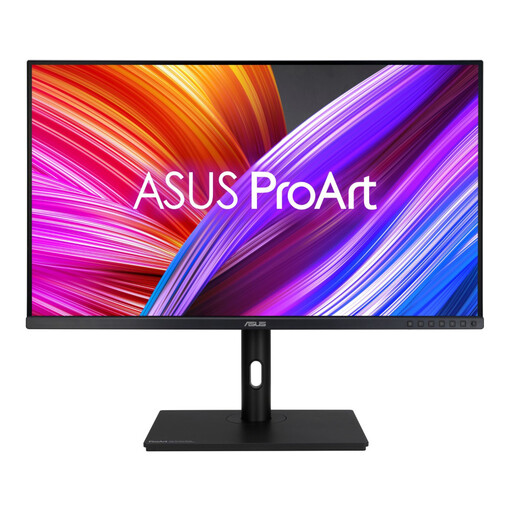
ASUS ProArt PA328QV IPS WQHD
Consider this individual WQHD display if its physical dimensions fit the space available for a two-screen desk.
The product title identifies an IPS panel. Measure the desk for the intended pair and confirm that the computer or dock can drive both screens.
Joybuy
 No image available
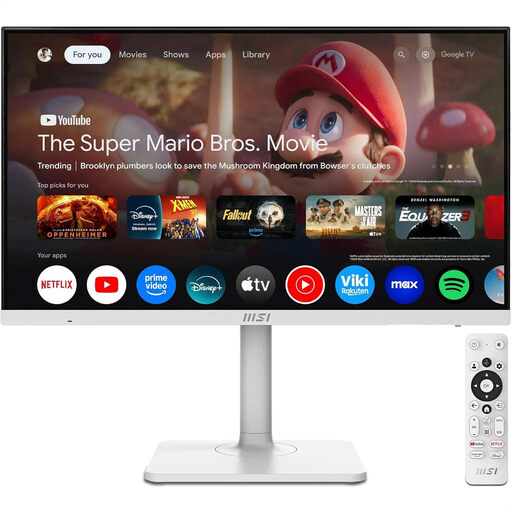
MSI MD272UPSW 27-inch 4K UHD Smart Monitor with Google TV
Consider this individual 4K screen if you want to assess a higher-resolution option for survey documents or maps alongside a second display.
The product title specifies an IPS panel, Dolby Audio, Multi-Control and USB-C power delivery up to 65W. Check whether the laptop supports the required video and charging connection, whether 4K scaling suits you and whether it can drive two screens at the intended settings.
Joybuy
Frequently asked questions
Do two monitors have to be daisy-chained?
No. You can connect two monitors separately if the computer or dock supports two external displays. Choose daisy-chaining only after checking the computer, cables and exact monitors; LG specifies QHD/60Hz for the 27QP88D-BS chain, while Lenovo documents a P27h-30 configuration in which the second display could not reach native resolution.
Are two 27-inch QHD screens a useful starting point for survey planning?
Yes, if you need independent areas for a working document and reference material, have room for both screens and can connect them at the intended resolution. Dell's P2725DE is a named 27-inch QHD example; compare screen positioning and the connection path before assuming any pair will suit your desk.
Can a USB-C monitor charge a laptop and replace a dock?
It can cover some dock functions if the laptop supports the required USB-C video and charging connection and the monitor provides enough power and ports for your equipment. LG lists USB-C power delivery up to 90W for the 27BA850-B, and HP lists 100W for the 527pm; check the laptop's requirements and how the second display will connect.
When do UK display screen equipment duties matter for this desk?
The UK Health and Safety Executive says the Display Screen Equipment Regulations apply to workers who use display screen equipment daily for continuous periods of an hour or more. Where those conditions apply, the employer must assess the workstation and reduce risks; whether a community-survey role is covered depends on the person's work and circumstances, not simply on buying two monitors.


