What should you check before buying?
For a circuit-simulation laptop with a two-screen workspace, establish your display layout and simulator requirements first, then decide how much portability matters.
| Concern |
What to check |
Who this matters to |
| Two-screen connectivity |
Confirm the exact number of screens, their resolutions and refresh rates, and the laptop’s documented outputs. If using a dock, check its protocol and host compatibility. |
I want a schematic and its waveforms visible at the same time without discovering that my monitor arrangement cannot connect; around 46% of consumers put reliable screen connections first. |
| Software and workload |
Check your simulator’s version and operating-system support, then assess memory and processing options against your model complexity and concurrent tools. |
If I run larger models or several engineering applications together, I need a configuration suited to that workload; roughly 36% of consumers make software compatibility and simulation headroom their primary concern. |
| Portability |
Compare the exact laptop’s weight and configuration with how often you will carry it and where you will use the second screen. |
When I move between study, lab and home, I need a laptop I can carry while still setting up two screens where I work; about 18% of consumers prioritise that balance. |
Relevant brands to consider
These product ranges and accessories offer different points to investigate; check the precise laptop and connection setup rather than treating a brand name as a compatibility guarantee.
Lenovo
ThinkPad P-series mobile workstations are a route to consider for demanding engineering applications, while Lenovo’s workstation docks are relevant to a fixed multi-monitor desk.
- Lenovo describes P-series models as mobile workstations with independent software vendor certification for major applications.
- Check certification for your specific application and configuration. Lenovo’s cited dock requires compatible USB-C Alt-Mode, DisplayLink or Thunderbolt support on the host.
HP
HP positions selected ZBook mobile workstations for simulation workflows, making the range relevant when your projects call for configurable hardware.
- The ZBook range offers configurations aimed at different engineering workloads, according to HP.
- A family’s positioning does not establish the ports, portability or suitability of the particular configuration you choose.
Dell
Dell Precision is a mobile-workstation route; a Dell Pro Thunderbolt dock is a separate accessory to investigate for a desk with two external monitors.
- Dell lists dual 4K displays at 60 Hz for its Pro Thunderbolt 4 Smart Dock SD25TB4.
- That is a dock specification, not confirmation that an arbitrary laptop and monitor combination supports the same mode.
ASUS
ProArt laptops are worth considering if circuit work shares a laptop with visual or other demanding applications.
- ASUS lists USB4 Type-C among the features of its ProArt P16 range.
- ProArt’s creative-work positioning does not establish simulator compatibility or the external-display modes of a particular model.
Joybuy laptops for different setups
These laptops offer different starting points: built-in dual screens, a laptop-and-monitor desk arrangement, or a higher-memory configuration. Check your simulator and the precise display connection before choosing.
 No image available
ASUS Zenbook DUO UX8406CA-QL135W, dual OLED touchscreens
Consider its two built-in screens if you want separate work areas without setting up an external monitor.
The listed configuration has an Intel Core Ultra 7 255H, 16 GB LPDDR5X memory and a 1 TB SSD.
Confirm the exact panel resolution before buying, as the product information gives conflicting figures. Check that your simulator and project workload suit the configuration; two external monitors would require a separate check of supported display modes.
View on Joybuy
 No image available
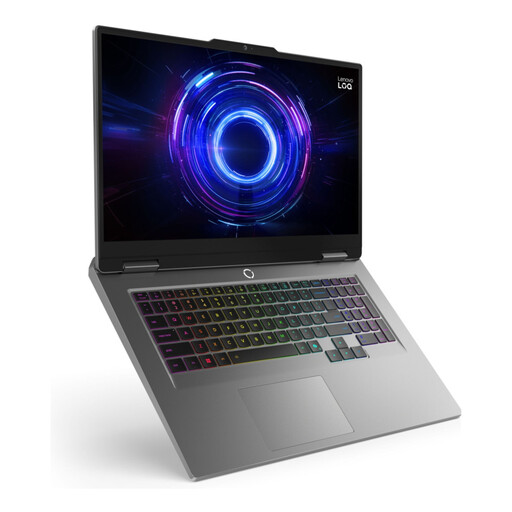
LOQ 17IRX10 i7-13650H, 24 GB, 1 TB
Consider this laptop if you plan to use its own screen alongside an external monitor at a desk.
The product name specifies an i7-13650H processor, 24 GB memory, 1 TB storage and Windows 11 Home.
Confirm the output and supported display mode for your monitor before buying. Check simulator compatibility and whether this configuration suits your projects; the listed 2.9 kg weight also matters if you carry the laptop often.
View on Joybuy
 No image available
Lenovo Legion Pro 7 16IAX10H 83F5000UUK, 64 GB, 2 TB
Consider this configuration if your intended engineering applications call for more memory or you run several demanding tasks together.
The product name lists an Intel Core Ultra 9 processor, 64 GB memory, a 2 TB SSD, NVIDIA GeForce RTX 5090 graphics and Windows 11 Home.
Confirm that those specifications serve your actual simulator and models. For external screens, check the number and display modes supported by the complete connection setup; check the laptop’s weight if portability matters.
View on Joybuy
Frequently asked questions
Can any USB-C laptop run two external monitors?
No: a USB-C connector by itself does not confirm the required display arrangement. Lenovo says its cited docks depend on host support for USB-C Alt-Mode, DisplayLink or Thunderbolt; check the exact laptop, dock and intended monitor modes together.
Should I choose the simulator before the operating system?
Yes, choose an operating system supported by the version of the simulator and any accompanying tools you intend to use. Analog Devices offers LTspice downloads for Windows 10/11 x64, Windows 11 ARM64 and macOS, while National Instruments’ current Multisim installation guidance identifies Windows.
Do I need a mobile workstation for circuit simulation?
Not automatically: base the decision on your models, concurrent applications and required configuration. HP and Lenovo position selected workstation families for demanding workflows, but straightforward simulator work still calls first for software compatibility and a supported two-screen setup.
Does a manufacturer warranty replace my rights if the laptop is faulty?
No. Citizens Advice says warranties and guarantees add to legal rights and provides guidance on remedies when goods are faulty or not as described. Keep the stated specification and purchase documentation if a promised display connection or supplied accessory proves important to the issue.


