Extended-desktop workers
You need different apps or documents on two external screens and computer audio through one Bluetooth speaker. The computer’s supported display count matters more to the screen choice than its Bluetooth connection does.


Choose the video connection and the Bluetooth audio connection as separate jobs unless a specialist HDMI audio-routing device covers both. For two independent computer screens, check the computer’s multi-display support and choose a compatible dock or adapter; for the same image on both screens, use an HDMI splitter. The speaker must then pair with the source or receive audio through a transmitter matched to an available audio output.
You need different apps or documents on two external screens and computer audio through one Bluetooth speaker. The computer’s supported display count matters more to the screen choice than its Bluetooth connection does.
You want the same presentation, programme or console image on both screens. Mirrored video and a compatible route from the source’s audio output to the speaker are the separate priorities.
You already have an HDMI video setup and want to send its audio to a Bluetooth speaker. Check the router’s inputs, audio format and Bluetooth receiver compatibility without assuming that video distribution also provides suitable audio.
Decide whether the screens must show different content or the same image, then identify which device supplies the speaker’s audio. Microsoft Support notes that a display splitter duplicates a signal rather than creating two independent displays.
Choose this when: You need a separate desktop on each external screen and your computer supports the required multi-display output.
Trade-off: A dual-port adapter alone cannot establish what your computer or operating system can drive; check both before choosing a display mode.
Choose this when: Both screens should show one programme, presentation or other shared video source.
Trade-off: An HDMI splitter mirrors the picture but does not create separate workspaces or, by itself, establish a Bluetooth audio connection.
| Concern | What to check | Who this matters to |
|---|---|---|
| Independent displays | Check the computer’s display limit, USB-C video capability, operating-system support and the adapter’s per-screen modes. | If I need different work on each screen, a duplicated picture will not do; around 36% of consumers put independent display capability first. |
| Mirrored video and audio source | Check the splitter’s required video mode and whether the source offers an audio output accepted by the transmitter or extractor. | When both screens show one source, I need its sound to reach the speaker too; roughly 29% of consumers prioritise that shared-viewing route. |
| Speaker compatibility and delay | Confirm the speaker’s receiving mode and any codec needed at both ends; check the transmitter’s accepted source-audio format. | For video or presentations, I want the speaker to pair and the sound to stay acceptably in sync; about 21% of consumers make audio compatibility their primary concern. |
| Setup and power | Map the occupied ports, required cables and transmitter power supply before choosing the components. | I would rather manage fewer boxes and cables, provided the setup still does the job; around 14% of consumers put installation simplicity first. |
A splitter duplicates one display signal; it cannot turn that signal into two independent workspaces, as Microsoft Support explains.
Write down whether the screens need different content. If they do, check the computer’s display limit and the dock or adapter’s host requirements instead.
Choosing the wrong route can mean replacing the splitter with a compatible multi-display dock or adapter.
Audio behaviour depends on the source, transmitter and receiving speaker. Blustream documents different codec behaviour for its BLUARC when two Bluetooth devices are connected.
If lip-sync matters, check the modes supported by both devices and the seller’s applicable return terms before purchase.
An optical or analogue transmitter needs a matching source output. Avantree states that its Oasis Plus 2 does not accept HDMI-only or HDMI ARC/eARC sources.
Inspect the source’s actual ports and check whether its digital output can provide the format required by your chosen transmitter.
A source without a compatible audio output may require a different transmitter or an HDMI audio extractor.
A dual-link claim may apply to headphones rather than speakers. The Bluetooth Special Interest Group describes Auracast as a separate broadcast approach that requires compatible receivers.
If more than one receiver is needed, check its type and the transmitter’s documented simultaneous-connection mode; for Auracast, check every intended receiver.
Relevant to the computer-display side of a two-screen setup.
Relevant where a computer desk setup needs dual HDMI alongside charging and peripheral connections.
Relevant to sending audio from a TV or other AV source to a compatible Bluetooth receiver.
Relevant to specialist HDMI video routing with Bluetooth audio extraction.
These USB-C hubs and docks address the display-connection part of a computer-based two-screen setup. Confirm your computer’s simultaneous-display support separately, and pair the Bluetooth speaker with the computer or choose an audio transmitter that matches an available output.
 No image available
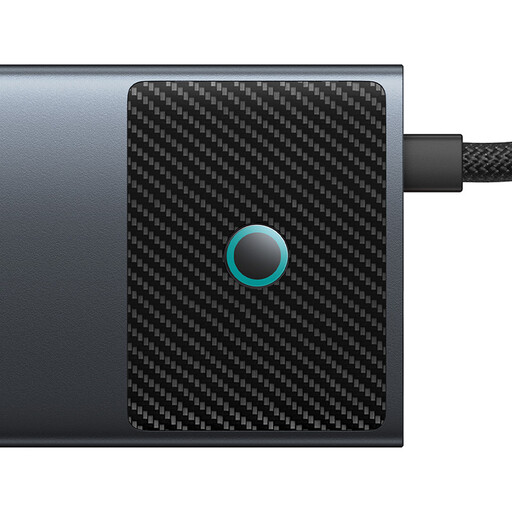
For connecting two HDMI screens to a compatible USB-C computer; confirm the computer’s simultaneous-display modes before buying.
The product name identifies one HDMI output labelled 4K at 120 Hz, another labelled 4K at 60 Hz, USB-A and USB-C data ports, RJ45, SD/TF and a USB-C PD connection. Those per-port labels do not establish the modes available when both screens are in use.
Arrange the speaker’s Bluetooth audio connection separately.
 No image available
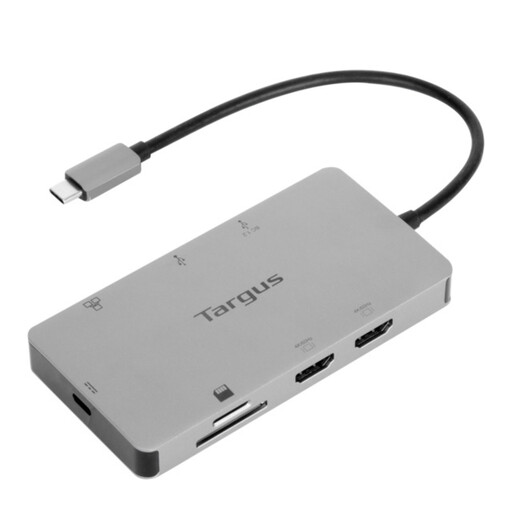
For a computer desk setup needing two HDMI connections; check the host and operating system against the intended two-screen mode.
The product name identifies dual HDMI, 4K and 100W Power Delivery pass-through. Check the required power adapter for the intended setup.
Arrange the speaker’s Bluetooth audio connection separately.
 No image available
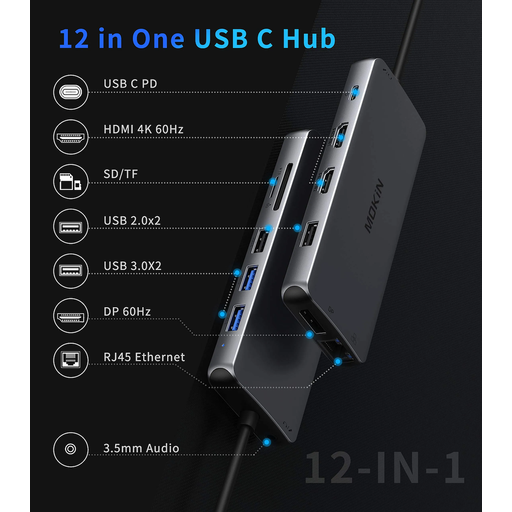
For a computer setup that needs multiple display connections; confirm that the host supports the intended simultaneous screens, resolution and refresh rate.
The product name identifies two HDMI ports, DisplayPort, USB 3.0 and USB 2.0 ports, RJ45, PD, SD/TF and audio. An audio port alone is not a Bluetooth transmitter.
No: an HDMI splitter duplicates a display signal rather than creating two independent workspaces, as Microsoft Support explains. For an extended desktop, choose a multi-display route documented for your computer and operating system.
An ordinary HDMI splitter does not itself establish a Bluetooth audio connection. Pair the speaker with the source if supported, or choose a transmitter or HDMI audio extractor with an input matching the source’s available audio output.
The source’s digital audio format may not match what the transmitter accepts. Avantree’s guidance for its optical-input products calls for PCM or stereo output; check the chosen transmitter’s formats and the source’s output setting before changing the setup.