What matters when choosing two screens?
Decide who will view each screen, then check the planning computer’s two-display capability. For staff-facing screens, compare workspace, placement and connections against the work that will actually happen at the desk.
Matched Full HD desk monitors
Choose when: Staff will view schedules, messages and notes close-up, and the computer has two compatible display paths.
Trade-off: Full HD offers fewer desktop pixels than the QHD and 4K options described by Dell and BenQ.
QHD monitors with USB-C
Choose when: A laptop-led desk needs more pixel space and its connection method has been confirmed.
Trade-off: USB-C alone does not establish support for two extended displays; a daisy chain requires a compatible host and video path.
4K hub monitors
Choose when: Detailed close-viewed work calls for 4K pixel space and the computer can use the hub connections.
Trade-off: Hub features add little to this task if two ordinary, compatible video connections already meet the desk’s needs.
Audience-facing AV equipment
Choose when: Attendees must read content beyond the organiser’s desk.
Trade-off: Screen choice depends on sightlines, lighting, content and the venue’s AV arrangements, not the desk-monitor specification alone.
| Concern |
What to check |
Who this matters to |
| Two-display connection |
Check for two usable video paths, either direct or through a compatible dock or DisplayPort daisy chain. Confirm the required cables and host support. |
If the laptop cannot extend the desktop to both screens, the pair will not serve my planning work. Around 29% of consumers put connection reliability first. |
| Close-viewed workspace |
Compare screen size and native resolution for documents shown side by side; consider matching the two monitors’ size and resolution. |
Keeping a run sheet open beside speaker materials matters more to me than adding connection features. For around 29% of consumers, usable desk workspace is the primary need. |
| Placement and cables |
Check stand adjustment or mounting compatibility, and plan power points and protected cable routes. |
At a shared or temporary desk, I need screens I can position without leaving leads across a route people use. Placement and cable safety come first for around 24% of consumers. |
| Proportionate specification |
For basic staff documents, compare a matched Full HD pair with higher-resolution or hub models; confirm the retail quantity and included cables. |
If I mainly handle schedules and email, I would rather keep the setup uncomplicated than select features I will not use. Around 18% of consumers make that their primary concern. |
Joybuy monitors for a planning desk
These monitors are options for close-viewed staff planning, from Full HD to higher-resolution screens. Check how many monitors each retail selection contains, then confirm that the computer can connect two extended displays. Assess any attendee-facing screen separately against the room and its viewers.
 Image unavailable
ASUS ProArt PA248CNV IPS WUXGA
Consider this for a close-viewed planning position if its connections fit the computer and the intended second-screen arrangement.
- The product name identifies an IPS WUXGA display.
- Confirm the required video path and retail quantity before planning a two-screen setup.
View on Joybuy
 Image unavailable
ASUS ProArt PA278CFRV IPS QHD 100Hz
Consider this for staff who want QHD workspace at a close-viewed planning desk.
- The product name identifies an IPS QHD display with a 100Hz refresh rate.
- Confirm this unit’s connections, particularly if USB-C video is part of the plan, as well as the retail quantity.
View on Joybuy
 Image unavailable
ASUS ProArt PA24ACRV IPS QHD
This is a QHD option to consider where close-viewed planning documents need more pixel space than Full HD provides.
- The product name identifies an IPS QHD display.
- If using a laptop connection, confirm its video mode and how the second monitor will connect; also check the retail quantity.
View on Joybuy
 Image unavailable
ASUS ProArt PA247CV IPS FHD 75Hz
Consider this Full HD model for straightforward, close-viewed staff documents when the computer has a suitable two-screen connection plan.
- The product name identifies an IPS FHD display with a 75Hz refresh rate.
- Confirm the retail quantity and compatible connections before treating the selection as a monitor pair.
View on Joybuy
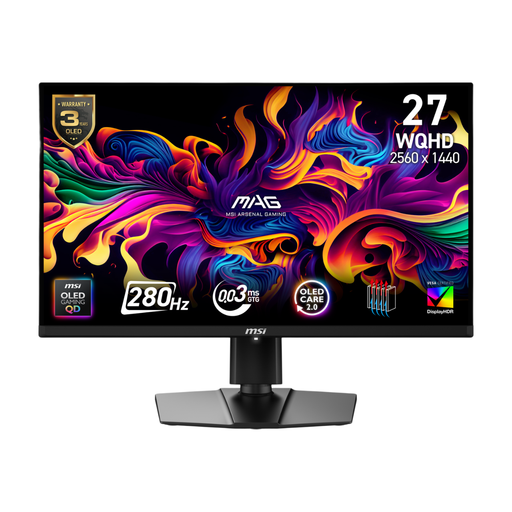 Image unavailable
MSI MAG 271QP QD-OLED X28 27-inch QHD 280Hz
This QHD model could occupy one close-viewed planning position, but its high refresh rate does not by itself resolve the two-display connection question.
- The product name identifies a 27-inch QHD QD-OLED monitor with a 280Hz refresh rate.
- Check the computer’s two-display path and the retail quantity; assess audience readability separately.
View on Joybuy
Frequently asked questions
Can one laptop run two monitors for library-event planning?
Yes, if the laptop and connection arrangement support two extended displays. Dell’s setup guidance says to check available outputs and daisy-chain support; confirm the laptop, operating system, any dock, monitor inputs and cables rather than relying on the presence of USB-C alone.
Should the two planning monitors match?
Matching size and resolution is a practical choice for a side-by-side staff desk because it can make window placement and movement between screens more consistent. Dell’s dual-monitor guidance recommends similar display characteristics, although mixed monitors can also be configured.
Can attendees use the same screens as the planning desk?
Only if attendees can read the intended content from their positions in the actual room; a desk monitor’s diagonal size cannot settle that question. Assess sightlines, lighting and slide design, then test the arrangement in advance, as Government Digital Service accessible-event guidance advises.
Do event monitors legally need annual PAT testing?
There is no blanket annual PAT-testing frequency prescribed for portable electrical equipment in Great Britain, according to the Health and Safety Executive. Equipment must be maintained safely, and the appropriate checks depend on its condition and use; ask the library whether its equipment policy adds requirements.
What should I check when setting up the monitors at the venue?
Plan the equipment position, power connections and cable routes before the event. Health and Safety Executive event guidance advises routing cables to minimise tripping hazards and mechanical damage, so reroute or protect temporary leads that would otherwise cross a walkway.


