For routine browser-based keyboard-navigation checks, choose a keyboard with easily accessible standard controls, a layout familiar to your testers and a connection that suits the test device; a wired UK ISO model is a straightforward starting point. Programmable keys can help with repeated workflows, but they do not replace checks of focus movement, activation and whether users can leave a component using the keyboard.
Who needs which keyboard
Manual web-accessibility testers
If you repeatedly check focus movement, activation, skip links and whether focus can leave a component, prioritise familiar physical controls. DWP Accessibility Manual guidance describes ordinary keyboard actions for these checks, so a conventional UK-layout keyboard is a practical starting point.
Regression testers using repeated shortcuts
If you run the same test sequences frequently, remapping or shortcuts may make setup easier. Keep the standard, unmodified controls available when assessing how a page responds to keyboard input.
Testers at shared desks
If the workstation also serves office work or gaming, consider the layout, desk space and connection needs of everyone using it. Features chosen for those other tasks should not determine whether a keyboard-navigation test passes.
What matters when choosing
Start with the keys used in manual checks, then confirm the exact layout and connection for your workstation. Consider custom shortcuts only if repeated testing makes them useful.
| Concern |
What to check |
Who this matters to |
| Standard controls |
Check that Tab, Shift, Enter, Space, arrow and Escape keys are physically accessible in the layout you will use. |
When tracing focus and activating controls, I need the ordinary keys within easy reach rather than extra features. Around 42% of consumers would put reliable access to standard controls first. |
| UK layout and device fit |
Confirm the exact variant’s UK layout and its connection type against the test device. |
At a shared workstation, I need key positions that feel familiar and a keyboard that connects to the machines being tested. About 33% of consumers would make layout and device fit their primary concern. |
| Repeatable shortcuts |
If you need remapping, check the exact model’s configuration method and whether you can return to standard controls for baseline tests. |
For frequent regression passes, I want shortcuts to reduce repeated setup without changing the interaction I am testing. Roughly 25% of consumers would prioritise that workflow need. |
Buying pitfalls
-
Assuming every English-language variant has a UK layout
Key placement can differ between layouts, making shortcuts and defect reports harder to reproduce for testers accustomed to UK keys.
Check that the exact variant is labelled English UK or UK ISO; do not rely on a product-family name or photograph alone.
-
Equating gaming features with a better accessibility test
Lighting, macros and rollover features may serve a mixed-use desk, but they cannot show whether a webpage has keyboard-operable controls or allows focus to leave a component. The W3C Web Accessibility Initiative addresses those behaviours as properties of the content being tested.
Choose gaming features for your other uses, while prioritising the physical controls needed for the test itself.
-
Overlooking how remapping is configured
A keyboard’s basic operation and its customisation tools may have different software or connection requirements.
Check the exact model’s remapping method, supported operating systems and any required connection mode before relying on custom shortcuts. Retain a standard layout for baseline checks.
-
Treating the keyboard as proof that a page is accessible
A physical keyboard cannot prevent a page from trapping focus, presenting controls in a confusing focus order or omitting a keyboard equivalent.
Use the keys to check actual behaviour across controls, menus and dialogs, including whether focus can move away. Record what happens on the page rather than drawing a conclusion from the keyboard’s features.
Relevant keyboard brands and ranges
Logitech
Its K120 and Signature Slim Wired K620 for Business illustrate two wired approaches: a conventional full-size keyboard and an English UK USB-C variant.
- Logitech describes the K120 as full-size and USB plug-and-play, with an integrated number pad.
- For the K620, confirm the exact layout and port. Logitech states that its optional customisation software has narrower operating-system support than the keyboard’s basic function.
Keychron
The C3 Pro UK ISO is a wired tenkeyless mechanical option for testers who also want configurable shortcuts.
- Keychron describes QMK/VIA key remapping for the C3 Pro.
- Confirm the switch variant and how you will configure it; programmed shortcuts do not replace tests with standard keyboard controls.
ASUS
The TUF Gaming K1 is relevant to a workstation used for both testing and gaming, rather than a requirement for browser keyboard checks.
- The Joybuy listing describes a wired, full-size UK-layout keyboard with programmable keys and 19-key rollover.
- Those retailer-listed gaming features do not establish whether a webpage is keyboard-accessible.
Joybuy keyboards for testing setups
These UK-labelled choices include a USB keyboard-and-mouse set, wireless keyboards and more compact layouts. Compare their physical keys, exact layout and connection with the workstation used for your tests.
 No image available
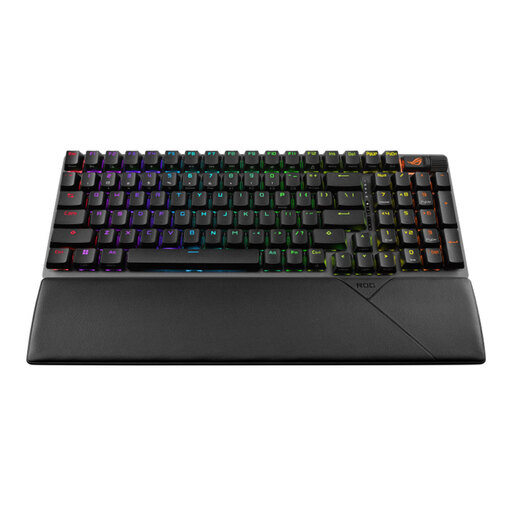
ASUS ROG Strix Scope II 96 Wireless Gaming Keyboard, Black, UK Layout
For a desk where a smaller UK-labelled keyboard appeals, consider this model only if its key arrangement suits your test sequence. Confirm the physical navigation and activation keys and the connection your workstation needs.
View on Joybuy
 No image available
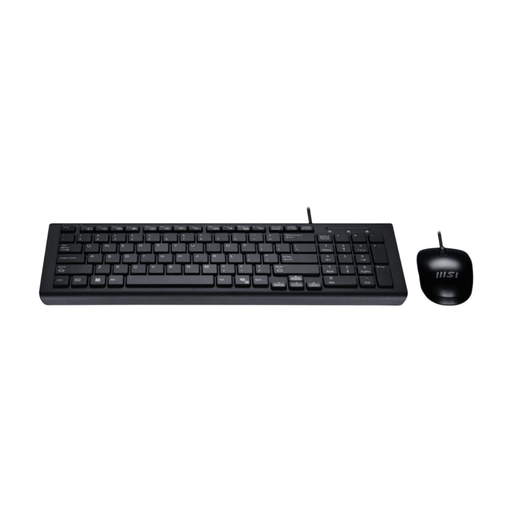
MSI GK-701 Office UK Keyboard and Mouse Set, USB, CoPilot Key, Black
For a shared UK-layout desk that needs a USB keyboard, this set is worth comparing with keyboard-only options. The included mouse does not replace keyboard-interface testing; check the keyboard’s physical controls and the USB connection against your setup.
View on Joybuy
 No image available
Targus EcoSmart™ Full Size Wireless Keyboard (UK)
If a UK-labelled wireless keyboard suits your desk, check that its connection method works with the test device. Confirm the exact key layout and physical navigation controls before choosing it for manual checks.
View on Joybuy
 No image available
Hyper® HyperSpace Next Bluetooth Wireless Keyboard (UK), White
For a test device that uses Bluetooth, this UK-labelled wireless model is an option to assess. Check Bluetooth support on the device, then confirm the exact layout and physical keys needed for your checks.
View on Joybuy
 No image available
HyperX Alloy Rise 75 Wireless Keyboard UK
For a more compact UK-labelled wireless setup, assess whether this model keeps the controls you use frequently within easy reach. Check the precise layout, required physical keys and connection against your test device.
View on Joybuy
Common questions
Do I need a specialist keyboard to test website keyboard navigation?
No: for ordinary browser checks, a conventional keyboard with dependable access to standard controls is normally sufficient. DWP Accessibility Manual guidance uses keys including Tab, Shift and Enter in its testing steps; judge the website by its response to keyboard input, not by specialist features on the keyboard.
What should I check on a page using the keyboard?
Check whether interactive functions work through keyboard input, whether focus moves in a usable order and whether you can leave components such as menus or dialogs. The W3C Web Accessibility Initiative states that focus moved into a component must also be movable away using only a keyboard interface; check skip links where repeated content needs a bypass.
Should a UK tester choose ISO or ANSI?
Choose an explicitly labelled UK ISO or English UK variant if those are the key positions your testers use. Logitech describes ISO as the standard layout across the UK and Europe, but the exact variant matters because a product family may offer more than one layout.
Can programmable macros replace checks with Tab and Shift+Tab?
No: shortcuts may make repeated setup easier, but baseline checks still need ordinary keyboard interaction. DWP Accessibility Manual guidance uses Tab and Shift+Tab to move through interactive elements, while the W3C Web Accessibility Initiative’s keyboard guidance concerns operation through a keyboard interface.


