Accessibility reviewers in changing daylight
If window light or reflections alter how text, controls and status colours appear, a consistent viewing setup matters alongside a contrast-checking tool.


Choose an ultrawide with colour controls suited to the content you review, but treat the bright-window setup as a separate part of the decision. A documented colour mode and a repeatable calibration workflow can help with visual judgement; controlling reflections and checking the content’s contrast are still necessary, because wide gamut or HDR branding does not establish either result.
If window light or reflections alter how text, controls and status colours appear, a consistent viewing setup matters alongside a contrast-checking tool.
Designers working across artboards, browser views and reference material may need both horizontal space and colour modes appropriate to their content.
A convenient laptop connection may take priority, provided the monitor’s colour controls meet the level of review required and the screen fits the desk.
Start with the reliability of the colour-checking setup, then decide how much screen space and laptop connectivity your work needs. Calibrite notes that ambient light affects perceived display colour, while W3C’s contrast guidance concerns the content itself rather than the monitor used to view it.
| Concern | What to check | Who this matters to |
|---|---|---|
| Dependable colour and contrast checks | Look for a documented mode suited to your content and a workable calibration process; assess reflections at the intended desk. | When daylight changes the screen’s appearance, I need visual checks I can repeat without confusing glare with a content problem. Around 36% of consumers put dependable colour and contrast judgement first. |
| Room for parallel inspection | Check native resolution, physical size and desk fit, then confirm your computer can drive the intended display mode. | If I keep a design, live page and inspection tools open together, switching between windows interrupts the review. For around 29% of consumers, workspace is the primary concern. |
| Laptop and desk connectivity | Match the monitor’s video port and any USB-C power delivery to the laptop and cable you intend to use. | I want to connect my laptop and review tools without rebuilding the desk setup each time. Connectivity comes first for around 21% of consumers. |
| Desk footprint | Check screen and stand dimensions against the available space, without dropping colour controls needed for the work. | A very wide screen may crowd my desk when I only make occasional checks. Around 14% of consumers chiefly need a manageable physical setup. |
W3C’s contrast requirement describes the relationship between content colours, not a monitor certification. Calibrite also notes that surrounding light affects colour perception.
Use a colour mode suited to the content, measure its contrast with an appropriate tool and manage reflections during visual review.
BenQ lists typical brightness for the PD3420Q, while other displays may emphasise HDR specifications. Those different descriptions cannot establish which screen will be easier to use beside your window.
Compare brightness measurements made on the same basis and assess reflections at the intended desk position.
EIZO explains that display luminance and colour temperature can change over time. A factory report does not describe the monitor’s later condition in your room.
For colour-sensitive reviews, plan a compatible calibration process and keep track of the mode and targets used for checks.
Profiling may require a colourimeter and time for repeat checks.
Charging capability and the video signal needed for a chosen resolution vary by monitor and laptop; the connector shape does not establish compatibility.
Check the exact monitor port, laptop output, charging requirement and cable specification before ordering.
A separate charger, dock or different cable may be needed if the intended connection cannot handle the whole setup.
These product lines illustrate different approaches to workspace size, colour controls and laptop connectivity; the brand name alone does not determine how a screen will perform beside a window.
Dell’s U4025QW is a large UltraSharp display with documented colour specifications; its P3425WE takes a smaller, hub-oriented approach.
LG’s 40U990A-W is a 40-inch UltraFine option for a wide, detailed workspace and a Thunderbolt 5 connection.
The PD3420Q is a 34-inch design-oriented ultrawide for work that benefits from named colour modes in a smaller format.
These options cover two different desk setups: a 49-inch screen for a broad multi-window layout and a smaller 29-inch screen. For accessible-colour review beside a window, check the colour-mode and calibration options you require and assess reflections in your workspace before relying on either display.
 No image available
The 49-inch, 32:9 format is worth considering if you need several review windows visible together and have space for the screen.
The listed configuration includes a 1800R curve, 240 Hz refresh rate, HDMI, DisplayPort and USB-C. Confirm the colour mode and calibration options needed for your review, as well as your laptop’s connection requirements.
 No image available
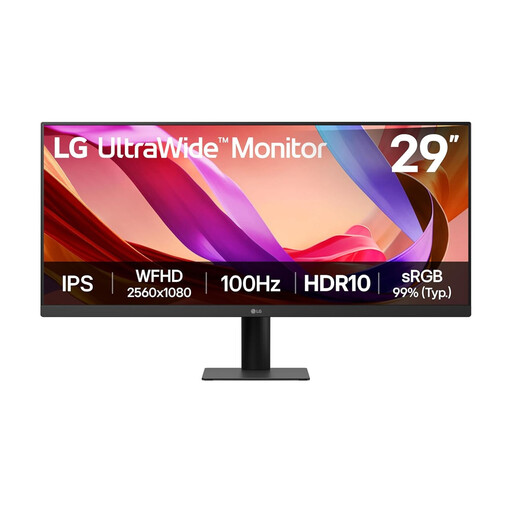
The 29-inch format suits a desk where a larger ultrawide would take up too much room; check that its workspace accommodates your review tools.
The listed configuration is an IPS UWFHD 1080p display with a 100 Hz refresh rate, HDMI and DisplayPort. Check the colour-mode and calibration options needed for colour-sensitive work and assess the screen at your window-lit desk.
No. W3C’s WCAG 1.4.3 sets a contrast ratio of at least 4.5:1 for normal text and 3:1 for large text. Use a contrast-checking tool for the content; a calibrated display supports more consistent visual review but does not replace that check.
Reduce reflections and keep the viewing conditions as consistent as practical. Calibrite notes that ambient light affects perceived display colour, so profile the screen for the working setup and repeat important visual checks when the lighting changes substantially.
Recheck it periodically and when a change in the workspace or screen makes your visual judgements less consistent. EIZO notes that display luminance and colour temperature can change with time; the appropriate routine depends on how the monitor is used.
Not necessarily: check the exact monitor, computer port and cable against the resolution and refresh rate you want. LG UK lists Thunderbolt 5 for the 40U990A-W, while Dell UK documents USB-C and DisplayPort connectivity for the U4025QW; a matching connector shape alone does not confirm the desired display mode.