Illustrators working from references
If you keep a drawing canvas beside images, layouts or PDFs, consider how much of each window remains readable without covering the canvas or repeatedly zooming.


A 34-inch 3440 × 1440 ultrawide is a starting point when a drawing canvas and references need to sit side by side on a shared desk. A 37.5-inch 3840 × 1600 screen adds vertical pixels, while a roughly 40-inch 5120 × 2160 screen provides more room for detailed artwork and documents; either larger option needs careful desk-fit checks. Whichever size you choose, check the stand adjustment and whether the monitor’s connections meet the laptop’s charging and display requirements.
If you keep a drawing canvas beside images, layouts or PDFs, consider how much of each window remains readable without covering the canvas or repeatedly zooming.
If artwork needs to be reviewed or delivered in a particular colour space, check the exact monitor’s stated coverage and calibration features rather than choosing on screen width alone.
If you regularly connect a work laptop or share a workstation, consider charging, display connections and how easily the screen can be repositioned for each user.
Choose the screen size and native resolution for your drawing-and-reference layout, then check colour requirements, laptop connections and whether the monitor can be positioned at the shared desk.
Consider it when: You want two windows visible but need a screen that fits a more constrained shared desk.
Trade-off: Its 1440 vertical pixels leave less room for tall reference pages than the larger-resolution routes.
Consider it when: You want more vertical room than a 3440 × 1440 screen provides without moving to a roughly 40-inch display.
Trade-off: It still has fewer vertical pixels than a 5120 × 2160 model and needs its own desk-fit check.
Consider it when: Keeping detailed artwork and readable reference documents visible together is the priority.
Trade-off: Its physical width makes desk depth, viewing distance and adjustment especially important.
| Concern | What to check | Who this matters to |
|---|---|---|
| Canvas and reference space | Compare native resolutions of 3440 × 1440, 3840 × 1600 and 5120 × 2160, and check that the laptop can drive the chosen display. | If I need a detailed canvas beside readable references, I want enough pixels in both windows without constant zooming. Around 28% of consumers would put visible workspace first. |
| Colour for artwork | Check the exact model’s stated colour-space coverage and accuracy, then whether its calibration options suit your software workflow. | When I share or deliver artwork, I need screen colour that fits the workflow rather than a wide panel alone. For around 28% of consumers, colour confidence would be the primary concern. |
| Laptop connections | Match USB-C or Thunderbolt display support and power delivery to the laptop; check KVM functions if two computers will share peripherals. | At a desk used by different computers, I want connecting my laptop and switching devices to be straightforward. Around 22% of consumers would prioritise that setup. |
| Workstation fit | Measure desk depth and width, then check the stand’s adjustment range or the monitor’s mounting requirements. | If the workstation changes users, I need to position the screen comfortably each time. Physical fit would come first for around 22% of consumers. |
A wider physical screen does not tell you how much detail a drawing canvas or reference page can show. A 49-inch 5120 × 1440 display, for example, has the same stated vertical pixel count as a 34-inch 3440 × 1440 display.
Compare native pixel dimensions alongside screen size, particularly if tall PDFs or fine canvas detail are important.
Charging capacity and display support depend on the monitor, laptop and connection used. A USB-C socket alone does not establish that one cable will handle the intended setup.
Check the laptop’s charging requirement and display-output specification against the monitor’s power delivery, video support and required cable.
A separate charger, compatible cable or dock may be needed if the intended one-cable connection does not meet those requirements.
Stated colour coverage does not, by itself, establish calibration accuracy or how an application manages colour.
Match the monitor’s stated colour spaces and calibration options to the work, and check the settings used by your drawing software.
A large screen can be difficult to position at a shallow desk or a workstation used by people of different heights. The Health and Safety Executive advises positioning the top of the screen around eye level and the screen about an arm’s length away.
Measure the workspace and check the stand’s range, monitor weight and mounting compatibility before choosing a larger model.
If the supplied stand cannot provide a suitable position, the workstation may need adjustment or a compatible monitor arm.
Dell lists ultrawides across 34-inch, 37.5-inch and roughly 40-inch formats with different workspace and connection options.
LG’s 40U990A-W is a roughly 40-inch option for buyers considering a 5120 × 2160 workspace.
The PD3420Q is a 34-inch creator-oriented option for a drawing-and-reference layout.
The PA34VCNV is a 34-inch professional-display option for buyers checking colour specifications and shared-desk connections.
These ultrawides include 34-inch screens for drawing beside references and wider 49-inch screens for multiple windows. The 49-inch models listed here have 1440 vertical pixels, so their width should not be mistaken for the vertical detail of a 5120 × 2160 display.
 No image available
Consider this 34-inch ultrawide if you want drawing and reference windows on one screen. Its title specifies an OLED panel and 240 Hz refresh rate; confirm the native resolution and that its connections meet your laptop’s needs.
For drawing software with static interface elements, check the stated OLED screen-protection guidance and consider the risk of burn-in.
 No image available
Consider its 49-inch, 32:9 format if horizontal room for several windows is the priority. The title specifies a curved QD-OLED panel and 240 Hz refresh rate; check the native resolution if reference-page height matters.
Measure the shared desk before choosing a screen this wide, and confirm USB-C video, charging and switching functions against the computers you intend to connect.
 No image available
This 34-inch ultrawide is an option for keeping a drawing window beside references. Its title identifies a VA panel and 240 Hz refresh rate.
If the monitor must also charge a work laptop, check its stated USB-C power delivery against that laptop’s requirement; separate charging may be necessary.
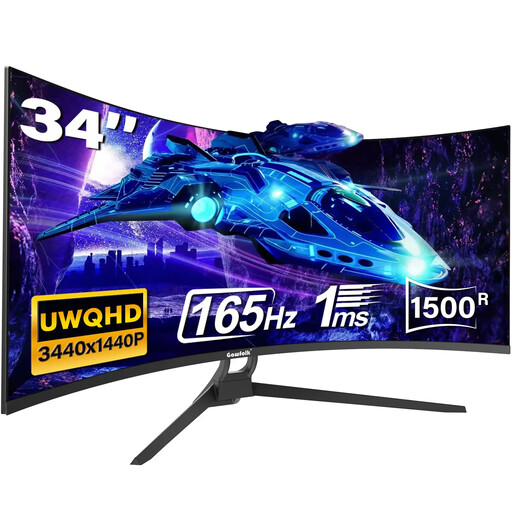 No image available
Consider this 34-inch, 21:9 screen if a side-by-side drawing and reference layout is your main requirement. Its title specifies a 1500R curve and 165 Hz refresh rate.
Check the exact ports before planning USB-C docking, and confirm whether the stand or a compatible mount will position the screen suitably at the desk.
 No image available
Its stated 32:9 format and 5120 × 1440 resolution suit a layout that prioritises horizontal room for drawing and reference windows, while retaining 1440 vertical pixels. The title specifies a VA panel and 165 Hz refresh rate.
Check desk depth, mounting support and the adjustment available on the exact model. If laptop docking matters, confirm the required connections separately.
The Health and Safety Executive’s display-screen-equipment guidance does not prescribe an ultrawide or a particular screen size. For workplace use, assess whether the chosen display can be positioned suitably for the user and task as part of the workstation setup.
Check that the desk accommodates the screen and that each user can position it comfortably. The Health and Safety Executive advises placing the top of the screen around eye level and the screen about an arm’s length away; it also advises workers who change desks regularly to make a basic assessment of their setup.
No: USB-C power delivery varies by monitor and must be matched to the laptop’s needs. BenQ specifies 65 W for the PD3420Q, Dell UK lists 90 W for the P3425WE and up to 140 W for the U4025QW, and ASUS UK lists 96 W for the PA34VCNV. Check the laptop’s charging requirement, display-output support and cable before relying on a one-cable setup.
A KVM is useful if one keyboard and mouse need to control more than one connected computer; sharing a desk alone does not make one necessary. Dell lists KVM for the P3425WE and BenQ lists it for the PD3420Q, but check the ports and switching steps for your computers.