Layout-focused brochure reviewers
If you keep a brochure spread, source material and editing tools in view together, compare the available workspace and exact-model colour documentation. A refresh-rate figure alone will not answer either question.


For checking brochure spreads alongside reference material, start by considering a 34-inch-class, 3440 × 1440 ultrawide. Prioritise documented colour features if artwork review matters most, or a USB-C hub if a compatible laptop and fewer desk cables matter more. Whichever route you take, check the complete stand footprint, laptop connection and viewing position before ordering; stated colour coverage does not guarantee that a print will match the screen.
If you keep a brochure spread, source material and editing tools in view together, compare the available workspace and exact-model colour documentation. A refresh-rate figure alone will not answer either question.
A hub monitor may simplify a one-laptop desk, provided the laptop’s USB-C port supports video output and the monitor’s charging power meets its requirements.
Measure the monitor with its stand, not just the screen diagonal. You need enough desk depth to place the display centrally at a comfortable distance.
Decide whether layout and colour review, desk fit or laptop docking is your primary need. Then check the exact monitor and laptop specifications against that priority; a feature that looks useful on a product page may not suit your desk or connection.
| Concern | What to check | Who this matters to |
|---|---|---|
| Layout and colour review | Compare resolution and documented colour coverage; look for exact-model calibration information if colour-sensitive work is important. | If I review a spread alongside artwork and notes, workspace and documented colour features come before extras I will rarely use. Around 42% of consumers would put layout and colour review first. |
| Desk fit and positioning | Measure width and depth with the stand, then check the height adjustment or mounting options you intend to use. | On a shallow student-room desk, I need space to centre the screen without sitting too close. For roughly 33% of consumers, comfortable fit would be the primary concern. |
| Laptop docking | Confirm USB-C video support on the laptop and compare its charging requirement with the monitor’s stated power delivery. | When one laptop handles my coursework, I want display, charging and peripherals to work without crowding the desk with cables. About 25% of consumers would prioritise that connection setup. |
A screen may fit across the desk while its stand leaves too little room for a comfortable viewing position. BenQ specifies the PD3420Q at 244.3 mm deep with its stand.
Measure usable desk width and depth, allowing room for cables and a laptop, and compare them with the exact model’s with-stand dimensions.
A monitor’s USB-C display and charging features do not establish that your laptop port carries video or accepts the available charging power.
Check the laptop manufacturer’s port and power specifications against the monitor’s USB-C requirements, including the cable needed for that connection.
Stated sRGB or P3 coverage describes a monitor specification, not whether a physical brochure will match the image on screen.
For colour-sensitive coursework, compare exact-model colour documentation and follow the printer’s or course’s proofing process rather than relying on gamut or HDR labels alone.
In a tight room, an awkward monitor position can make long layout sessions uncomfortable. The Health and Safety Executive advises keeping the screen and keyboard central, the top of the screen around eye level and the display about an arm’s length away.
Rearrange the desk or check whether the stand’s adjustment range or a compatible monitor arm allows that position before choosing the screen.
LG has 34-inch ultrawides to compare when a brochure-review desk also needs USB-C connectivity.
The flat PD3420Q is a reference point when documented colour features matter to brochure artwork review.
Dell’s hub ultrawides are relevant if stand adjustment and laptop connections take priority.
These options span 29-, 34- and 49-inch ultrawides. For brochure-layout work in a student room, compare their stated workspace with the space you can give the screen, then check colour-related requirements and laptop connections separately.
 No image available
Consider this 34-inch option if its WQHD format suits your layout workspace and you can position it comfortably on your desk.
The product name specifies an OLED panel and 240 Hz refresh rate. For prolonged work with static layouts, check the screen-care guidance and whether your laptop supports the connection you plan to use.
 No image available
Consider the 49-inch format only if a much wider screen fits the desk and your intended viewing position.
The product name specifies a 32:9 Double Quad HD display, an 1800R curve and 240 Hz refresh rate. Check the complete with-stand dimensions before choosing it for a student room.
 No image available
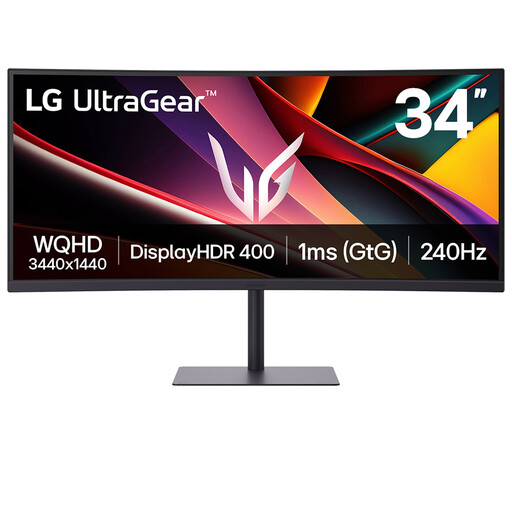
This 34-inch WQHD option is worth comparing if you want an ultrawide canvas for a brochure spread and reference material.
The product name specifies a VA panel and 240 Hz refresh rate. Check the colour documentation needed for your coursework and confirm whether its USB-C connection meets your laptop’s charging needs.
 No image available
Compare this 34-inch UWQHD model if your main aim is room for a layout and supporting material on one screen.
Before ordering, check its complete stand dimensions, the colour documentation your work requires and the ports needed by your laptop.
 No image available
Consider this smaller ultrawide if desk fit matters more than the 34-inch, 3440 × 1440 workspace discussed above.
The product name specifies a 1080p IPS display and 100 Hz refresh rate. Check whether its available workspace and stand position suit the way you review brochure spreads.
Check the exact monitor’s width and depth with its stand rather than relying on the 34-inch diagonal. BenQ specifies the PD3420Q at 825.8 × 244.3 mm with its stand; leave room to centre the screen and sit at a comfortable distance, in line with Health and Safety Executive positioning guidance.
No: the laptop’s intended USB-C port must support video output, and the monitor’s stated charging power must suit that laptop. LG specifies up to 90 W for the 34WQ75C-B and says its supplied USB-C cable is required for the stated connection arrangement; check the requirements for your exact pairing.
No. Stated colour coverage and calibration documentation can help you compare monitors, but they do not guarantee a print match. For colour-sensitive coursework, use the settings and proofing process required by the printer and your course.
Check the electrical-equipment collection or retailer take-back option available where you live rather than placing an old monitor in ordinary waste. GOV.UK identifies the Waste Electrical and Electronic Equipment Regulations 2013, as amended, as the UK framework underpinning recovery, reuse and recycling measures.