For a contact-form editor beside a live preview on one computer, consider a 40-inch 5120 × 2160 monitor if long pages and tool panels make vertical space important. A 49-inch 5120 × 1440 model gives you more horizontal separation but less height; a 34-inch ultrawide takes up less room if narrower windows will work. If you mean two connected computers rather than two windows, check the exact model for Picture-by-Picture and keyboard-and-mouse switching.
Who needs which layout?
Single-computer form builders
If the editor, browser preview and validation notes all run on one computer, a 40-inch 5K2K layout gives you 2160 vertical pixels as well as room to separate windows. Check that your computer can drive the resolution you intend to use.
Two-device desk workers
If you alternate between a work laptop and another computer, look for documented Picture-by-Picture and KVM functions on the exact monitor. A wide screen alone does not establish that it can display both sources or let them share a keyboard and mouse.
Space-conscious web designers
A 34-inch 3440 × 1440 ultrawide can place an editor beside a preview without choosing a 40- or 49-inch format. Compared with 5K2K, its lower pixel height leaves less room for long pages and open tool panels.
What matters when choosing?
Decide whether you need two windows from one computer or two connected sources before comparing screen sizes.
40-inch 5K2K
Choose when: A long form and its live preview need height as well as side-by-side room on one computer.
Trade-off: The 5120 × 2160 layout is less horizontally expansive than a 49-inch 32:9 screen and needs room on the desk.
49-inch Dual QHD
Choose when: Horizontal separation matters most, or a specific model offers the two-source functions you need.
Trade-off: At 5120 × 1440, it has less pixel height than 5K2K, despite its greater width.
34-inch ultrawide
Choose when: Two moderate-width windows are sufficient and a smaller format suits your desk.
Trade-off: A 3440 × 1440 layout leaves less room than 5K2K for a dense editor, tools and a tall preview.
| Concern | What to check | Who this matters to |
|---|
| Two usable work areas |
Compare vertical as well as horizontal resolution. If you use Windows 11, Microsoft’s Snap layouts can arrange windows on one display; they do not create a second computer input. |
If I am editing a long contact form, I want the code or builder and a readable live preview visible together. Around 50% of consumers put that single-computer workspace need first. |
| Two-computer use |
Check the exact model’s KVM and Picture-by-Picture modes, required video inputs and upstream USB connections. |
When I move between a work laptop and another computer, I need to know whether both can appear on the monitor and share my controls. For around 30% of consumers, that multi-device need comes first. |
| Desk fit and positioning |
Measure the monitor and stand against your available width and depth; check stand adjustment or suitable arm mounting. |
I can use extra screen space only if the display fits where I work and can be positioned appropriately. Desk fit is the primary concern for around 20% of consumers. |
Mistakes to avoid
-
Judging workspace by diagonal size alone
A 49-inch 5120 × 1440 screen is wider than a 40-inch 5120 × 2160 screen, but its 1440-pixel height leaves less vertical room for a long form preview.
Compare the full resolution and aspect ratio against the windows you intend to keep open, rather than using screen size as a shortcut.
-
Assuming two inputs mean two-computer control
Video inputs, Picture-by-Picture and KVM are distinct capabilities. Samsung Business UK documents split-screen modes for the S95UC, but those functions should not be assumed on another ultrawide.
For a two-computer desk, check the exact model’s supported source combinations and the USB connections needed for keyboard-and-mouse switching.
-
Relying on the shape of a USB-C connector
Video, data and charging capabilities differ between monitors and computers. Dell UK lists up to 90 W power delivery for the U4025QW, while Samsung UK states up to 140 W for the S85TH; neither figure establishes compatibility with your laptop.
Match the monitor’s port modes, charging rating and cable requirements to your computer’s display output and power needs.
-
Expecting a larger screen to fix a poor workstation setup
The Health and Safety Executive notes that poorly designed display-screen workstations can contribute to discomfort, fatigue and eye strain.
Check desk depth and monitor positioning as well as screen size, and adjust the stand or a compatible arm to suit the workstation.
Relevant brands to consider
Dell
The UltraSharp U4025QW is a 39.7-inch 5K2K example for a single-computer editor-and-preview desk.
- Dell UK lists 5120 × 2160 at 120 Hz, an IPS Black panel, stand adjustment and USB-C upstream video and data with up to 90 W power delivery.
- Check desk fit and your computer’s supported display output before planning around that resolution and refresh rate.
Samsung
The ViewFinity range includes a 40-inch 5K2K route and a wider 49-inch Dual QHD route.
- Samsung UK lists Thunderbolt 5 for the S85TH; Samsung Business UK describes split-screen viewing modes for the S95UC.
- Choose between the models by the vertical space and source-control functions you need, rather than treating the range as one configuration.
Philips
The 34B2U6603CH is a 34-inch 3440 × 1440 business-oriented option.
- Philips UK lists Thunderbolt 4 and Smart KVM for this model, making its connection requirements worth checking for a multi-device desk.
- Its 1440-pixel height leaves less vertical workspace than a 5120 × 2160 display.
BenQ
The flat, 34-inch PD3420Q is an option for a designer who prefers a flat panel and has a colour-focused workflow.
- BenQ UK states 98% P3, 100% sRGB and 100% Rec.709 coverage for this model.
- Its 34-inch WQHD format provides less room for a dense editor-and-preview layout than a 40-inch 5K2K format.
Joybuy ultrawide monitors
These 49-inch and 34-inch monitors are options for separating a contact-form editor from its preview. If two computers must share the screen, confirm the required source and control functions on the exact model before choosing one.
 No image available
Acer X Predator X49X 49-inch curved QD-OLED monitor
Consider the wide 32:9 format if horizontal separation between your editor and preview is the priority. The name lists a 240 Hz refresh rate, an 1800R curve and HDMI, DisplayPort and USB-C connections. Check desk and stand fit, and confirm the exact input and switching functions if you plan to connect two computers.
View on Joybuy
 No image available
LG UltraGear 34GX900A-B 34-inch OLED WQHD monitor
The 34-inch ultrawide format is worth considering when two windows need to fit on a smaller desk. The product name specifies OLED, WQHD and 240 Hz. For a layout with persistent toolbars or other static elements, review the OLED screen-care guidance; check any laptop connection and charging requirements separately.
View on Joybuy
 No image available
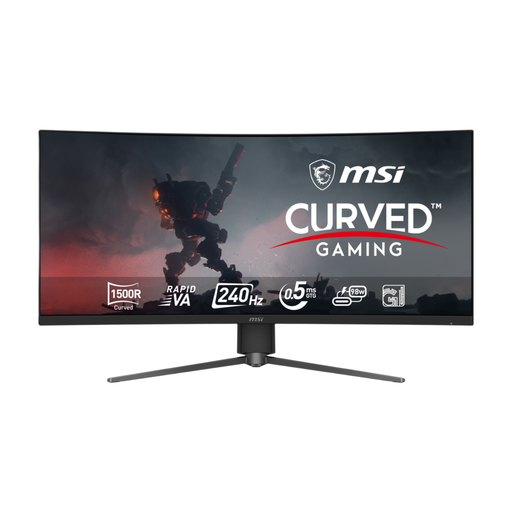
MSI MPG 346CQRF X24 34-inch curved UWQHD monitor
This 34-inch ultrawide is a candidate when an editor and preview can occupy moderate-width windows. Its name lists a Rapid VA panel and a 240 Hz refresh rate. Confirm your computer’s video connection and check for the specific source-switching functions you need if the desk uses two computers.
View on Joybuy
 No image available
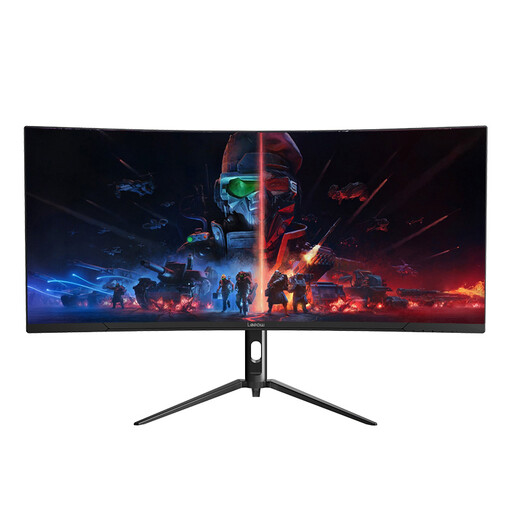
Lepow HC-SJ34MZ5 34-inch curved ultrawide monitor
Its stated 3440 × 1440 resolution gives you an ultrawide area to arrange a form editor beside a browser window, with less pixel height than 5K2K. The product name lists a 165 Hz refresh rate. Check the stand’s adjustment and the required connections against your desk and computer before choosing it.
View on Joybuy
 No image available
CRUA 49-inch curved DQHD 165 Hz monitor
The stated 5120 × 1440, 32:9 layout suits a wide single-computer arrangement if you can accommodate the monitor on your desk. Its name lists HDMI and DisplayPort inputs and 75 × 75 VESA mounting. The 1440-pixel height offers less vertical room than 5K2K; verify any two-source display or control functions before relying on them.
View on Joybuy
Frequently asked questions
Can one ultrawide replace two screens for a form editor and preview?
It can provide two visible work areas from one computer if the windows remain usable at your chosen size. Microsoft’s Windows 11 Snap layouts can help arrange those windows; displaying two separate computers at once instead calls for a monitor with a documented two-source mode.
Is 5K2K or Dual QHD more useful for a contact form?
Choose 5120 × 2160 5K2K when a long preview and editor panels make vertical room important. Choose 5120 × 1440 Dual QHD when horizontal separation matters more, accepting its lower pixel height and checking any two-source features on the particular model.
What should I check before using a single USB-C or Thunderbolt cable?
Match the monitor’s video and data modes, charging rating and cable requirements to your computer. Dell UK lists up to 90 W power delivery on the U4025QW and Samsung UK states up to 140 W on the S85TH, but those model ratings do not establish what your laptop can use.
Does a larger monitor remove the need to adjust my workstation?
No. Check that the screen and stand fit your desk and can be positioned for your work. The Health and Safety Executive notes that poorly designed display-screen workstations can contribute to discomfort, fatigue and eye strain.


