Shared-desk web designers
You want room for a design tool, browser preview and references, but also need to leave the screen in a workable position for the next person using the desk.


A 34-inch, 3440 × 1440 ultrawide is a useful starting point for keeping a landing-page design, browser preview and references visible together, provided the screen and stand fit the shared desk. Prioritise documented colour modes for colour-sensitive reviews; choose USB-C charging and a suitable KVM switch if laptop handover or shared peripherals make them necessary. Check stand adjustment, laptop compatibility and the monitor’s full dimensions before deciding.
You want room for a design tool, browser preview and references, but also need to leave the screen in a workable position for the next person using the desk.
You alternate between computers or hand the workstation over to another user. USB-C connectivity may simplify a laptop connection; a model-specific KVM matters if the same USB peripherals must switch computers.
You review branded graphics or client-facing images and need to assess stated colour coverage, modes and calibration information rather than rely on a general description of vivid colour.
For a shared desk, establish the workspace and physical fit first, then decide whether device handover or colour review calls for more specific features. The concerns below show how different consumers might put one need ahead of the others.
| Concern | What to check | Who this matters to |
|---|---|---|
| Connection and handover | Check USB-C video support and charging wattage against your laptop. If a keyboard and mouse must switch computers, check the exact KVM arrangement and required cables. | When I hand the desk over, I want the next computer to connect without repeatedly moving peripheral cables; around 36% of consumers would put connection and handover first. |
| Workspace for layouts | Check resolution and whether the computer can drive it. Measure the complete monitor and stand against the space available for other desk equipment. | I need to compare a design canvas with its browser preview and references without constantly changing windows. Around 29% of consumers would make visible workspace their main concern. |
| Colour review | Compare the exact model’s stated colour coverage, available modes and calibration documentation; gamut alone does not establish accuracy. | When a client is reviewing branded images, I need more to go on than a vivid-display claim; roughly 21% of consumers would prioritise documented colour behaviour. |
| Position and desk fit | Check stand depth and adjustment range, then allow for a central screen position and viewing distance. The Health and Safety Executive advises placing the screen top around eye level and the screen about an arm’s length away. | If different people use this workstation, I need to reset the screen to a comfortable position without crowding the keyboard; approximately 14% of consumers would put fit and adjustment first. |
A 34-inch label does not tell you how much desk width or depth the assembled monitor needs. BenQ lists the PD3420Q at 825.8 mm wide with its stand.
Measure the usable desk, including room for a laptop, keyboard and mouse, and compare it with the exact monitor’s dimensions with stand.
These address different jobs: connecting a compatible laptop, showing two video inputs and switching USB peripherals between computers. A monitor with one feature does not necessarily provide the others.
Decide which devices must remain connected during handover, then check the exact model’s ports, switching method and required connections.
A gamut figure does not establish calibration quality or predict how every visitor will see a landing page. BenQ lists colour modes and a factory calibration report for the PD3420Q; assess those claims for that model rather than extending them to other displays.
For colour-sensitive assets, check the intended output, the monitor’s relevant colour mode and its model-specific calibration information.
Stand features cannot compensate for a screen that sits off-centre or too close. The Health and Safety Executive also advises a basic risk assessment when workers change desks regularly.
Reset the screen, keyboard and viewing distance when the desk changes hands, and follow the employer’s display-screen-equipment assessment process where applicable.
These examples illustrate model-specific features to compare; a brand name alone does not establish the connections, colour behaviour or adjustment range of every monitor in its range.
BenQ’s PD3420Q is a 34-inch, 3440 × 1440 designer-focused ultrawide with stated colour modes, a factory calibration report, USB-C power delivery and KVM.
Dell’s Pro 34 Plus P3425WE and UltraSharp U3425WE are 34-inch-class ultrawides with USB-C hub connectivity and adjustable stands.
LG’s 34WQ75C-B and 34WR55QK-B are 34-inch UltraWide models with USB-C connectivity.
These ultrawides offer wide-screen options for keeping landing-page work visible, including both 34-inch and 49-inch models. Match the screen to your desk before considering its connections and colour-review needs; a gaming-oriented feature in a product name does not establish suitability for those tasks.
 No image available
Consider this model if a 34-inch ultrawide suits the layout you plan to keep open at the shared desk.
The product name specifies WQHD and 240 Hz. For prolonged use with fixed design-tool interfaces, take account of the OLED burn-in warning and follow the screen-protection advice supplied with the product.
If you need one-cable laptop use or peripheral switching, check USB-C video compatibility, whether 65 W charging meets the laptop’s needs and how the required devices would switch.
 No image available
This 49-inch format is an option if keeping several work windows visible takes priority and the shared desk can accommodate it.
The product name specifies a 32:9, 5120 × 1440 VA panel, 165 Hz refresh rate, HDMI 2.1 and DisplayPort 1.4 inputs.
Measure the assembled monitor’s footprint and check desk or mount capacity. Confirm the stand’s adjustment range before relying on it for users who need different screen positions.
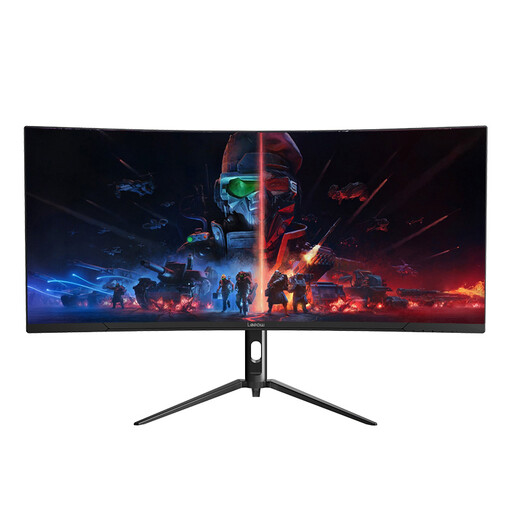 No image available
Its 34-inch ultrawide format is worth considering when the main need is space for a design canvas and adjacent windows.
The product name specifies 3440 × 1440 resolution and a 165 Hz refresh rate.
Before choosing it for a rotating desk, check the dimensions with stand and adjustment range. If colour-sensitive review or shared peripherals matter, confirm the exact colour documentation and connection features you require.
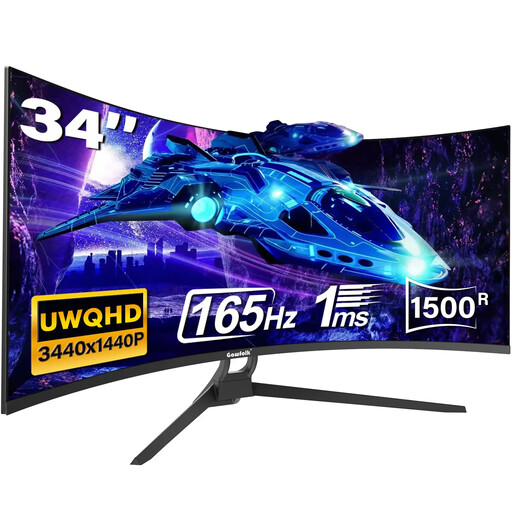 No image available
The 34-inch ultrawide format may suit a desk where a design tool and browser preview need to remain side by side.
The product name specifies a 21:9 curved display, 165 Hz refresh rate, HDMI 2.1 and DisplayPort 1.4.
If USB-C or colour coverage will decide your purchase, confirm the exact ports and gamut information before relying on either: the product’s title and detailed information differ on those points. Check dimensions with stand and adjustment for the shared workstation too.
Yes, if you want a design tool, browser preview and references visible together and the assembled monitor fits your desk. Check the computer can drive the resolution, then compare the exact model’s width and stand depth with your available space.
You need a suitable KVM if the same USB keyboard, mouse or other peripherals must follow the active computer. A USB-C hub may simplify connecting one laptop, while picture-by-picture shows video inputs without necessarily switching peripherals; BenQ lists KVM for the PD3420Q and Dell lists it for the P3425WE.
It may, if the laptop supports the required USB-C connection and its charging needs fit within the monitor’s stated power delivery. For example, BenQ lists up to 65 W for the PD3420Q, while Dell lists up to 90 W for the P3425WE; check the laptop’s requirements and the exact monitor connection before depending on one cable.
The Health and Safety Executive’s display-screen-equipment guidance addresses workstation assessment and setup, not a prescribed ultrawide size or model. For workers who use display-screen equipment daily for continuous periods of an hour or more, employers must assess workstations and reduce risks; workers who change desks regularly should also carry out a basic risk assessment.
Reset its position when the desk changes hands. The Health and Safety Executive advises placing the top of the screen around eye level, keeping it about an arm’s length away and positioning the screen and keyboard centrally; choose an adjustment range that works with the desk and its users.