For help-centre formatting, start by checking whether a 34-inch, 21:9 WQHD ultrawide gives your editor, references and preview enough room, then make sure its stand or a compatible arm can position the screen at both desk heights. Add USB-C charging and Ethernet if you want a laptop-centred desk; prioritise KVM or picture-by-picture only if you regularly use two computers. The Health and Safety Executive advises placing the top of the screen around eye level and the screen about an arm’s length away, so the whole workstation matters as much as the display.
Who this setup suits
Standing help-centre formatter
You keep a content-management system, preview, style guide and browser open together, and need to reposition the screen when you switch between sitting and standing. The Health and Safety Executive’s screen-positioning advice makes that adjustment worth checking before you buy.
Single-laptop desk user
You want to connect a laptop at the monitor and may also need charging and wired networking there. Check those functions against your laptop rather than assuming every USB-C monitor provides them.
Two-computer content operator
You format or check content across two systems and would use one keyboard and mouse or view both sources at once. KVM and picture-by-picture are relevant to that workflow, but they serve different purposes.
What to check before buying
Decide how much adjacent screen space your work needs, then check standing-height placement before choosing laptop-hub or two-computer features.
| Concern | What to check | Who this matters to |
|---|
| Editing and preview space |
Check for a 21:9, 3440 × 1440 display and enough desk width to keep it centred. |
When I need the editor, reference material and preview visible together, I want room for adjacent windows without assuming every application will lay them out well. Around 29% of consumers put that workspace need first. |
| Standing-height placement |
Check the stand’s height adjustment or a compatible arm against the screen position you need at the desk’s standing height. |
If changing desk height leaves the screen awkward to view, I need a way to reposition it before considering extra connections. For around 29% of consumers, workable placement is the primary concern. |
| Laptop connection |
Compare USB-C power delivery with your laptop’s charging requirement; confirm video output and, if needed, an RJ45 port. |
I want to connect my laptop without separately arranging power and wired networking, but only if its ports support the intended setup. Roughly 24% of consumers put that connection need first. |
| Two-computer workflow |
Check whether the exact model provides KVM for shared controls or picture-by-picture for simultaneous viewing, and which inputs each uses. |
When I move between two systems, I want to avoid swapping peripherals or losing sight of one source. Around 18% of consumers primarily need that two-computer workflow. |
Common buying pitfalls
-
Choosing by panel size alone
A wide, high-resolution panel does not ensure that its stand will place it comfortably when the desk rises. The Health and Safety Executive advises positioning the top of the screen around eye level, about an arm’s length away, with the screen and keyboard central.
Check the exact stand adjustment or compatible mount against your seated and standing positions before buying.
If the supplied stand cannot reach the position you need, a separate arm or stand may be necessary.
-
Assuming USB-C guarantees one-cable use
Dell lists up to 90 W USB-C power delivery and RJ45 for the P3425WE, while LG lists 90 W and RJ45 for the 34BA75QE-B. Those monitor features alone do not establish your laptop’s charging or video compatibility.
Compare the exact laptop’s charging requirement and USB-C video support with the monitor’s ports and power-delivery rating.
A separate charger, dock, adapter or suitable cable may still be needed for your laptop.
-
Choosing KVM without a switching task
A KVM switch shares keyboard and mouse control between computers; picture-by-picture displays two sources. Neither replaces suitable screen positioning, and a one-laptop desk may have little use for either.
Identify the two devices and whether you need shared controls, simultaneous viewing or both; then check the exact model’s input arrangement.
-
Treating gaming specifications as desk-setup features
A refresh-rate or response-time figure does not tell you whether the screen can be positioned at standing height or connect to the devices in your help-centre workflow.
Check adjustment, mounting and required connections separately, even when the gaming monitor has the screen size and resolution you want.
Brands to consider
Dell
Dell’s Pro 34 Plus USB-C Hub Monitor P3425WE is a 34-inch WQHD option with documented desk-hub and stand features.
- Dell specifies 3440 × 1440 at 100 Hz, USB-C power delivery up to 90 W, 1GbE RJ45, KVM and a maximum height adjustment of 150 mm for the P3425WE.
- The stated adjustment range still needs checking against your working position and laptop; it does not describe every Dell ultrawide.
LG
LG’s 34BA75QE-B combines a 34-inch WQHD IPS display with laptop-hub and two-computer features.
- LG lists 90 W USB-C power delivery, RJ45, KVM, picture-by-picture and height, tilt and swivel adjustment for this model.
- Check how far the stand adjusts and whether its USB-C connection meets your particular laptop’s requirements.
Samsung
Samsung’s ViewFinity range includes distinct 34-inch WQHD options for multi-input work.
- Samsung lists USB-C, LAN and KVM on the S65UC; its S50GC offers picture-by-picture and picture-in-picture viewing.
- Do not assume those models have the same controls or stand adjustment. Check the exact model’s positioning and mounting details for your desk.
Joybuy product choices
These ultrawides offer different ways to approach editing space and desk setup: three are 34-inch WQHD models, while the 49-inch Acer is a wider option with a two-computer feature. Check screen placement and connections against your own workstation rather than treating the models as interchangeable.
 No image available
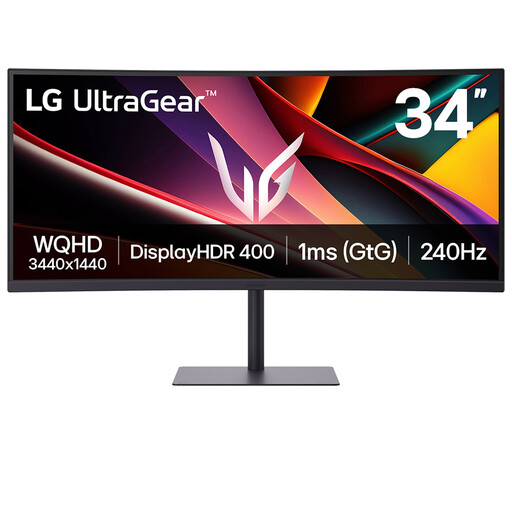
LG UltraGear 34GX900A-B 34-inch OLED WQHD monitor
Consider this model if a 34-inch ultrawide fits your editing and preview layout. Its product name specifies a 240 Hz OLED display; for help-centre work with persistent interface elements, check the screen-protection guidance and whether OLED burn-in risk suits your use.
If you intend to charge a laptop through the monitor, check whether its stated USB-C power limit and your laptop’s video support meet your needs.
Joybuy
 No image available
LG UltraGear 34G630A-B 34-inch VA WQHD monitor
This 34-inch WQHD option is worth considering when you want an ultrawide for adjacent editing and preview windows. The product name specifies a VA panel and 240 Hz refresh rate; check whether the stand can place it where you need it at standing height.
Its stated USB-C power delivery is 15 W, so compare that limit and the intended video connection with your laptop before planning a one-cable setup.
Joybuy
 No image available
Acer Predator X49X 49-inch 32:9 curved QD-OLED monitor
Consider this wider-format model if your desk can accommodate a 49-inch screen and you have a use for its stated KVM feature. Its 32:9 format is a different choice from the 34-inch 21:9 WQHD setup discussed above.
Check physical fit and the stand’s adjustment at your desk, then confirm the laptop’s USB-C video and charging requirements before relying on that connection.
Joybuy
 No image available
Philips Evnia 6000 34M2C6500 34-inch WQHD monitor
This 3440 × 1440 model suits a setup where you want to place editing and preview windows alongside each other. Its product name lists height, swivel and tilt adjustment, HDMI and DisplayPort inputs; check the available height adjustment against your standing position.
If laptop charging, wired Ethernet or KVM is essential, confirm those requirements against the exact model before choosing it.
Joybuy
Frequently asked questions
Does a standing desk require a particular monitor model?
No particular model is specified in the Health and Safety Executive’s workstation guidance. For daily display-screen work, the HSE says employers must assess the workstation, including how its equipment and furniture are arranged; choose a stand or compatible arm that lets you position the screen appropriately.
Where should an ultrawide sit when the desk is raised?
Set it up at the height where you actually stand. The Health and Safety Executive advises keeping the top of the screen around eye level, the screen about an arm’s length away, and the screen and keyboard central; check the monitor’s adjustment or mount before buying.
Will one USB-C cable run and charge any laptop?
No: the monitor’s power-delivery rating and the laptop’s USB-C video and charging capabilities must match the intended setup. Dell specifies up to 90 W for the P3425WE and LG specifies 90 W for the 34BA75QE-B; compare the exact laptop’s requirements with the monitor you choose.
When is a built-in KVM useful for help-centre work?
A built-in KVM is useful when two computers need to share a keyboard, mouse and display. LG lists KVM and picture-by-picture on the 34BA75QE-B, while Samsung lists two-source KVM control on the S65UC; check the required inputs and switching behaviour for your devices.


