Texture and material reviewers beside daylight
If you inspect seams, tiling or material joins near a window, reflections can interfere with judging subtle detail. Screen placement and control of the window light belong in the buying decision.


Start with the window, not the monitor: the Health and Safety Executive advises positioning screens away from direct reflections and using blinds or curtains to control intrusive light. For texture-seam review, consider a matte or anti-glare professional ultrawide with a colour mode suited to your workflow; choose between a 34-inch 3440 × 1440 workspace and a larger 5120 × 2160 workspace according to the detail and tool panels you need visible. Neither resolution nor a screen coating replaces control of the light at your desk.
If you inspect seams, tiling or material joins near a window, reflections can interfere with judging subtle detail. Screen placement and control of the window light belong in the buying decision.
If an asset review depends on colour and tone as well as visible detail, check that the monitor has a mode suited to your working colour space and a calibration approach that fits your approval workflow.
If a laptop drives the review desk, monitor connectivity and charging may help organise the setup. Check the laptop and the exact monitor ports before planning to replace a separate dock.
Deal with reflections before comparing pixel counts or colour specifications. Then decide how much vertical workspace the asset and review tools require, and check the colour mode and connections against your own workflow.
| Concern | What to check | Who this matters to |
|---|---|---|
| Window reflections | Look for a stated matte or anti-glare surface, and check whether you can angle the screen and control light with blinds or curtains. | If daylight reflects across my screen, I need to see a join without the reflection masking it; around 33% of consumers put reflection control first. |
| Detail and workspace | Compare native resolution and available desk space: the cited 34-inch models have 3440 × 1440 pixels, while the cited 39.7-inch models have 5120 × 2160. | When I inspect an asset alongside full-height tools, I want enough vertical pixels to keep the seam at a useful viewing scale. Around 27% of consumers make workspace their primary need. |
| Colour-managed review | Check the exact model’s colour modes and how it fits your calibration or profiling workflow; a gamut specification alone does not establish the result in your setup. | If tone or colour differences could affect my decision about a material join, I need a repeatable review setup; for around 27% of consumers, colour management comes first. |
| Laptop integration | Match the monitor’s video connection and USB-C or Thunderbolt power delivery to the laptop’s display capability and charging requirement. | When I reconnect a laptop for each review session, I want the display and desk connections to fit my routine; around 13% of consumers prioritise workstation integration. |
A surface treatment or brightness specification cannot remove every direct reflection from the seam you are inspecting.
Before choosing a monitor, check where the screen can sit and whether blinds or curtains can control intrusive daylight, as the Health and Safety Executive advises.
A 34-inch 3440 × 1440 display and a 39.7-inch 5120 × 2160 display leave different amounts of vertical space for an asset and its tools.
Compare native pixel dimensions with the panel layout you use, then check that the larger screen fits the desk.
A stated gamut or manufacturer accuracy figure does not, by itself, establish how an asset will appear in your chosen mode and review environment.
Use the project’s intended colour mode and validate the monitor within the calibration or profiling workflow used for approval.
Display output and charging depend on both devices’ capabilities; a USB-C socket alone does not establish that the connection meets your needs.
Check the laptop’s video-output support and charging requirement against the exact monitor’s ports and power-delivery specification.
These model lines illustrate different specifications to check for a window-side workstation; the brand name alone does not establish how a screen will perform at your desk.
BenQ lists the PD3420Q as a 34-inch creative-workflow ultrawide.
The ProArt PA34VCNV is a 34.1-inch professional ultrawide for creator workflows.
The UltraSharp U4025QW is a 39.7-inch ultrawide for a larger creative workspace.
LG’s 40WP95CP-W is a 39.7-inch ultrawide with a 5120 × 2160 workspace.
These two ultrawides offer different screen sizes for arranging texture-review work. Check each model’s screen finish, usable vertical workspace and colour workflow against the light and tools at your desk before choosing.
 No image available
Consider its 49-inch, 32:9 layout if you want space to arrange an asset view and review panels and have room for the screen on your desk.
The product name specifies an 1800R curve, QD-OLED panel, 240 Hz refresh rate and USB-C. Check the native vertical resolution, screen finish and calibration workflow before choosing it for window-side, colour-sensitive seam review.
 No image available
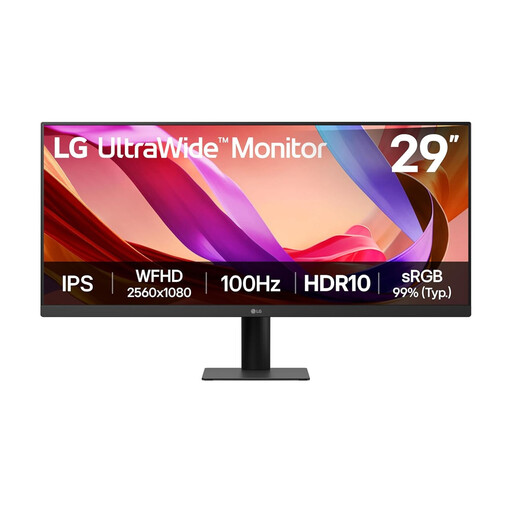
This smaller ultrawide is worth considering if its 1080p vertical workspace accommodates your asset and tool panels.
The product name specifies an IPS panel, 100 Hz refresh rate, DisplayPort and HDMI. Check the screen finish and colour-management options if reflections or colour-sensitive approval are central to your work.
No: an anti-glare or matte surface does not replace positioning the screen away from direct reflections. The Health and Safety Executive advises arranging the desk and screen to avoid glare and adjusting blinds or curtains to prevent intrusive light.
Choose according to the vertical space your asset view and tools require. The 5120 × 2160 resolution specified for the Dell U4025QW and LG 40WP95CP-W provides more pixels in both dimensions than the 3440 × 1440 resolution of the cited BenQ and ASUS models, but the larger screens also need more desk space.
No. Select a monitor mode appropriate to the project’s working colour space and validate the display through the calibration or profiling process used for approval. Published gamut figures describe the specified model, not the result of your complete review workflow.
Yes, where the Display Screen Equipment Regulations apply. The Health and Safety Executive says they apply to workers who use display screen equipment daily for continuous periods of an hour or more; employers must assess those workstations and reduce identified risks.