For a laptop-led brochure workstation with limited sockets, consider an ultrawide monitor that carries video and supplies enough USB-C power for your laptop; a stated 90W model is worth considering when the laptop needs that level of power. Check the laptop’s video output before relying on one cable, and use accurate monitor and output profiles rather than treating screen colour as a print proof.
Who this setup suits
Single-socket laptop reviewers
If you review brochure spreads mainly from one laptop, a monitor that handles video and sufficient laptop charging over USB-C may let you leave a separate charger off the desk. Confirm that the laptop supports USB-C video and check its charging requirement.
Print-conscious brochure designers
If you assess typography, images and colour before sending files to print, look beyond a monitor’s stated colour coverage. Adobe’s colour-management guidance calls for accurate profiles for the monitor and intended output; a physical proof may still matter for final approval.
Two-computer proofing users
If files or feedback arrive on two computers, a compatible built-in KVM can let one keyboard and mouse control both. Picture-by-picture is useful when you need to see both sources at once, but check each computer’s video and USB connections before buying.
What to check when choosing
Start with the laptop connection and charging requirement. Then choose the workspace, colour workflow and two-computer controls that your brochure reviews actually need.
| Concern |
What to check |
Who this matters to |
| Fewer plugs and cables |
Check the laptop’s USB-C video capability and charging requirement against the monitor’s stated power delivery; confirm the required cable. |
I want to review layouts from one laptop without keeping its charger and a separate hub on the desk. Around 36% of consumers put this connection-and-power need first. |
| Print-facing colour |
Look for stated colour coverage, then plan for accurate monitor and intended printer or press profiles. |
When approving brochure colour, I need to judge it against the intended print conditions, not just the screen. This is the primary concern for around 29% of consumers. |
| Room for spreads |
Check resolution, aspect ratio, stand adjustment and whether the screen fits your desk and viewing position. |
I need space to see a spread beside comments or a PDF proof without constant window switching. Around 21% of consumers prioritise that workspace. |
| Two-computer control |
Check the exact KVM, USB and picture-by-picture arrangements against both computers’ outputs. |
If proofs and feedback sit on different computers, I want to switch control without adding another device. Around 14% of consumers make two-source handling their first concern. |
Mistakes to avoid
-
Assuming every USB-C laptop can send video
A USB-C port used only for data or charging will not provide the intended one-cable display connection. Dell’s USB-C guidance says the laptop port needs DisplayPort Alt Mode or Thunderbolt for video.
Check the laptop specification before choosing a USB-C monitor on this basis.
Without a compatible video connection, you may need a separate display cable, adaptor or dock.
-
Treating 65W and 90W charging as interchangeable
LG UK states up to 65W for the 34WR55QK-B, while Dell UK states up to 90W for the P3425WE. Neither figure establishes what your particular laptop needs during use.
Compare the laptop’s documented charging requirement with the monitor’s power delivery before planning to remove its charger.
If the monitor cannot supply enough power, you may need to keep the laptop charger connected.
-
Approving print colour from an unprofiled screen
A monitor’s gamut claim does not describe how the finished brochure will look on its intended printer, paper or press. Adobe’s guidance calls for accurate colour profiles for dependable colour management.
Use an accurate monitor profile and the applicable output profile; seek a physical proof when final print colour is consequential.
-
Choosing KVM features before mapping both computers
A built-in KVM and picture-by-picture mode are useful only when the computers can make the required video and peripheral connections.
List both computers’ outputs and the peripherals you want to share, then compare them with the monitor’s exact input arrangement.
The second computer may require additional cables or adaptors.
Relevant brands to consider
Dell
Dell UK lists USB-C hub-oriented ultrawides, including the Pro 34 Plus P3425WE and UltraSharp U3425WE, for a laptop-centred desk.
- Dell UK specifies up to 90W power delivery for both models and RJ45 Ethernet for the P3425WE.
- Check your laptop’s USB-C video support and power requirement; the monitor’s stated output alone does not establish a complete one-cable setup.
LG
LG UK lists 34-inch UltraWide models with different stated USB-C power outputs, allowing the charging requirement to guide the choice.
- LG UK specifies 90W USB-C power delivery and RJ45 for the 34BA75QE-B, compared with up to 65W charging for the 34WR55QK-B.
- Confirm whether the selected model’s output is adequate for your laptop and whether its connections cover any Ethernet or two-computer needs.
Samsung
Samsung Business UK presents the ViewFinity S6 S65UC as an ultrawide option for controlling and viewing multiple sources.
- Samsung states that the S65UC has a built-in KVM and picture-by-picture mode.
- Check the model’s current USB-C charging specification and both computers’ connections before relying on it to simplify the whole desk setup.
Joybuy ultrawide monitor options
These options take different approaches to brochure-review workspace: a wide, multi-source display and a 34-inch ultrawide. For either one, check laptop charging and USB-C video compatibility separately from screen size.
 No image available
Acer X Predator X49X 49-inch QD-OLED monitor
Consider this 32:9 display if you need room for a brochure spread alongside other material and can accommodate a 49-inch screen on your desk.
The product name specifies an 1800R curve, Double Quad HD resolution, 240Hz refresh rate and HDMI, DisplayPort and USB-C connections.
Before relying on USB-C to replace a laptop charger, check whether the listed 90W power delivery meets your laptop’s requirement and whether its port supports video. Screen specifications do not replace a profiled print workflow.
View on Joybuy
 No image available
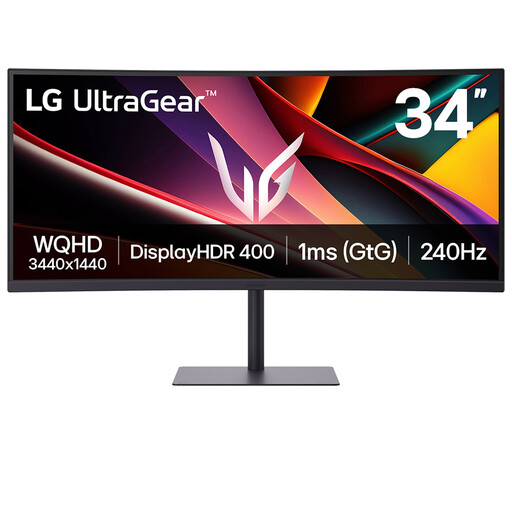
LG UltraGear 34G630A-B 34-inch VA WQHD monitor
Consider this ultrawide for reviewing a brochure spread beside reference material when a 34-inch screen suits your desk.
Its product name specifies a VA WQHD display and 240Hz refresh rate.
Check whether the listed 15W USB-C power delivery meets your laptop’s charging requirement before expecting the monitor to replace its charger. Confirm USB-C video support on the laptop and use the appropriate profiles for print-facing colour decisions.
View on Joybuy
Common questions
Can one USB-C cable run the monitor and charge my laptop?
Yes, if the laptop supports video over USB-C and the monitor supplies enough power for that laptop. Dell’s USB-C guidance specifies DisplayPort Alt Mode or Thunderbolt for video; check the laptop’s charging requirement and the monitor’s stated power delivery as separate conditions.
Is a 34-inch ultrawide useful for checking brochure layouts?
It can give you room to view a spread beside comments or reference material. Check that the screen fits your desk, and review the finished design at an appropriate print size rather than judging it only by how much fits on-screen.
Does stated sRGB coverage mean my brochure will print as it looks on-screen?
No. Adobe’s colour-management guidance calls for accurate monitor and output profiles; stated screen coverage alone cannot account for the intended printer, paper or press conditions. Use the relevant output profile and seek a physical proof when final colour approval matters.
How should I find a disposal route for an old monitor?
Check your retailer’s electrical-equipment take-back information or your local authority’s electrical-waste service rather than assuming ordinary household-bin disposal is appropriate. GOV.UK identifies the UK Waste Electrical and Electronic Equipment Regulations as the framework for electrical-equipment recovery, reuse and recycling.


