A 34-inch, 21:9 ultrawide with 3440 × 1440 resolution is a practical starting point for arranging an event calendar beside reference material on one screen. For a desk normally used with one laptop, consider a USB-C hub model; if two computers must share a keyboard and mouse, check for a built-in KVM switch. In either case, confirm laptop video and charging compatibility, desk fit and screen adjustment before buying.
Who this setup suits
Calendar-layout multitaskers
If you keep an event calendar open beside notes, invitations or a spreadsheet, a wide single screen gives you room to arrange those windows. Check that the calendar remains readable at your preferred text size rather than choosing by screen width alone.
Shared-desk device switchers
If the desk alternates between two computers, a monitor with a documented KVM switch can let them use one keyboard and mouse. Check the exact model's connections and switching behaviour against both computers.
Long-session desk users
If several people use the desk for extended work sessions, screen position matters alongside display size. The Health and Safety Executive advises setting the screen at a suitable height and distance and taking breaks or changing activity during display-screen work.
What to check when buying
Start with a readable calendar layout, then work out which computers and peripherals must remain connected. Measure the desk and check screen positioning before settling on a model.
| Concern |
What to check |
Who this matters to |
| Readable calendar layout |
Check native resolution, aspect ratio and whether your calendar and supporting windows remain legible at your preferred scaling. |
If I edit a dense calendar beside event details, keeping both readable is my main priority. Around 42% of consumers put the calendar layout first. |
| Shared-device connections |
Check the exact model's KVM function and inputs if two computers share peripherals; for a laptop, confirm USB-C video output and charging requirements. |
When I move between two computers at one desk, avoiding repeated keyboard, mouse and cable changes matters most. Roughly 33% of consumers prioritise device switching. |
| Desk and screen fit |
Measure usable width and depth, including the stand; check height, tilt and swivel adjustment against each user's seating position. |
If I spend long sessions at a desk used by others, being able to position the screen comfortably comes before extra display features. For about 25% of consumers, workstation fit is the primary concern. |
Shared-desk buying pitfalls
-
Choosing by diagonal size without measuring the desk
An ultrawide also needs sufficient depth for its stand and a comfortable viewing distance. Dell UK lists the P3424WE as 81.57 cm wide with its stand, so its diagonal measurement alone would not establish whether it fits.
Measure the usable desktop, allow room for cables and check whether each regular user can position the screen directly in front of them.
A monitor arm or riser may be needed if the supplied stand cannot position the screen suitably.
-
Assuming USB-C means one-cable docking for every laptop
Dell UK and LG UK specify up to 90 W USB-C power delivery for the P3424WE and 34BA75QE-B respectively. That figure does not establish whether a particular laptop can send video through the connection or meet its charging needs.
Check the laptop's external-display output, charging requirement and any Ethernet or USB peripherals you intend to connect through the monitor.
A separate charger, adapter or dock may still be needed for the chosen laptop setup.
-
Confusing KVM switching with two-person use
A KVM lets connected computers share a keyboard and mouse; it does not turn one screen into two independent workstations. Samsung Business UK documents KVM switching on the S65UC, while simultaneous source viewing is a separate, model-specific feature.
If two sources must be visible together, check for Picture-by-Picture or Picture-in-Picture on the exact model. If two people need to work independently at the same time, consider separate displays.
-
Relying on display features instead of setting up the workstation
Screen features cannot replace suitable positioning, lighting and breaks during extended display-screen work. The Health and Safety Executive advises placing the top of the screen around eye level and the screen about an arm's length away.
Adjust the stand where possible, manage glare and plan breaks or changes of activity as part of the desk setup.
Relevant brands to consider
Dell
Dell UK's P3424WE illustrates a 34-inch, 3440 × 1440 office ultrawide with USB-C power delivery, Ethernet, USB hub connections and stand adjustment.
- Its documented KVM ports and hub connections are worth checking when computers share desk peripherals.
- The P3424WE is specified at 60 Hz and has no built-in speaker. Dell's U3425WE has different features, including 120 Hz and speakers; assess those models separately.
LG
LG UK's 34BA75QE-B illustrates a 34-inch curved IPS office model with 3440 × 1440 resolution, 90 W USB-C power delivery, Ethernet, speakers and an adjustable stand.
- Its documented connections are relevant to a compatible one-laptop desk setup.
- If two computers must share a keyboard and mouse, confirm KVM support on the exact model rather than assuming USB-C docking provides it.
Samsung
Samsung Business UK documents a built-in KVM switch, USB-C and LAN on the 34-inch ViewFinity S65UC.
- The S65UC's documented KVM can control two connected sources with one keyboard and mouse.
- KVM switching does not establish simultaneous source viewing. Samsung documents Picture-by-Picture and Picture-in-Picture on the separate S65TC model, so check the functions of the model you choose.
Joybuy ultrawides for calendar layouts
These 34-inch ultrawides are choices for arranging an event calendar and related windows on one screen. For a shared desk, check each model's connections, peripheral switching and physical fit against the computers and users involved.
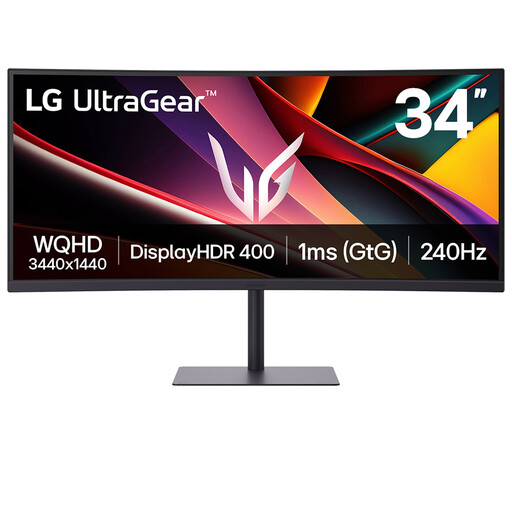 No image available
LG UltraGear 34G630A-B 34-inch VA WQHD 240 Hz monitor
Consider its wide screen if you want to arrange a calendar beside supporting windows. Check USB-C video and charging compatibility with your laptop, and confirm KVM support if two computers need to share a keyboard and mouse.
View on Joybuy
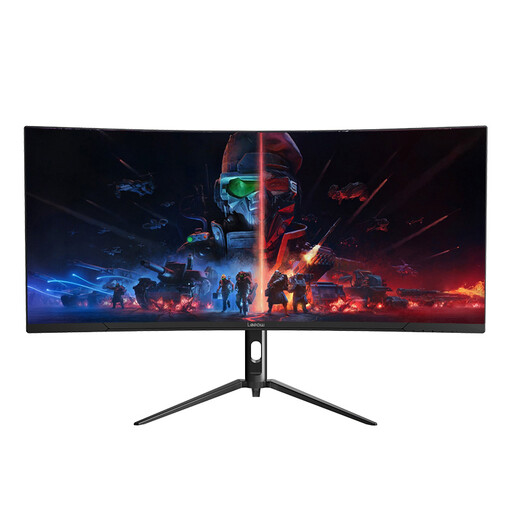
 No image available
Lenovo R34w-30 34-inch UWQHD monitor
The ultrawide format is relevant if you want a calendar and related work visible together. Check the number and arrangement of video inputs for the computers using the desk, and confirm KVM support if they must share input devices.
View on Joybuy
 No image available
Lepow HC-SJ34MZ5 34-inch 3440 × 1440 ultrawide monitor
Its stated resolution is relevant to placing a calendar beside other applications. The product name also specifies a 165 Hz refresh rate; check stand adjustment and KVM support separately if either matters at the shared desk.
View on Joybuy
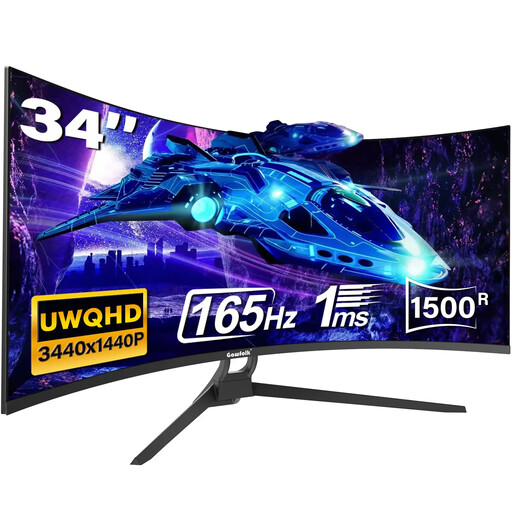 No image available
Gawfolk 34-inch UWQHD 165 Hz 1500R curved monitor
Consider the stated 21:9 format for a calendar alongside supporting windows. Confirm the exact ports before planning a USB-C laptop connection, and check stand adjustment and KVM support for the intended shared-desk setup.
View on Joybuy
Frequently asked questions
Is a 34-inch ultrawide a sensible starting point for an event calendar?
Yes, if you want a continuous screen for the calendar and supporting applications. Dell UK and LG UK list 34-inch, 21:9 office models with 3440 × 1440 resolution, but check your calendar's scaling and your preferred text size before deciding whether that format suits you.
Can two people work independently on one KVM ultrawide?
No: a KVM addresses switching between connected computers, not independent use of one monitor by two people. Samsung Business UK describes the S65UC as controlling two sources with one keyboard and mouse; if you need to view both sources together, check whether the exact model also supports Picture-by-Picture or Picture-in-Picture.
What workstation checks matter if the monitor is supplied for work?
Check that each regular user can position the screen suitably, and arrange a workstation assessment where the work meets the applicable threshold. The Health and Safety Executive says employers must assess workstations for employees who normally use display screen equipment daily for continuous periods of an hour or more; it also advises suitable screen positioning and breaks or changes of activity.
Should I check CE or UKCA marking before buying?
Check the product documentation for the market where the monitor will be used. GOV.UK guidance updated on 21 August 2026 says Great Britain continues to recognise CE marking alongside or instead of UKCA marking where the relevant product regulations' aims and requirements are met; do not assume that the same conditions apply in Northern Ireland.


