What matters when choosing?
Start with the desk’s connection workflow, then check laptop compatibility, screen positioning and the space needed for your editing windows.
| Concern | What to check | Who this matters to |
|---|
| Two-computer switching |
Check separately for Picture-by-Picture to view two inputs and a built-in KVM to share a keyboard and mouse. LG specifies both for the 34BA75QE-B. |
If two computers use the same desk, I need to know whether I can view both and move my keyboard and mouse between them without repeated reconnection. Around 36% of consumers put this switching need first. |
| Laptop docking |
Confirm the laptop’s USB-C display capability, its charging requirement and the monitor’s stated power-delivery limit. |
When I arrive with a work laptop, I want to make fewer connections before opening the editor and preview. For around 29% of consumers, straightforward docking is the primary concern. |
| Shared-desk fit |
Measure desk depth and check height adjustment and, if needed, monitor-arm compatibility. Ergotron advises more viewing distance for larger screens. |
If someone else has used the desk, I need to reposition the screen for my own viewing position. This is the leading need for around 21% of consumers. |
| Side-by-side workspace |
Check whether a 3440 × 1440, 21:9 layout gives your editor, preview and references readable space at a comfortable scale. |
I spend more time comparing page content with its preview than moving between computers, so window layout drives my choice. Around 14% of consumers put formatting space first. |
Ultrawides on Joybuy
These monitors offer ultrawide screen options for a help-centre workspace. Choose by the space available and your connection workflow; check the exact model’s docking and switching functions before relying on them at a shared desk.
 Image unavailable
Acer Predator X49X 49-inch DQHD QD-OLED monitor
Consider this 49-inch, 32:9 screen if your editing layout needs substantial horizontal space and the desk can accommodate it. Check the exact USB-C video, data and power-delivery functions before planning a laptop-docking setup.
View on Joybuy
 Image unavailable
LG UltraGear 34GX900A-B 34-inch OLED WQHD monitor
The 34-inch WQHD format is an option for keeping formatting windows side by side. Its product information warns about OLED burn-in, which matters when editor controls or reference pages remain static for long periods; check the screen-protection guidance before choosing it for that use.
View on Joybuy
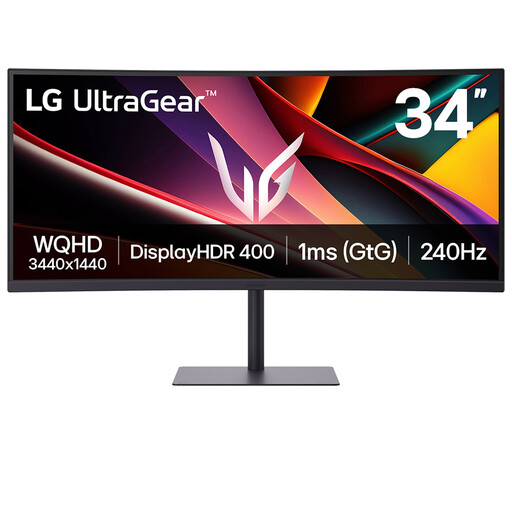 Image unavailable
LG UltraGear 34G630A-B 34-inch VA WQHD monitor
This 34-inch WQHD option suits a desk where horizontal editing space is the starting requirement. Its stated USB-C power delivery is 15 W, so compare that limit with the intended laptop’s charging needs before treating it as a docking connection.
View on Joybuy
 Image unavailable
Lenovo R34w-30 34-inch UWQHD monitor
The 34-inch UWQHD screen is relevant if you want room for an editor and preview. If the shared desk also needs one-cable docking or two-computer peripheral switching, check those functions for this exact model before buying.
View on Joybuy
 Image unavailable
Philips Evnia 6000 34M2C6500 34-inch WQHD monitor
This 34-inch, 3440 × 1440 model offers an ultrawide layout for formatting work. Check whether the exact model provides the USB-C docking or two-computer functions your shared desk requires; do not assume it has the features of Philips’ separate 346P1CRH/00.
View on Joybuy
Frequently asked questions
Does UK display screen equipment guidance cover a hot desk?
Yes, hot-desking is included in the Health and Safety Executive’s display screen equipment guidance. The HSE advises workers who change desks regularly to carry out a basic risk assessment; buying a different monitor does not replace an assessment of the workstation and its use.
Is a 34-inch WQHD ultrawide useful for formatting help-centre articles?
It can be useful when an editor, rendered preview and reference material need to stay visible together. Check that the window layout remains readable at your preferred scaling and that the desk allows a comfortable viewing distance.
Will a USB-C monitor charge any work laptop?
No: the laptop must support the intended USB-C connection, and its charging requirement must suit the monitor’s power-delivery limit. For example, LG specifies up to 65 W for the 34WR55QK-B and up to 90 W for the 34BA75QE-B; check the exact laptop and monitor pairing.
Can Picture-by-Picture replace a KVM switch?
Not when the requirement is to move one keyboard and mouse between two computers. Picture-by-Picture displays two inputs, whereas a KVM handles peripheral switching; LG explicitly lists both functions for the 34BA75QE-B.
How should an ultrawide be positioned for different desk users?
Reposition the screen for the current user rather than leaving it fixed for everyone. Ergotron advises placing the top of the screen at or slightly below eye level and the screen at least 51 cm from the eyes, with more viewing distance for larger displays; apply these points alongside the workstation assessment.


