What to check when choosing
For search-filter testing at a standing desk, settle the layout and screen position first, then decide whether connections for another computer or motion-focused testing should shape the choice.
| Concern |
What to check |
Who this matters to |
| Room for the page and tools |
Check the exact resolution and aspect ratio, your desk width and the way you dock browser tools. |
I want the results page, filter controls and developer tools visible without continually rearranging windows. Around 33% of consumers would put that workspace need first. |
| Screen position while standing |
Check the stand’s height, tilt and swivel range; for an arm, confirm mounting and desk-clamp compatibility. |
When I change between sitting and standing, I need to place the screen comfortably at both desk heights. Around 27% of consumers would make positioning their primary concern. |
| Laptop and second-computer connections |
Match USB-C video output and power delivery to your laptop; check Ethernet and KVM functions if you need them. |
I switch between a work laptop and another test computer and want fewer peripheral changes. Around 20% of consumers would prioritise that connection setup. |
| Changing interface states |
Check the refresh rate at the resolution you intend to use and the required device port and cable. |
My tests include animations or rapid state changes, so I pay closer attention to how those changes appear on screen. Around 20% of consumers would put motion checks first. |
The Health and Safety Executive advises positioning the top of the screen level with your eyes and placing the screen about an arm’s length away. An adjustable monitor helps with placement, but the desk, keyboard and mouse remain part of the setup.
Joybuy product choices
These ultrawides offer different screen sizes, resolutions and refresh-rate options for testing a search filter. Check each model’s screen positioning and connections against your standing-desk setup; a wider or faster display does not settle those questions on its own.
 No image available
Acer X Predator X49X 49-inch curved QD-OLED monitor
Consider its 32:9 format if your test page and other windows need a particularly wide layout; check that your desk has room for the 49-inch screen.
The product name specifies a 240 Hz refresh rate, an 1800R curve, HDMI, DisplayPort and USB-C. Confirm the stand or mount fits the positions you use when standing.
View on Joybuy
 No image available
Philips Evnia 6000 34M2C6500 34-inch monitor
Its 3440 × 1440 display and height, swivel and tilt adjustment make it worth checking for a browser-test layout at a standing desk.
The product name specifies up to 175 Hz through DisplayPort and 100 Hz through HDMI. Match the connection to the refresh rate you intend to use.
View on Joybuy
 No image available
CRUA 49-inch curved DQHD 165 Hz monitor
The 32:9, 5120 × 1440 format is an option to assess if you arrange several test windows across one screen. Check desk space and support for a 49-inch display.
The product name states height adjustment, but the stand information is conflicting; confirm the exact adjustment range or suitable mounting option before relying on it for standing use.
View on Joybuy
 No image available
LG UltraWide 29U511A 29-inch monitor
Its 21:9 format may suit a less spread-out test layout; check whether the stated UWFHD 1080p resolution leaves enough room for your page and developer tools.
The product name specifies a 100 Hz refresh rate, DisplayPort and HDMI. Confirm the stand range or mounting options for your standing position.
View on Joybuy
 No image available
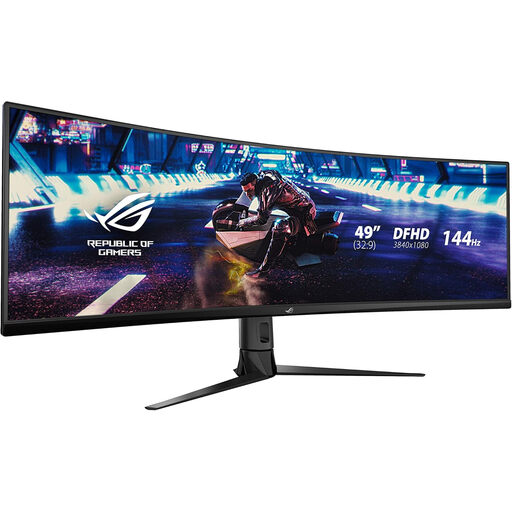
ASUS ROG STRIX XG49VQ DFHD 144 Hz monitor
Consider this 49-inch ultrawide if horizontal space is your priority, but check whether its DFHD layout gives your test page and tools enough vertical room.
The product name specifies a 144 Hz refresh rate. Confirm desk space and the stand or mounting adjustments before choosing it for standing use.
View on Joybuy
Frequently asked questions
How should I position an ultrawide at a standing desk?
Set it as part of the whole workstation, adjusting the desk, screen, keyboard and mouse together when you change position. The Health and Safety Executive advises placing the screen directly in front of you, with its top level with your eyes and the screen about an arm’s length away.
Does a standing desk require a height-adjustable monitor stand?
Not necessarily: the question is whether the complete setup lets you position the screen appropriately when sitting and standing. Dell specifies 150 mm of height adjustment for the P3425WE; if you choose a stand without the range you need, check compatible arm and desk-mount options before buying.
Can one USB-C cable carry video and charge my laptop?
It can if the laptop’s port supports video output and the monitor delivers suitable charging power through the connection you use. Dell and LG specify up to 90 W power delivery for the work-monitor models discussed here, but you still need to compare that rating with your laptop’s requirements.
Does an employer need to assess a standing-desk screen setup?
For UK workers who use display screen equipment daily as part of normal work and continuously for an hour or more, the Health and Safety Executive says employers must carry out a workstation assessment. That assessment considers the work and the whole workstation, not just the choice of monitor.


