For two typography views from one computer, prioritise native resolution and enough vertical space for the specimens you review: Dell’s U4025QW and LG’s 40U990A-W have 5120 × 2160 panels, while BenQ’s smaller PD3420Q is 3440 × 1440. If the views come from two computers, look for Picture-by-Picture (PBP) input support instead of relying on window arrangement alone; Samsung’s 49-inch S95UC offers that route but has 1440 pixels of vertical resolution. Before buying, confirm that your computer, port and cable support the monitor’s native resolution.
Who is this for?
Type and brand designers
If you compare glyph shapes, font weights and editorial layouts alongside colour-managed design files, check the exact monitor’s native resolution, colour modes and calibration information. Dell, LG and BenQ publish different specifications for the models discussed below.
Web and product designers reviewing live type
If your browser preview sits beside a design tool or code editor on one computer, a single high-resolution canvas and usable window layout matter more than a second video input. Microsoft Support describes Windows Snap as a way to position and resize application windows.
Reviewers using two devices
If each typography view comes from a separate computer or video source, check for PBP to display both inputs and a KVM switch if you want to share a keyboard and mouse. Samsung lists these functions for its S95UC.
What matters when choosing?
Decide first whether the two views are applications on one computer or feeds from separate devices. Then compare vertical resolution, desk fit and the colour controls your work calls for.
40-inch 5K2K
Choose it when: You want two application windows from one computer with 2160 pixels of vertical resolution for longer specimens and previews.
Trade-off: Check desk fit and whether your computer and connection can output the panel’s native 5120 × 2160 resolution.
49-inch dual-QHD
Choose it when: Two connected sources need to remain visible, using a model with PBP such as Samsung’s S95UC.
Trade-off: Its 5120 × 1440 format is wide but shows fewer vertical pixels than a 5120 × 2160 panel.
34-inch designer ultrawide
Choose it when: A smaller screen format and model-specific colour controls matter more to you than a 5K2K workspace; BenQ’s PD3420Q is one example.
Trade-off: Its 3440 × 1440 canvas leaves less room for long documents than the 40-inch 5K2K examples.
| Concern |
What to check |
Who this matters to |
| Readable workspace |
Compare both dimensions of native resolution; confirm your computer and connection can drive it. |
I need a specimen and browser preview visible together without losing too much long-form copy. Around 42% of consumers put readable workspace first. |
| Colour controls |
Check the exact model’s published colour spaces, viewing modes and calibration information. |
When reviewing type alongside brand assets, I need a repeatable colour-review setup rather than a vivid default picture. Around 33% of consumers make colour-control confidence their primary concern. |
| Two-source viewing |
For separate devices, check PBP inputs and KVM functions; for two apps on one Windows computer, consider window snapping. |
My two previews come from different computers, so arranging windows on one desktop will not show both feeds. Around 25% of consumers prioritise two-source capability. |
Mistakes to avoid
-
Buying PBP for two apps on one computer
PBP is for separate video inputs. If both previews are applications on one Windows computer, Microsoft Support says Snap can position and resize their windows on a single display.
Identify where each view comes from before making PBP or KVM a requirement.
-
Judging workspace by screen width alone
Dell and LG list 5120 × 2160 for the 40-inch models discussed here, whereas Samsung’s 49-inch S95UC uses a 5120 × 1440 format. The difference in height affects how much of a long specimen can stay on screen.
Compare the full native resolutions and the document layouts you need to keep visible.
-
Assuming USB-C handles every laptop requirement
A video connection and laptop charging are separate checks. Dell lists USB-C power delivery of up to 90 W for its U4025QW, but a laptop’s charging requirement and supported video output depend on the computer and connection.
Check the monitor’s power-delivery rating against your laptop’s needs, then confirm native-resolution support through the intended port, dock and cable.
-
Taking a vivid picture as proof of dependable colour review
Colour-sensitive brand work calls for the exact model’s colour-space, mode and calibration information. Dell and BenQ publish such specifications for the U4025QW and PD3420Q, respectively; manufacturer figures are not independent test results.
Compare the modes your workflow uses and calibrate or profile the display where your process requires it.
Relevant brands to consider
These model examples illustrate different workspace and input choices, rather than a judgement about every monitor each brand makes.
Dell
The UltraSharp U4025QW is a 39.7-inch 5K2K Thunderbolt hub monitor for a single-computer workspace.
- Dell publishes 5120 × 2160 at 120 Hz, 100% sRGB coverage, average Delta E below 2 and USB-C power delivery up to 90 W for this model.
- Check that the intended computer and connection support its native resolution, and that its dimensions fit your desk.
LG
The 40U990A-W is a 40-inch 5K2K option for wide, detailed creative work.
- LG specifies a 5120 × 2160 Nano IPS Black panel and Thunderbolt 5 for the 40U990A-W.
- Those specifications alone do not establish how comfortable type will look in your particular layout; check native-resolution compatibility and your working scale.
BenQ
The 34-inch PD3420Q offers a smaller designer-oriented ultrawide format.
- BenQ lists 3440 × 1440, 109 PPI, colour modes, a calibration report, PIP/PBP and KVM for this model.
- Its 1440-pixel screen height provides less vertical document space than the 2160-pixel-high 5K2K examples.
Samsung
The 49-inch S95UC is a dual-QHD approach to viewing two connected sources.
- Samsung lists split-screen, Picture-in-Picture, PBP and an integrated KVM for the S95UC.
- Its 1440-pixel vertical resolution makes document height an important check if you work with long type specimens.
Joybuy product choices
These ultrawides offer two different starting points: a wide 49-inch format to consider for separate-source viewing, and a smaller 29-inch format for arranging two apps from one computer. Check the functions and connections needed for your own setup.
 No image available
Acer X Predator X49X 49-inch curved QD-OLED monitor
Consider this wide-format model if your typography views need room side by side, particularly when checking a two-source setup. Its stated format is 32:9 dual-QHD with a 1800R curve; check the PBP and KVM connections you need, along with native-resolution support from your computer, port and cable. Its 1440-pixel screen height leaves less vertical room than a 5K2K panel.
Joybuy
 No image available
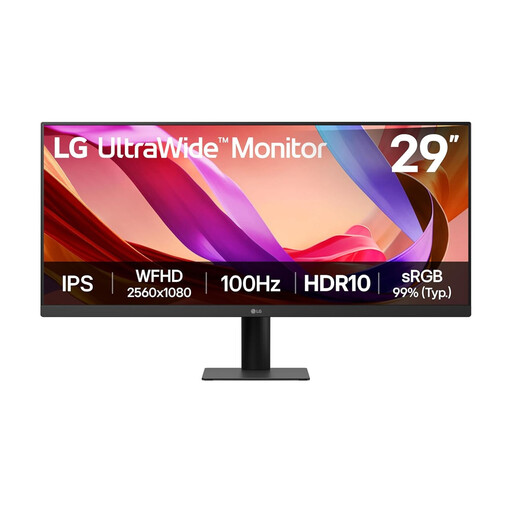
LG UltraWide 29U511A 29-inch IPS monitor
Consider this 29-inch ultrawide for two application windows from one computer. Its stated 1080p screen height gives less vertical room for long specimens than the 1440p and 5K2K formats discussed above; check that your computer can run its native resolution. If you need feeds from two separate devices, confirm PBP capability before choosing it.
Joybuy
Common questions
Do I need Picture-by-Picture for two typography layouts?
Not when both layouts are applications on one Windows computer: Microsoft Support says Snap can arrange and resize windows on one display. PBP is relevant when the views come from separate video sources; Samsung lists it among the S95UC’s input-viewing options.
Should I lower the resolution to make type larger?
Keep the monitor at its native resolution where your computer supports it, and adjust operating-system scaling if you need larger text and controls. Microsoft Support notes that text and images can look less sharp when a monitor runs below its native resolution.
What should I check before connecting a 5K2K monitor?
Confirm that the exact computer, port and cable can output the monitor’s native 5120 × 2160 resolution, then check laptop charging separately if you intend to use it. Dell lists up to 90 W USB-C power delivery for the U4025QW, while LG lists Thunderbolt 5 for the 40U990A-W; neither detail alone establishes compatibility with your computer.


