Choose a 38–40-inch 5K2K ultrawide if you want an edit, reference image and tools on one continuous desktop. Keep two displays if you need physically separate views or different proofing targets, but profile each display you use to judge colour; neither layout makes two views match by default.
Who each setup suits
Colour-critical photo and print editors
If an image is headed for print or wide-gamut delivery, choose a primary display for the required colour space and plan how you will calibrate and profile it. Adobe explains that a monitor profile describes how the display currently reproduces colour.
Single-screen comparison editors
If you want the active edit, a reference image and application panels visible without a centre bezel, a high-resolution ultrawide gives you one continuous workspace. Check its vertical resolution as well as its width.
Two-computer workstation users
If you switch between computers or need to see both sources at once, check the required inputs and whether the monitor supports Picture-by-Picture. If you use two physical displays for colour decisions, Calibrite says your graphics hardware must support separate colour profiles for them.
What matters when choosing
One 5K2K ultrawide
Choose it when: You want an edit, references and tools together on one uninterrupted desktop; Dell’s U4025QW and LG’s 40WP95CP-W are 5120 × 2160 examples.
Trade-off: It cannot give you two physically separate panels, and a published gamut figure does not replace a suitable monitor profile.
Two separate displays
Choose them when: You need separate full-screen views or want to retain an existing calibrated primary monitor alongside a utility display.
Trade-off: Each screen used to judge colour needs its own profile, and the bezels and stands take up desk space. Calibrite specifies separate-profile support in the graphics hardware for calibrating two displays.
| Concern |
What to check |
Who this matters to |
| Colour for the final output |
Coverage of the colour space you deliver in, and a workable calibration and monitor-profile process. |
For print or managed digital delivery, I need the display I judge the edit on to suit that output rather than relying on a wide-gamut label. Around 36% of consumers put this colour-confidence need first. |
| Side-by-side workspace |
Native resolution, particularly 5120 × 2160 versus 3440 × 1440, and whether one continuous panel or two separate views suit your layout. |
When comparing an edit with references and tools, I want enough room to keep them visible without covering the image. This uninterrupted-workspace need comes first for around 29% of consumers. |
| Connections and two computers |
Video inputs and USB-C or Thunderbolt requirements; confirm Picture-by-Picture if both sources must appear simultaneously. |
If I work across a laptop and another computer, I need to know whether I can switch between them or see both feeds at once. Around 21% of consumers make that device workflow their primary concern. |
| Desk and setup fit |
Desk depth, stand or mount requirements, and whether the cables and calibration equipment needed for your setup are included. |
A large panel is useful to me only if it fits my desk and I can set up the connections and colour workflow I intend to use. Practical fit leads the choice for around 14% of consumers. |
Mistakes to avoid
-
Assuming similar screens will show identical colour
Adobe notes that display differences, age and calibration state can affect appearance. Matching headline specifications does not make two panels interchangeable as colour references.
If both screens influence edits, profile and validate each separately in a colour-managed application. Use one as your primary reference if their appearance still differs.
Profiling and checking two displays also takes time.
-
Expecting every ultrawide to have 5K2K workspace
LG specifies 3440 × 1440 for the 34WR55QK-B and 5120 × 2160 for the 40WP95CP-W. The difference matters when arranging images and tools, particularly vertically.
Compare native resolution rather than screen width alone, and check that your computer and connection can drive your chosen display mode.
-
Assuming calibration-ready means a calibrator is included
LG says the compatible hardware calibrator for the 40WP95CP-W is sold separately.
Confirm the compatible measuring device and software for the exact monitor before planning a hardware-calibration workflow.
-
Treating P3 coverage as an answer to every print need
The useful gamut depends on the working and output colour spaces. Adobe distinguishes monitor, document and output-device profiles within a colour-managed workflow.
For Adobe RGB print work, check Adobe RGB coverage and your proofing process on the exact display. For sRGB delivery, assess its sRGB performance and profiling instead of choosing by P3 coverage alone.
Relevant brands to consider
Dell UltraSharp
The U4025QW is a 40-inch curved ultrawide option for a continuous editing workspace with hub connections.
- Dell UK lists 5120 × 2160 resolution, 99% DCI-P3, 99% Display P3 and 100% sRGB for the U4025QW.
- Those model specifications do not establish your calibrated results or Adobe RGB coverage; check both against the output you produce.
LG UltraWide
LG offers distinct 5K2K and 3440 × 1440 ultrawide routes, so the model matters more than the shared range name.
- LG UK lists a 39.7-inch 5120 × 2160 panel with typical 98% DCI-P3 coverage for the 40WP95CP-W; the 34WR55QK-B is a 3440 × 1440 option with typical 99% sRGB coverage.
- LG says the compatible hardware calibrator for the 40WP95CP-W is sold separately. Check the chosen model’s resolution and colour workflow rather than transferring features between them.
BenQ AQCOLOR
The SW272U is a dedicated 27-inch primary-display option to consider when photo or print work takes priority over one panoramic workspace.
- BenQ UK specifies 99% Adobe RGB, 99% P3 and 100% sRGB coverage for the SW272U.
- A dedicated primary monitor plus a secondary screen will not provide an uninterrupted ultrawide canvas; profile the secondary display too if its colour affects your decisions.
Ultrawide models on Joybuy
These single-screen ultrawides offer different sizes and resolutions for arranging edits alongside reference material. Check their colour-management requirements before using one as a reference display, and confirm simultaneous-source modes if your comparison uses two computers.
 No image available
Acer X Predator X49X 49-inch curved QD-OLED monitor
Consider its wide single-screen format if you want room to arrange comparison windows; check the supported source combinations if you need two live computer feeds.
49-inch, 32:9, Double Quad HD QD-OLED panel with an 1800R curve and 240 Hz stated refresh rate. Confirm the profiling and calibration process before relying on it for colour-critical decisions.
Joybuy
 No image available
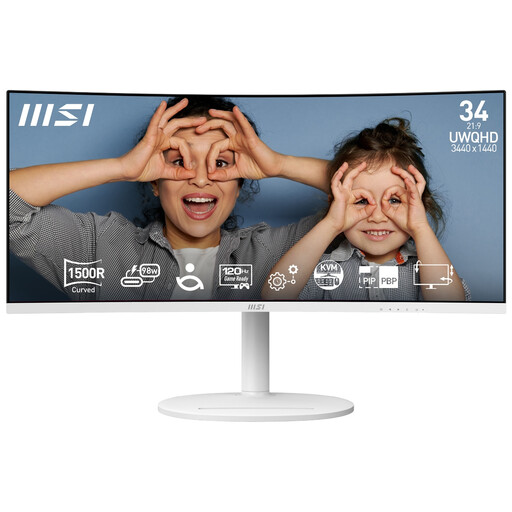
Modern MD342CQPW 34-inch curved monitor, white
Consider this size for an edit and reference windows on one screen, while allowing for less vertical workspace than a 5120 × 2160 display.
3440 × 1440 resolution, 1500R curve and 120 Hz stated refresh rate. If you need two sources visible together, confirm Picture-by-Picture support; establish a suitable monitor profile before judging colour.
Joybuy
 No image available
CRUA 49-inch 5120 × 1440 curved VA monitor, black
Consider its wide desktop for arranging multiple windows, but check your desk or mount before choosing a 49-inch panel.
32:9 VA panel with a 1500R curve, 165 Hz stated refresh rate and 75 × 75 VESA mounting pattern. The advertised 120% sRGB figure does not establish colour accuracy; check calibration and profiling requirements, plus Picture-by-Picture support if you need simultaneous sources.
Joybuy
Frequently asked questions
Is a wide colour gamut enough for editing on an ultrawide?
No. Match the monitor’s stated gamut to your intended output, then use an appropriate monitor profile in a colour-managed application. Adobe explains that a monitor profile describes how the display currently reproduces colour.
Do I need to calibrate both monitors for colour comparison?
Profile and validate each display you use to make colour decisions. Calibrite says calibrating two displays requires graphics hardware that supports separate colour profiles per display; similar published specifications alone will not make the screens match.
Does a hardware-calibration-ready ultrawide include a calibrator?
Not necessarily. LG says the compatible calibrator for its 40WP95CP-W is sold separately. Check what the exact monitor includes and which measuring device and software its calibration process requires.
What should I do with a monitor I replace?
Check the retailer’s take-back arrangements and your local options for recycling electrical equipment before disposing of it. GOV.UK identifies the UK Waste Electrical and Electronic Equipment Regulations 2013, as amended, as the underpinning legislation.


