Side-by-side translation reviewers
You regularly keep the source, translation and notes in view, so the layout and readable text size matter more than screen width on its own.


A 34-inch-class, 21:9 WQHD monitor is a sensible starting point when source and translated documents need to stay visible side by side. At a shared desk, choose the connections for the computers actually in use, then check that the screen can be positioned comfortably; width alone does not settle either question.
You regularly keep the source, translation and notes in view, so the layout and readable text size matter more than screen width on its own.
You want to connect a laptop without repeatedly changing cables, while retaining the wired network connection where the desk provides one.
You switch between two computers and want to check whether one keyboard and mouse can control both, and whether both sources can appear on screen when needed.
Start with a document layout you can read at your usual scaling, then check the shared desk’s connections and the screen’s position.
| Concern | What to check when buying | Who this matters to |
|---|---|---|
| Side-by-side documents | Check the 21:9, 3440 × 1440 layout with your usual files and text scaling; confirm that your application can arrange the windows as needed. | I need to compare source and translation without continually switching windows, while keeping both readable. Around 38% of consumers put this document workspace first. |
| Shared-desk connections | Check the laptop’s video output and charging needs against the monitor’s USB-C capability; confirm whether you also need Ethernet or KVM switching. | When I arrive with a laptop or switch computers, I want the desk connections to fit my workflow without repeated cable changes. Around 31% of consumers make connectivity their primary concern. |
| Workstation fit | Measure the available desk space and check height and position adjustments. The Health and Safety Executive advises placing the screen top at eye level, about an arm’s length away. | I share the desk, so I need to reposition a wide screen for my seated viewing position. For roughly 31% of consumers, workstation fit takes priority. |
USB-C on a monitor does not establish that a particular laptop can send video through its port or run within the monitor’s charging limit.
Check the laptop’s video-output and charging specifications against the exact monitor. Dell UK and LG UK specify USB-C power delivery of up to 90W for the P3425WE and 34BA75QE-B respectively.
KVM shares keyboard and mouse control between computers; Picture-by-Picture is a way to show two source outputs at once. Needing one does not establish that you need—or will get—the other.
Decide whether you need to switch control, see both computers simultaneously, or do both. Confirm the exact monitor’s modes and supported input arrangement.
A wide display still needs a suitable viewing position. Health and Safety Executive guidance addresses the workstation as a whole, not just the monitor.
Measure the desk, centre the screen where practical and check its adjustment range. For a changed shared-office setup, arrange the appropriate display screen equipment workstation assessment.
Dell’s Pro 34 Plus P3425WE is a USB-C hub option for a laptop-led desk; the UltraSharp U3425WE is a separate Thunderbolt hub model.
LG’s 34BA75QE-B is a curved, 34-inch WQHD IPS model aimed at office desks using multiple devices.
Samsung’s ViewFinity S65UC is a curved, 34-inch option for a desk that switches between source devices.
These ultrawide monitors offer options for placing source and translated documents side by side. Check each model’s connections and positioning separately before choosing one for a shared desk.
 No image available
For reviewing two documents alongside each other, check whether its USB-C charging arrangement meets your laptop’s needs.
34-inch VA WQHD display; 240 Hz.
 No image available
For side-by-side document work, weigh the stated OLED burn-in risk from prolonged static images and check the laptop’s charging requirement.
34-inch OLED WQHD display; 240 Hz.
 No image available
For keeping document pairs visible at a shared desk, check whether the stated DisplayPort or HDMI connection approach fits your computer.
34-inch UWQHD display.
 No image available
For parallel document windows, check how the screen can be positioned at the shared desk and whether its connections cover the computers in use.
3440 × 1440 resolution; 165 Hz.
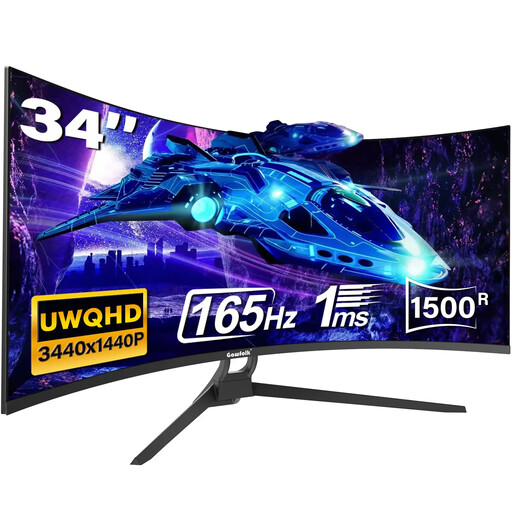 No image available
For a broad document layout, confirm the exact USB-C port arrangement before relying on it at a shared desk; also check the positioning arrangement for the listed VESA mount.
21:9 display; 165 Hz; HDMI 2.1 and DP 1.4 are listed in the product name.
Health and Safety Executive guidance says the UK display screen equipment regulations apply to workers who use a screen daily as part of normal work for continuous periods of an hour or more. Sharing the desk does not, by itself, settle whether an individual’s use meets that condition.
The Health and Safety Executive advises placing the screen directly in front of you, with its top at eye level and about an arm’s length away. Check that the stand or a suitable mounting arrangement lets each desk user achieve an appropriate position.
Yes, if the exact monitor provides KVM and both computers are connected in a supported arrangement. LG UK documents built-in KVM for the 34BA75QE-B, while Samsung Business UK documents it for the ViewFinity S65UC; check the required inputs before buying.
No. Picture-by-Picture shows outputs from two sources in separate parts of the display, while KVM shares keyboard and mouse control between computers. If translation review calls for both visible outputs and shared peripherals, check both functions on the exact model.