What to check before buying
Confirm the service first, then identify whether the problem affects particular rooms, stationary devices or provider-dependent equipment. That diagnosis helps narrow down whether to keep the gateway, extend Wi-Fi or use a wired connection.
| Concern |
What to check |
Who this matters to |
| Identify the fault |
Check postcode availability and service with the provider; then compare a connection near the router with the affected room and another device. |
I want to know whether the issue is the broadband service, home Wi-Fi or one device before choosing equipment; about 25% of consumers put diagnosis first. |
| Reach the rooms you use |
Map weak rooms, possible extender positions and practical cable routes; test locations rather than relying on advertised coverage. |
I need a connection in rooms where the router’s signal is weak, and I want to know whether a relay position or cable route is practical; about 25% of consumers make room coverage their primary concern. |
| Connect stationary devices |
Check the device’s Ethernet socket or adapter needs, cable route and the capabilities of the available ports. |
I want a wired option for a work computer or other stationary device without assuming it will suit every household device; about 20% of consumers prioritise fixed-device reliability. |
| Keep provider functions |
Confirm your provider, plan, broadband technology, hub and telephone service, then check the new equipment’s intended operating mode. |
I need to preserve broadband or telephone functions that depend on my provider’s setup; about 15% of consumers make service compatibility their primary concern. |
| Keep setup manageable |
Check how many units and ports you need, setup requirements and which features remain available in the selected operating mode. |
I want equipment that fits the way I will set it up and use it, without adding unnecessary units or relying on unavailable features; about 15% of consumers put manageable setup first. |
Joybuy products
The products below include mesh Wi-Fi, a Wi-Fi extender and a USB-to-Ethernet adapter for room coverage or a wired connection to a stationary device. Check address availability and provider compatibility before choosing hardware.
 No image available
NETGEAR Orbi 370 RBE373 WiFi 7 Mesh System, 3-Pack
For households considering mesh coverage across several rooms, with Ethernet ports for wired devices.
The product description specifies one router and two satellites, 2.5Gbps Ethernet ports and a requirement for an existing modem or gateway.
View on Joybuy
 No image available
TP-Link RE220BE BE3600 Wi-Fi 7 Range Extender
For a local weak-signal area where the extender can still receive a usable signal from the existing router.
The product description lists extender and access-point modes, EasyMesh support, app-based setup and a 1Gbps Ethernet port. Check the signal at the intended position before relying on it.
View on Joybuy
 No image available
TP-Link Deco BE22 BE3600 Whole Home Mesh Wi-Fi 7 System, 3-Pack
For a household considering a multi-unit mesh setup where wired links between units are practical.
The product description lists three units, wired backhaul and two 1.0Gbps Ethernet ports per unit. It directs users to connect a unit to a modem during setup.
View on Joybuy
 No image available
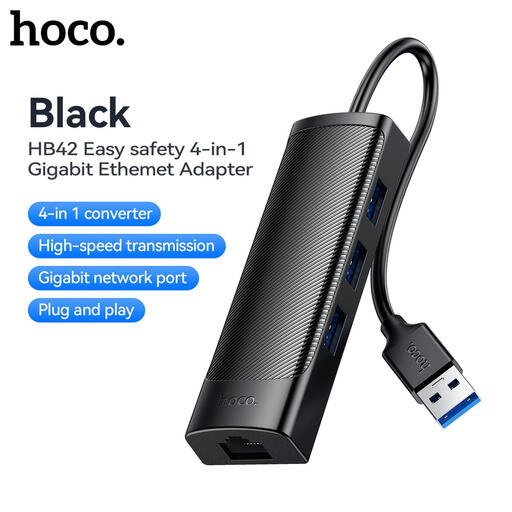
HOCO HB42 USB Gigabit Ethernet Adapter
For connecting a compatible computer to the router by Ethernet when the computer needs a suitable USB adapter.
The product description lists three USB 3.0 ports, a 10/100/1000Mbps Ethernet port and compatibility with Windows, macOS, Linux and ChromeOS. It requires a compatible USB connection and an Ethernet cable.
View on Joybuy
 No image available
TP-Link Deco BE65 BE9300 Tri-Band Wi-Fi 7 Whole Home Mesh System, 3-Pack
For households considering a three-unit mesh system for in-home Wi-Fi coverage.
The product title specifies a three-pack, BE9300, tri-band operation and Wi-Fi 7. Check compatibility with your broadband service and provider setup before choosing a mesh system.
View on Joybuy
Frequently asked questions
Does a postcode checker confirm that broadband will work at my new property?
No; Ofcom’s checker provides predicted availability, and service or speeds at an individual property may differ. Confirm the address and activation arrangements with the provider you are considering.
Can I replace my provider’s router with my own?
It depends on your provider, plan and telephone service, so check those details before disconnecting the supplied hub. Vodafone, for example, says its router must be used with Pro Broadband, 5G Broadband and plans with Digital Voice; that requirement does not apply universally to other providers.
Where should I put a Wi-Fi extender?
Place it where it can still receive a usable signal from the router, typically between the router and the weak-signal area. NETGEAR advises keeping its extenders within the router’s Wi-Fi range, so test the intended position in your home.
Will mesh features remain available in access-point mode?
Not necessarily; TP-Link says the existing router handles DHCP in Deco access-point mode and lists some gateway features as unavailable. Check the exact system and firmware against the features you want before choosing that mode.
Is a standard mesh system also a DSL modem?
Do not assume it is. TP-Link lists DSL-capable Deco models separately and says standard fibre or cable setups need the appropriate modem or ONT upstream; confirm your broadband technology and required equipment with your provider.


