Match a replacement charger to the device’s charging connector, required standard and recommended wattage; a USB-C connector alone does not establish that it can charge a laptop adequately. For several desk devices, use one correctly rated, fused UK extension lead connected directly to the wall, keeping the combined load within its marked limit. Built-in USB ports, surge protection and an RCD are separate features: none makes an overloaded or daisy-chained lead safe.
Who needs to check what?
Home workers with a laptop, monitor and phone at one desk
Check the laptop charger’s requirements separately from the mains load of everything plugged into an extension lead. Electrical Safety First advises against overloading sockets or connecting extension leads together.
People replacing a laptop or phone charger
Match the device’s connector and charging requirements, not just the shape of a USB-C port. Apple’s guidance for USB-C-chargeable Macs calls for USB Power Delivery (USB PD) and at least the model’s recommended minimum wattage; Microsoft warns that a lower-wattage charger may charge a Surface slowly or not at all.
Small-space desk users
Choose a lead that reaches the wall socket without connecting a second extension lead. Plan where its cable will run so it does not cross a walkway or pull against plugs at the desk.
What matters when choosing?
Start with the device that needs charging, then check the wall-socket arrangement and the combined load of the equipment you intend to connect.
| Priority |
What to check |
Your needs |
| Charger compatibility |
Confirm the device charges through the stated connector, whether it requires USB PD, and its maker’s recommended wattage. For higher-power USB-C charging, check the cable’s rating too. Apple and Microsoft give model-dependent charging guidance. |
I’m replacing a charger and need one that meets my exact device’s requirements, rather than one chosen by connector shape alone. |
| Extension-lead load |
Look for a standard UK 3-pin plug and fuse. Add the connected equipment’s loads, stay within the lead’s marked maximum current rating, and connect only one extension device directly to the wall socket, as Electrical Safety First advises. |
My desk has several mains-powered devices, so the number of sockets must not distract me from the lead’s load limit. |
| Built-in USB ports |
Compare each port’s stated output and charging standard with the device’s requirements. Check the total output and how power is shared when several ports are used; do not assume a USB-C port can charge a laptop. |
I’d like to charge a phone or accessory at the desk, but I need to know whether the built-in ports suit those devices. |
| Surge protection |
Check the chosen strip’s stated surge-protection features and any protection-status indicator. Keep its mains load and cable condition checks separate: surge protection does not increase the strip’s current rating. |
I want surge protection as an additional feature for desk electronics, without treating it as permission to add more load or another lead. |
| Fault protection and layout |
If a socket lacks RCD protection, consider whether a plug-in RCD is appropriate for an individual product; Electrical Safety First describes it as additional protection. Choose a lead length that avoids daisy-chaining and route the cable clear of walkways. |
With limited wall sockets and floor space, I need an arrangement that reaches the desk without creating a cable hazard. |
Mistakes to avoid
-
Assuming any USB-C charger will power a laptop
USB-C chargers can support different power levels. Microsoft says a lower-wattage charger may charge a Surface slowly or not at all, while Apple specifies USB PD and a model-dependent minimum wattage for USB-C-chargeable Macs.
Check the exact laptop model, its charging connector, required standard and recommended wattage. Check the cable rating if the intended charging level requires it.
-
Choosing an extension lead by socket count
More outlets do not raise the lead’s marked current limit. Electrical Safety First warns that overloading an extension device can cause overheating and advises against connecting extensions together.
Add the loads of the equipment you intend to connect, stay within the marked rating and plug one suitable extension device directly into the wall socket.
-
Expecting surge protection to cover other electrical risks
A surge-protected strip still has a load limit and must not be daisy-chained. Its surge feature does not address a damaged cable or an unsuitable charger.
Check the plug, fuse, lead condition and load separately. If the chosen strip has a protection-status indicator, follow that model’s instructions for interpreting it.
Belkin says an unlit protection indicator on its referenced strip can mean the device should be replaced after an over-voltage event; follow the instructions for the particular model you own.
-
Choosing a charging station for its port count alone
Port count says nothing about charger compatibility or plug construction. In a 2025 product-safety report, the Office for Product Safety and Standards identified a serious fire risk in one USB charger station because its supplied plug was inadequately earthed.
Choose a charger compatible with each device, check its stated charging output and UK plug details, and check product-recall information before use.
Relevant brand ranges
These brand examples illustrate features to compare on specific models; they do not indicate which products are available in the Joybuy selection below.
Anker
Anker lists USB-C chargers and desk-oriented power strips, including its A9185 strip with a stated 20W USB-C charging feature.
- The Anker UK A9185 listing describes a 12-in-1 extension-cord arrangement.
- Its stated 20W charging output does not, by itself, establish suitability for a particular laptop; check the laptop’s required wattage and charging standard.
Belkin
Belkin’s UK SRB003af2M combines mains outlets with USB-C and USB-A ports in a surge-protected strip.
- Belkin states that this model has eight AC outlets and 900 joules of surge protection.
- Check the exact USB-C output and power sharing against your devices; the manufacturer’s surge specification is not a higher mains load rating.
Masterplug
Masterplug’s UK range includes extension leads and USB-equipped power-distribution products.
- Masterplug lists the SRGUAC104210N with four sockets, a 2 m lead, a 13A mains rating and 10.5W maximum USB output.
- Treat those USB ports as a separate, limited charging route; 10.5W is not evidence that they can meet a laptop’s charging requirements.
Joybuy charging options
These options cover device charging at a home-office desk: three chargers or power adapters and one wireless charging pad. Check each against your devices; choosing an extension lead for the same desk remains a separate load and socket decision.
 No image available
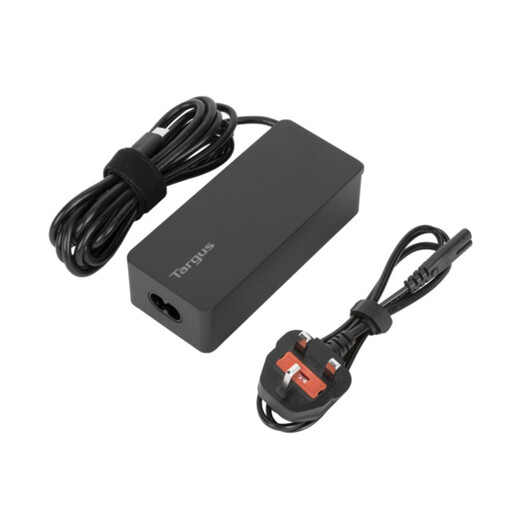
Targus 65W USB Type-C Charger
A replacement-charger option for a USB-C-chargeable device. Check your exact laptop’s recommended wattage and USB PD requirements, and confirm that the supplied power cord suits your socket and setup.
View on Joybuy
 No image available
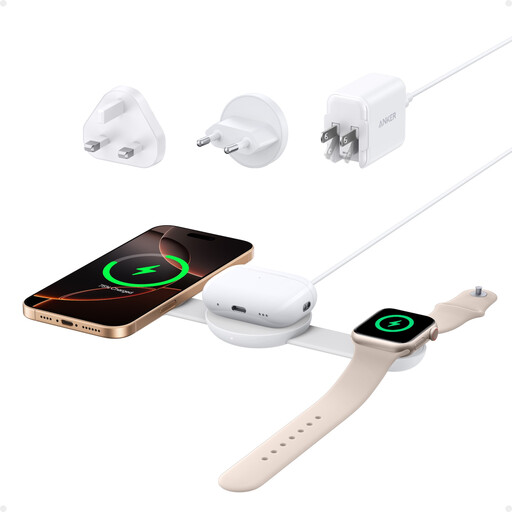
Anker 3-in-1 Wireless Charging Pad, 15W, White
A desk charging option for compatible devices rather than a replacement laptop charger. Check your exact phone, watch and earbuds models, and whether your phone case suits the pad.
View on Joybuy
 No image available
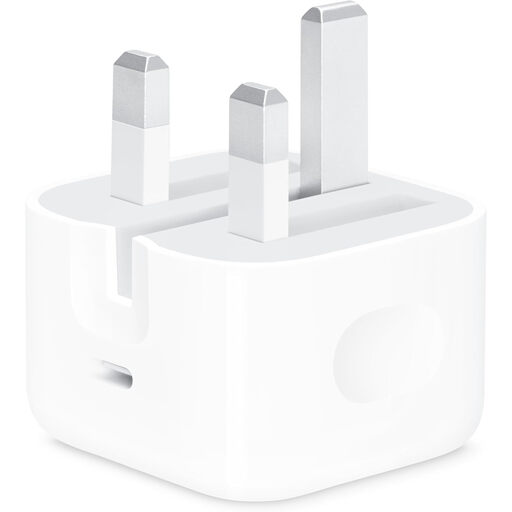
Apple 20W USB-C Power Adapter
Consider this adapter for a compatible USB-C-chargeable device after checking its power requirement. A charging cable is not included, so choose a cable that matches the device and adapter.
View on Joybuy
 No image available
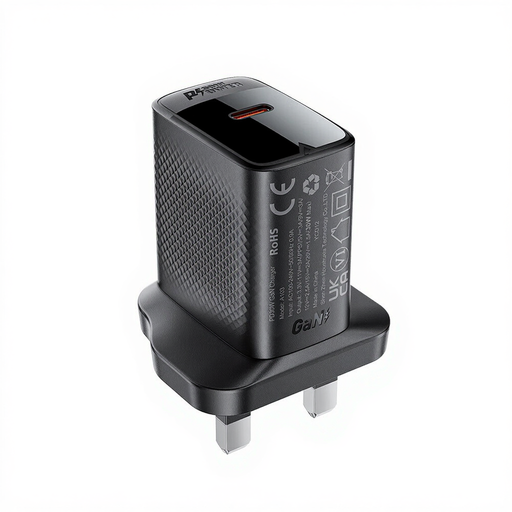
ACEFAST PD30W GaN USB-C Charger, Black
A USB-C PD charger to consider for a compatible device. Confirm the device’s required charging profile and wattage before relying on its stated 30W output, particularly for a laptop.
View on Joybuy
Common questions
Can any USB-C charger charge my USB-C laptop?
No. Confirm that the laptop accepts USB-C charging, that the charger supports USB PD where required, and that its output meets the maker’s recommended wattage. Apple sets those conditions for USB-C-chargeable Macs; Microsoft says a lower-wattage USB-C charger may charge a Surface slowly or not at all.
Can the USB ports on an extension lead charge a laptop?
Only if the particular port’s charging standard and stated output meet that laptop’s requirements. Masterplug lists 10.5W maximum USB output on its SRGUAC104210N lead, while Anker states 20W for its A9185 strip; neither figure establishes suitability for an unidentified laptop.
Can I plug a surge-protected strip into another extension lead?
No. Electrical Safety First advises against plugging one extension device into another. Surge protection does not change that advice or increase the strip’s marked load rating.
Does a plug-in RCD make an overloaded lead safe?
No. An RCD provides additional protection against electric shock from a fault; it does not increase an extension lead’s current rating or address daisy-chaining. Electrical Safety First describes plug-in RCD adapters as an additional option for individual sockets without RCD protection.


