Choose a hybrid-work computer setup around the tasks you do at home and the equipment you carry between workplaces. A laptop-first arrangement may suit short, mobile sessions; regular desk work may call for an external monitor, while two active work areas or frequent calls can justify checking a dock or dedicated camera. Before buying, confirm what your work device permits and supports, particularly its external-display limits, USB-C video capability and charging requirements.
Who is this setup for?
Regular home-desk workers
If you spend substantial work sessions at the same desk, consider the screen space, connections and positioning your daily tasks require. The Health and Safety Executive advises considering display-screen work at home as part of the working arrangement.
Frequent home-to-office commuters
If your laptop travels with you, start with the computer and charger you need in both places. Add a portable second screen only if the extra work area is useful often enough to warrant carrying it.
People with frequent video calls
If meetings take up much of your home-working time, check camera position, room lighting, microphone pickup and whether your work device permits external call equipment. Acas also advises discussing the technology needed for home work with an employer.
What should you check first?
Start with the work session and location, then check whether your laptop can use the screens and peripherals you are considering.
| Priority |
What to check |
Your needs |
| Work pattern |
Consider how long you work at home, how often you move the computer and where you use its screen. For regular display-screen work, assess the whole workstation rather than one accessory in isolation; the Health and Safety Executive addresses home working in Great Britain, while HSENI covers display-screen work in Northern Ireland. |
For short sessions between locations, I want a setup I can carry. At a regular home desk, I need equipment that fits the tasks I do there. |
| Screen space |
Decide whether one larger work area is enough or whether two applications need to remain visible together. Check your exact laptop model’s external-display count and the intended resolution and refresh rate; Apple says these limits vary by MacBook Pro model and display configuration. |
I need a larger view for documents, or separate visible work areas for a spreadsheet and its source material. If the second screen must travel, a portable monitor is worth considering. |
| Dock connection |
Check the laptop’s USB-C video technology, the dock’s display configuration and the laptop’s charging requirement. Anker says full docking performance requires a laptop port supporting DisplayPort Alt Mode, Thunderbolt or USB4; the connector shape alone is not enough. |
At a fixed desk, I want to connect my display and peripherals without assuming that every USB-C port will handle the same setup. |
| Video calls |
Check camera position, lighting, microphone placement and whether external USB devices or companion software are permitted. Logitech lists light correction and noise-reducing microphones for its Brio 500, but those features do not remove the need to consider the room and work-device rules. |
My calls are frequent enough that camera framing and clear voice pickup matter in the room where I actually work. |
Common buying mistakes
-
Choosing a USB-C hub by its connector alone
A USB-C socket does not, by its shape, establish whether the laptop can send video through it or use the dock’s charging functions. Anker specifies DisplayPort Alt Mode, Thunderbolt or USB4 for full docking performance.
Find the exact laptop port specification and compare it with the hub or dock’s requirements before ordering.
-
Assuming every dock port can run a separate display
A dock’s video outputs do not override the connected computer’s display limits. Apple documents model- and configuration-dependent limits for MacBook Pro; Lenovo’s display-output guidance is likewise specific to the systems and docks it covers.
Check the laptop’s supported external-display count, then compare the planned displays, cables, resolution and refresh rate with the dock documentation.
-
Buying a screen before considering the work session
More screen space does not, by itself, settle how a workstation fits the task or the person using it. Health and Safety Executive guidance for Great Britain addresses home display-screen work as part of the wider working arrangement.
Identify the tasks that need more space and consider screen position and your usual working location before choosing a fixed or portable display.
-
Expecting webcam resolution to fix every call
Camera placement, lighting, microphone pickup, room noise and device permissions also affect the call setup. Some webcam features require companion software.
Check what needs changing in your room and confirm that your work computer permits the camera and any software required for the features you intend to use.
Relevant brand references
Lenovo
A reference for workers checking a ThinkPad and dock combination against manufacturer documentation.
- Lenovo Support GB publishes display-output configurations for specified ThinkPad systems with and without docks.
- Check the exact system and dock: a configuration listed for one combination does not establish support for another laptop.
Dell
A reference when comparing the charging requirements of a laptop with a specific Thunderbolt dock.
- Dell lists power delivery for its WD25TB4 dock as up to 130W for Dell systems and 96W for non-Dell systems.
- Those figures describe the WD25TB4, not every Dell dock or every connected laptop; check the host and intended display configuration separately.
Anker
A reference for checking the laptop-port requirements of USB-C docking equipment.
- Anker states that full docking performance requires a laptop USB-C port with DisplayPort Alt Mode, Thunderbolt or USB4.
- A compatible port does not, on its own, establish the laptop’s external-display limit or its fit with a particular dock.
Logitech
A reference for workers considering a dedicated camera for frequent home video calls.
- Logitech lists light correction and noise-reducing microphones for its Brio 500 webcam.
- Check camera placement, work-device permissions and any software needed for the features you plan to use.
Joybuy options for your setup
These options address different parts of a hybrid-work setup: a computer to carry, a fixed or portable screen, desk connections and video calls. Choose the part that matches your work pattern, then check it against your work laptop and device rules.
 No image available
ASUS ZenScreen MB166CR FHD
Consider this portable second screen when you need extra work area away from a fixed desk. Confirm that your laptop can provide the video connection it requires and that the extra item suits what you carry between locations.
View on Joybuy
 No image available
Targus USB-C Universal Dual HDMI 4K Dock, 100W PD Pass-Thru
For a desk where you plan to connect two HDMI displays, check the exact laptop’s supported display arrangement before choosing this dock. Its name specifies 100W Power Delivery pass-through; confirm the laptop’s charging requirements and whether the power adapter needed for your arrangement is included.
View on Joybuy
 No image available
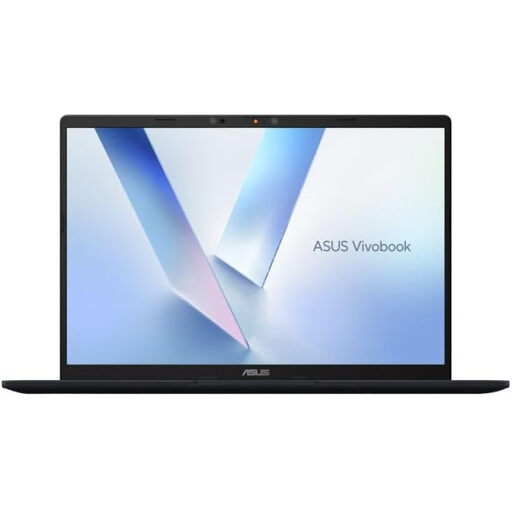
ASUS Vivobook 14 X1407QA-LY003W Copilot+ PC, Quiet Blue
A laptop-first option for work that moves between home and another location. The named configuration has a Snapdragon X processor, 16GB RAM and a 512GB SSD; confirm that required work software and peripherals suit this model, and check battery runtime if you expect long unplugged sessions.
View on Joybuy
 No image available
EMEET All-in-One 4K Webcam with Sony Sensor, 98° FOV
For a home desk where a separate call device would be useful, this model’s name specifies a four-microphone array, dual AI speakers and fixed focus. Check whether its 98° adjustable field of view fits your camera position, and confirm work-computer and meeting-software compatibility.
View on Joybuy
 No image available
AOC Q32V4 31.5-inch 2K IPS Monitor
Consider this external screen if a larger display would serve your fixed home desk. Check that its 31.5-inch size fits the available space, that you can position it appropriately and that your laptop supports the connection and display configuration you intend to use.
View on Joybuy
Common questions
Do I need a home monitor if I already have a work laptop?
Not automatically. Choose one if a larger or separately positioned display addresses a task or workstation need; a laptop-only setup may suit shorter, more mobile sessions. For regular display-screen work at home, consider the whole arrangement rather than assuming an extra screen settles it.
Can any USB-C laptop use a dual-monitor dock?
No. Anker says full docking performance requires a laptop USB-C port supporting DisplayPort Alt Mode, Thunderbolt or USB4. Check the exact laptop’s supported external-display count and the dock’s requirements for the displays you plan to connect.
Will a dock let my laptop run more displays than it normally supports?
Do not assume it will. Apple says the number of external displays supported by a MacBook Pro depends on the model and the displays’ resolution and refresh rate. Check your own laptop’s limits as well as the dock’s stated outputs before choosing a multi-screen setup.


