Laptop-only workers with regular calls
If you attend meetings while reading or editing documents, work out whether screen space, camera position or audio is the recurring obstacle before adding equipment to your desk.


Start with the part of your laptop setup that makes calls or document work difficult: a monitor and separate input devices address cramped screen space and positioning, while a dock is worth considering when you reconnect several desk accessories regularly. A webcam or headset addresses a recurring camera or audio problem; at a fixed desk with unreliable Wi-Fi, an Ethernet connection is another option to check. Confirm laptop capabilities and workplace accessory rules before choosing equipment.
If you attend meetings while reading or editing documents, work out whether screen space, camera position or audio is the recurring obstacle before adding equipment to your desk.
Household noise can make a headset worth considering. If the connection drops at your usual desk, check the local Wi-Fi connection separately from the camera and microphone.
A display, network connection and peripherals may make repeated cable changes inconvenient. Check the laptop’s ports and display support, as well as workplace rules for personal accessories, before choosing a hub or dock.
Choose the problem you encounter most often, then check the connections and working conditions that determine whether the proposed addition will help.
| Priority | What to check | Your needs |
|---|---|---|
| Screen space and posture | Check the laptop’s external-display support and the space available to position a monitor. Consider screen height, lighting and whether a separate keyboard and mouse would make the arrangement more comfortable; the Health and Safety Executive advises a comfortable, sustainable posture for home display-screen work. | I need to keep a call and documents in view without spending long periods looking down at the laptop. |
| Desk connections | List the display, USB, network and charging connections you use each day. Check the laptop’s USB-C functions, the dock’s host requirements and the cable: Microsoft notes that USB-C hardware and software combinations can have limitations. | If I reconnect several accessories whenever I sit down, one compatible hub or dock could simplify the routine. For one missing display connection, I would check an adapter first. |
| Camera framing | Check where a webcam can be mounted, the room lighting, its connection and workplace permissions. PCMag UK describes 1080p as a starting point for webcam resolution and suggests considering 4K when extra detail or cropping flexibility matters. | My laptop camera is awkwardly positioned once the screen is raised, or its framing is the recurring problem on calls. |
| Call audio | Check microphone placement, wired connector or wireless receiver type, and support for your meeting software. Do not assume that noise cancellation for the wearer describes what other participants will hear. | Background noise distracts me, or I need a microphone and controls that fit frequent calls. |
| Connection at the desk | Check whether the router or a network point is reachable and whether the laptop has an Ethernet socket or needs a compatible adapter. Ofcom says a direct Ethernet connection should give a computer a faster, more reliable connection than Wi-Fi; it will not resolve every broadband-service problem. | Calls are unreliable over Wi-Fi where I normally work, so I want to test a wired local connection before changing a wider home-network setup. |
A matching connector shape does not establish that the laptop can provide the intended display output, charging or dock functions. Microsoft documents USB-C hardware and software limitations, while Apple says supported display counts depend on the Mac model and display settings.
Identify your laptop model, ports, charging requirements and intended display count and resolution. Compare them with the exact monitor or dock and its required cable.
A dock consolidates several connections, but it does not address a camera, audio or Wi-Fi problem simply by adding ports.
Write down what you reconnect during a normal workday. If the only missing connection is for one display, check whether a compatible display adapter meets that need.
A monitor adds display space, but its position and the keyboard and mouse arrangement still matter during sustained laptop work. The Health and Safety Executive advises that home display-screen workers should be able to maintain a comfortable, sustainable posture.
Assess screen height, desk space, chair, lighting and input devices together; use your employer’s workstation-assessment route where applicable.
Webcam resolution alone does not settle framing or lighting, and a headset’s noise-cancellation label does not establish how its microphone will sound in your room.
Check webcam mounting and connection details, or the headset’s microphone, connector or receiver variant, meeting-platform support and workplace permissions, as relevant.
These examples illustrate features and variants to check; a brand’s wider range should not be treated as having the same specifications.
Logitech’s Brio 4K webcam and Zone Wireless 2 headset provide examples of camera-resolution and meeting-platform specifications to compare with your setup.
Jabra Evolve2 65 Flex is a reference point for workers considering a foldable wireless call headset.
Dell’s P2425HE hub monitor and WD25TB4 dock illustrate two different ways to bring desk connections together.
These options address screen space, multiple desk connections, camera positioning and wired call audio. Choose the type of addition for your recurring problem before comparing individual models.
 No image available
Consider this external monitor when laptop screen space is the main constraint during calls and document work. Its title specifies a height-adjustable stand; check your Mac model’s intended display output and USB-C functions before choosing it.
 No image available
This hub is relevant when several desk connections need bringing together. Its title lists two HDMI outputs, USB ports, RJ45 Ethernet and a USB-C PD input; check the laptop’s video and display limits and its charging requirements rather than assuming every listed function will work through its USB-C port.
 No image available
A separate webcam is worth considering when the laptop camera cannot be positioned for useful framing. The product title says 2K, but its detailed specification lists 1080p at 30 fps: confirm the exact model’s delivered resolution, connection and workplace compatibility before buying.
 No image available
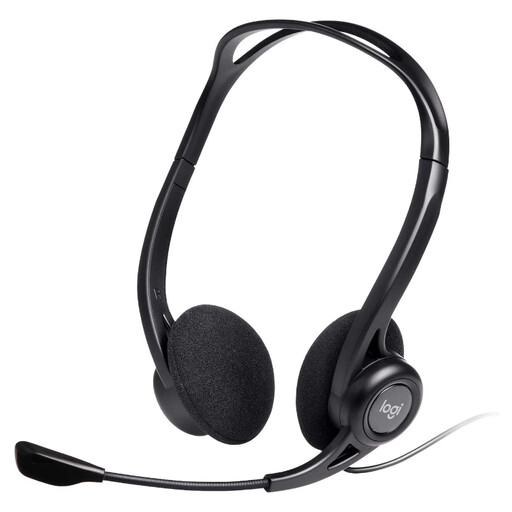
This wired option is relevant when you want headset controls at a fixed desk. Its title specifies a noise-cancelling microphone; check that your laptop has a suitable USB connection and that the accessory is permitted on a managed work device.
 No image available
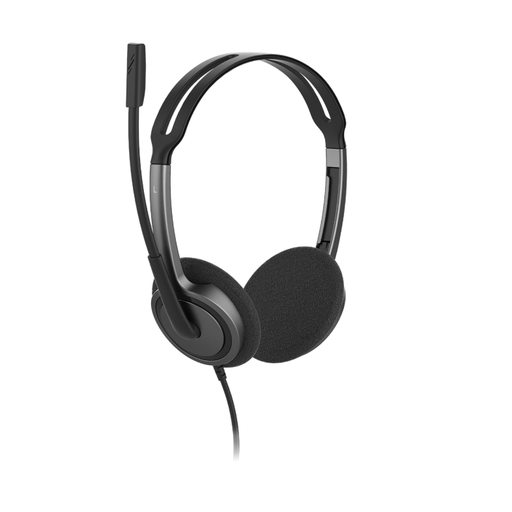
This wired headset suits a setup where a compatible 3.5 mm headset connection is available. Its title specifies an adjustable headband and a 270° rotating noise-cancelling microphone; confirm the laptop jack or required adapter before buying.
Try a wired connection when calls are unreliable over Wi-Fi at a fixed desk and the router is reachable. Ofcom says connecting a computer directly to the router by Ethernet should provide a faster, more reliable connection than Wi-Fi; it cannot by itself fix a provider outage or insufficient household broadband capacity.
No: the USB-C connector alone does not establish which functions a laptop supports. Microsoft notes that hardware and software combinations can cause USB-C problems. Check the laptop’s display output, charging and dock standards against the dock’s host requirements and cable.
A display splitter normally duplicates one signal rather than creating two independent extended displays, according to Microsoft Support. Check the laptop’s supported monitor count and display-output options for the arrangement you want.
Check the exact Mac model and your intended display resolution and refresh rate. Apple Support says these factors determine how many displays a Mac can use at the same time; confirm the connection requirements of the monitor or dock as well.