For prolonged laptop work, start with the layout: the Health and Safety Executive (HSE) advises raising the screen while using a separate keyboard and mouse, or using a separate display. Add a monitor when screen space or positioning is the recurring problem, a dock when reconnecting desk equipment is the problem, and meeting accessories when the built-in camera or audio falls short. Check laptop compatibility, desk space and your employer’s equipment arrangements before choosing.
Who these choices suit
Laptop-only workers
If you work at a desk for prolonged periods, the laptop’s screen and built-in inputs may be difficult to position independently. HSE guidance describes using a separate keyboard and mouse with an elevated laptop screen, or using a separate display.
Workers returning to the same desk
If you regularly connect a display and other peripherals, a hub monitor or dock may simplify the arrangement. Check your laptop’s video output, connections and charging requirements against the particular device rather than relying on the shape of its USB-C port.
Hybrid workers with frequent calls
If meetings expose a problem with camera position or audio, assess those needs separately from screen space. A webcam addresses camera placement; a headset is a different choice when hearing or being heard is the main concern.
What to check before buying
Identify the part of your regular setup that causes the most difficulty, then check whether the proposed equipment works with your desk and laptop.
| Concern |
Buying checks |
Who this matters to |
| Prolonged laptop use |
Allow room to raise the screen and use a separate keyboard and mouse; check the available desk depth. |
If the laptop screen needs raising, I still need somewhere workable for my hands. About 33% of consumers put this laptop-layout need first. |
| Display workspace |
Measure the space for a monitor and confirm the laptop’s video output and the screen-positioning options you need. |
When reference material competes with my active work on one screen, a separately positioned display matters most. This is the primary need for about 27% of consumers. |
| Desk connections |
Match the laptop’s host port and video support to the dock or hub; compare charging capability with the laptop’s requirements. |
Connecting my desk devices again each time I return makes the connections themselves my priority. About 20% of consumers place that need first. |
| Online meetings |
Test the built-in camera and audio in the room you use; check device and meeting-software compatibility. |
If calls are the recurring difficulty, I need to know whether camera placement or audio is at fault. Meeting equipment is the first concern for about 20% of consumers. |
Common buying mistakes
-
Buying a laptop stand without planning the inputs
Raising the laptop also raises its built-in keyboard and trackpad. HSE guidance pairs an elevated laptop screen with a separate keyboard and mouse for prolonged use.
Plan where all three will sit and measure the desk before choosing a stand.
-
Assuming a USB-C connector guarantees dock compatibility
A connector’s shape does not establish the laptop’s video, charging or supported display configuration. Dock requirements also vary by device and operating system.
Compare the laptop’s specifications with the dock’s host, display and power requirements, including any required cable or adapter.
-
Upgrading meeting equipment without identifying the problem
A webcam changes camera placement, while a headset addresses a different audio need. Neither resolves every meeting difficulty.
Make a test call from your usual room, then choose the accessory that addresses the problem you notice.
-
Treating a personal purchase as the workplace assessment
In the UK, HSE says employers must assess workstations for workers who use display screen equipment daily as part of normal work for continuous periods of an hour or more. Home or hybrid work can fall within the DSE rules; buying an accessory does not replace the employer’s responsibilities.
Ask your employer about the workstation assessment, equipment arrangements, accessibility needs and approved devices before settling on a setup.
Brands to consider for specific equipment
Dell
A reference point for fixed-desk monitors, including USB-C hub models.
- Dell lists adjustable stands and connectivity features on selected monitors.
- Check the exact model’s connections and power delivery against your laptop; these features do not apply across every Dell monitor.
Logitech
A reference point for keyboards, mice, webcams and other desk peripherals.
- Its work-focused range spans several types of separate input and meeting equipment.
- Check the particular device’s size, layout and compatibility with your work setup.
Kensington
A reference point for laptop risers, stands and docking equipment.
- Its docking range includes products with different host connections and display arrangements.
- Match the exact dock’s operating-system, video and power requirements to your laptop and displays.
Jabra
A reference point for work headsets when calls are a recurring part of the day.
- Jabra offers headset lines intended for office and hybrid-work calls.
- Treat stated call and noise-control features as model-specific manufacturer claims; check fit and meeting-platform compatibility for your use.
Joybuy products for different setup needs
These choices cover a fixed-desk display, desk connections, separate input devices and equipment for calls. Choose the type that addresses your main difficulty rather than treating them as a set to buy together.
 Image unavailable
iiyama ProLite XUB2792UHSU-B6 27-inch 4K UHD monitor
Consider a separate display when screen space at a fixed desk is the recurring constraint. This model’s name identifies a 27-inch 4K UHD LED monitor; confirm its video connection with your laptop, and check USB-C charging support if you want one-cable video and power.
View on Joybuy
 Image unavailable
Targus USB-C Universal Dual HDMI 4K docking station
Consider a dock if reconnecting desk devices is your main difficulty. The product name specifies dual HDMI and 100W power-delivery pass-through; check your laptop’s video mode, operating system, intended display arrangement and charging requirements before relying on those connections.
View on Joybuy
 Image unavailable
HP 680 CFT Dual-Mode keyboard and mouse combo
A separate keyboard and mouse let you position your inputs independently when raising a laptop screen or using a monitor. Check the keyboard layout against your typing requirements before choosing this combo.
View on Joybuy
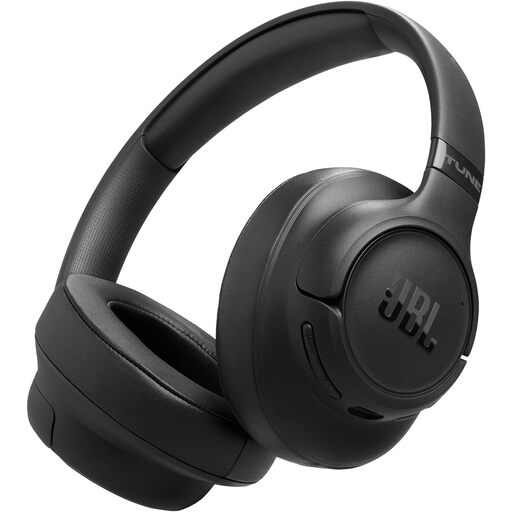 Image unavailable
JBL Tune 780NC wireless over-ear headphones, black
Consider headphones when the built-in audio is the part of frequent calls you want to change, rather than screen layout. This is a wireless over-ear model; check its fit, microphone behaviour in your room and compatibility with your work devices.
View on Joybuy
 Image unavailable
Targus 2K Webcam with Auto Focus
An external webcam is relevant when the built-in camera’s position is the meeting problem. Confirm the video resolution before choosing this model: its name says 2K, while other supplied product details say Full HD 1080p at 30 fps.
View on Joybuy
Questions about home-work equipment
Do UK DSE rules apply when I work from home?
They can. HSE says the Display Screen Equipment Regulations can apply to permanent or long-term home workers and people who routinely split work between home and a workplace. For workers using display screen equipment daily as part of normal work for continuous periods of an hour or more, employers must assess the workstation; this does not mean every worker must personally buy an accessory.
Should I ask my employer before buying a monitor?
Check your employer’s workstation-assessment, equipment and IT arrangements first. HSE says employers must assess workstations for relevant DSE users and address problems; a personal monitor purchase does not replace those duties.
Is a laptop stand enough for prolonged desk work?
Not if raising the laptop leaves its built-in keyboard and trackpad poorly placed for you. HSE’s guidance describes using a separate keyboard and mouse with an elevated laptop screen, or using a separate display.
When does a dock make more sense than a USB-C monitor?
Consider a dock when the main task is repeatedly connecting existing displays and peripherals; consider a USB-C hub monitor when you also need a new display. For either choice, check your laptop’s video support, operating system and charging requirements against the exact product.


