Who is this setup for?
The useful distinction is whether an item needs to travel with your laptop or can remain connected where you work at home.
Regular laptop commuters with a home desk
If you take one computer between locations, a home dock or hub may reduce the connections you make each time you return. Match it to the laptop’s documented display output and charging requirements before choosing its ports.
Workers who need a second screen in both places
A portable monitor is worth considering when documents, spreadsheets or reference material need to remain visible beside another application away from a fixed desk. Check that your laptop can send video through the monitor’s intended connection.
People on frequent video calls
Identify whether camera framing, microphone audio, background noise or meeting controls cause the difficulty. An accessory aimed at one of those problems may be more relevant than replacing the whole call setup; check its operating-system and meeting-platform support.
What should you check before buying?
Start with the computer and applications you already use, then decide what needs to move and what can stay at your home desk. Check each accessory against that computer rather than assuming a matching connector means matching functions.
| Priority | What to check | Your needs |
|---|
| Work laptop |
Check required applications, documented display outputs and ports. Consider whether the computer’s size and battery endurance suit your journey. |
If my current computer cannot handle my usual work in both places, replacing it addresses the underlying problem. If it can, I would rather identify the accessory I actually need. |
| Home desk connection |
List the displays, USB devices, network connection and charging you need. Match the laptop’s USB-C, USB4 or Thunderbolt capabilities to the hub or dock, including the intended display arrangement. |
I want to reconnect my usual desk equipment when I get home without choosing a dock whose display or charging functions my laptop cannot use. |
| Second screen |
Decide how often the screen must travel and how it will stand on each desk. Check the laptop’s video output, the monitor’s input and its power requirements. |
A screen I can carry matters if I need documents beside a call in both locations. If I use a second screen mainly at home, a fixed desk arrangement may suit that routine instead. |
| Calls |
Check camera framing and microphone needs separately. If hardware meeting controls matter, confirm the exact device’s operating-system and conferencing-platform support. |
For regular calls, I would address the part that causes trouble—video, audio or controls—rather than assume a higher camera resolution fixes every issue. |
| Input and comfort |
Consider keyboard layout, mouse connection and what you are willing to carry. Check how the screen and input devices will be positioned at home and in the office. |
I need controls that work for longer desk sessions as well as travel; the smallest set is not necessarily the one I want to use at home. |
Relevant brand references
These examples illustrate compatibility questions to ask about particular product lines; a brand name alone cannot establish that a device will work with your laptop.
Lenovo
Lenovo’s ThinkPad dock range is relevant when building a repeatable laptop-to-desk connection.
- Lenovo states that its USB-C and Thunderbolt docks work with laptops supporting the required USB-C Alt Mode, DisplayLink or Thunderbolt protocol.
- Check the exact dock and laptop combination, particularly when using a non-ThinkPad computer.
Dell
Dell’s powered docks are a reference point for a home desk with several fixed connections.
- Dell lists power delivery of 130W for Dell systems and 96W for non-Dell systems on its Pro Thunderbolt 4 Smart Dock SD25TB4.
- Those model-specific figures do not establish the charging or display arrangement available with every laptop; check your host and monitors.
Anker
Anker’s docking range includes connection options for different laptop and desk requirements.
- Anker advises checking whether the laptop port supports video output, Power Delivery and the number of monitors needed.
- Apply those checks to the exact hub or dock rather than assuming all models provide the same functions.
ASUS
ASUS ZenScreen models are relevant when a second display needs to move between work locations.
- ASUS lists USB-C audiovisual connectivity, up to 70W power delivery and HDMI for the ZenScreen MB27ACF.
- That MB27ACF connection specification does not apply to every ZenScreen model. Check the size, stand and inputs of the screen you plan to carry.
Logitech
Logitech’s webcams, headsets and input devices address different parts of a two-location call and desk setup.
- Logitech lists webcams with 720p, 1080p and 4K options, allowing camera resolution to be considered alongside the actual call need.
- Controls require model-specific checks: Logitech says Logi Dock meeting controls work with PC and Mac but are unavailable for Chromebooks.
Joybuy options for hybrid work
These options address different parts of a home-and-office setup: a screen to carry, a dock for desk connections, a laptop, a webcam and wired call audio. Choose by the problem you need to solve, then check the relevant connections and requirements.
 No image available
ASUS ZenScreen MB166CR FHD
Consider this FHD screen if a second display needs to travel with you. Before buying, check that your laptop provides the video output this model requires; its stated connection requirements do not include HDMI.
View on Joybuy
 No image available
Targus USB-C Universal Dual HDMI 4K Dock, 100W Power Delivery Pass-Thru
This dock is a candidate for a home desk that needs two HDMI display connections. Its title specifies 4K and 100W Power Delivery pass-through, but the display arrangement still needs to match your laptop; check the required power adapter and package contents as well.
View on Joybuy
 No image available
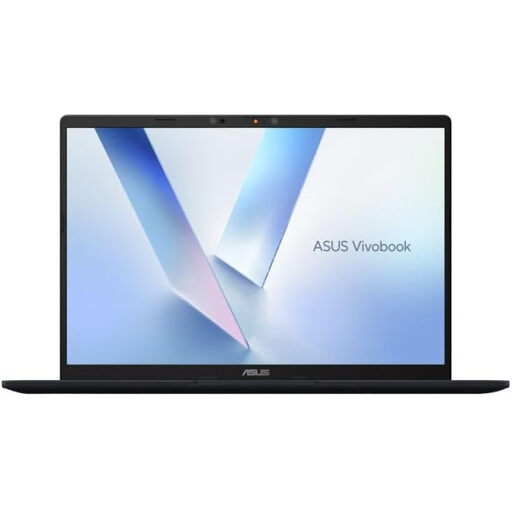
ASUS Vivobook 14 X1407QA-LY003W Copilot+ PC, Snapdragon X, 16GB RAM, 512GB SSD, Quiet Blue
Consider a replacement laptop when your current computer, rather than a desk accessory, limits your work across locations. This Vivobook 14 variant names a Snapdragon X processor, 16GB RAM and 512GB SSD; confirm your required applications and practical battery endurance before choosing it.
View on Joybuy
 No image available
Targus Autofocus Webcam
A separate webcam may address camera framing or focus on regular calls. Confirm the video resolution before choosing this one: its 2K title conflicts with a Full HD 1080p description. Check the exact meeting-platform functions you need separately.
View on Joybuy
 No image available
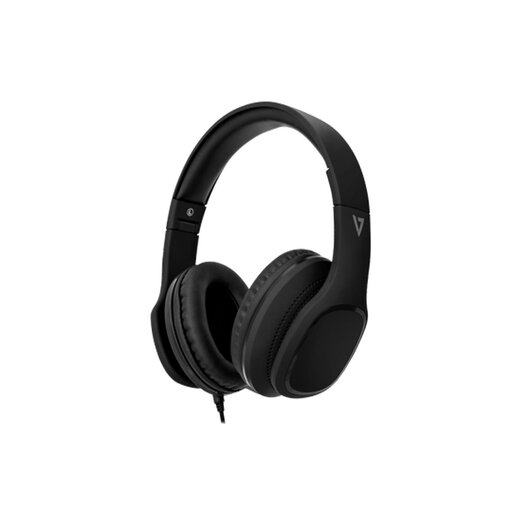
V7 HA701-3EP Wired Over-Ear Headphones, 40mm Drivers, Inline MEMS Mic
Wired headphones with an inline microphone are an option when call audio, rather than the camera, is your priority. The model is described with passive noise isolation; do not treat that as evidence of microphone performance in a noisy room. Check the connection to your work device and suitability for your call setting.
View on Joybuy
Frequently asked questions
What should I check before buying a USB-C dock?
Check the exact laptop port’s video, data and charging capabilities, then match them to the dock and your intended displays. The USB Implementers Forum says USB4 connections operate at the mutual capability of connected devices, so the connector alone does not establish what the complete setup will do.
Will any USB-C laptop run a portable monitor through one cable?
No. The laptop must support the monitor’s required video-output method through that port. If the monitor also has HDMI, that may provide another video connection, but check its separate power and cable requirements before relying on it.
Do I need a dock for one monitor, keyboard and mouse at home?
Not necessarily. A hub may cover that setup if its display output, USB connections and any charging function match your laptop and peripherals. Consider a dock when you need a more permanent collection of connections, and check its host compatibility rather than choosing by port count alone.
Should I buy a webcam or headset for Teams calls?
Choose according to whether the difficulty is video framing, microphone audio, background noise or call controls. If Teams integration matters, check the exact device’s certification and supported controls: Microsoft says its Teams certification follows device testing, while button functions can still depend on the device and operating system.


