What should you check before buying?
Establish what your employer will assess or provide, then identify the workstation problem and check the laptop against any accessory you plan to connect.
| Priority | What to check | Your needs |
|---|
| Employer arrangements |
Ask about the DSE assessment, supplied or approved equipment, and the process for obtaining it. HSE says employers must assess workstations for workers who use DSE daily as part of normal work for continuous periods of an hour or more; where an assessment indicates action such as providing DSE equipment, workers cannot be charged for it. |
Before spending personally, I want to know whether my home or hybrid workstation needs an assessment and what equipment my employer will provide. |
| Screen and input position |
Check whether you can position the screen independently of the keyboard and mouse. For prolonged laptop use, HSE advises separate input devices when raising the laptop screen; a separate display is another option. |
If the laptop screen is too low for my setup, I need to raise it without keeping its built-in keyboard and trackpad in the same position. If I also need more screen area, I can consider a monitor. |
| Display compatibility |
Confirm the laptop’s video-output capability, the required number of displays, and supported resolution and refresh rate. DisplayPort explains that video over USB-C uses an Alternate Mode; a USB-C connector alone does not establish the required display configuration. |
I need the work laptop to run the display arrangement I intend to use, whether that is one external monitor or several screens. |
| Charging and connections |
If choosing a dock, compare its host connection, charging output and peripheral ports with the laptop’s requirements. Check model-specific conditions: Targus specifies host MST support for dual displays on its DOCK430EUZ. |
If I reconnect several desk devices regularly, one compatible dock connection could be useful. For only one display or a few added ports, an adapter or hub may cover my needs. |
| Managed-device rules |
Check permitted Bluetooth devices, receiver ports and configuration software against your employer’s device policy. Confirm the keyboard layout you need. |
I want input devices that connect to my work computer and a keyboard layout I can use, without relying on software my employer restricts. |
Which brands are relevant?
These brand references point to product types and model-specific checks, not to interchangeable capabilities across a brand’s range.
Dell
A reference for desktop docks when a compatible work laptop needs several desk connections.
- Dell Technologies lists Thunderbolt 4 and up to 130W Power Delivery for Dell systems or 96W for non-Dell systems on the WD25TB4.
- Its stated multi-display modes depend on the configuration; check the laptop and employer requirements rather than applying those figures to every Dell dock.
Lenovo
A reference for buyers checking USB4 docking with a particular laptop and power adapter.
- Lenovo UK lists USB4 connectivity and a four-display 4K-at-60Hz capability for the ThinkPad USB4 Dock 5000, model 40BF0100UK.
- Lenovo lists 65W laptop charging with a 100W adapter or up to 100W with a 135W adapter. Confirm the laptop’s compatibility and supported display configuration.
Kensington
A reference when comparing USB-C, USB4 and Thunderbolt dock types.
- Kensington’s UK range includes docks described for multi-monitor, data-transfer and Power Delivery uses.
- Those are range-level descriptions. Check the ports, charging output and host compatibility of the particular model.
Targus
A reference for checking explicit video and host requirements on a USB-C dock.
- Targus UK lists single-4K or dual-2K video and up to 85W Power Delivery for the DOCK430EUZ.
- Targus specifies host MST support for that model’s dual-display operation; check the laptop and operating environment.
Logitech
A reference when the desk needs dedicated input devices rather than display expansion.
- Logitech UK lists switching across up to three devices and compatibility with Windows, macOS, Chrome OS, Linux and iPadOS for its MX Keys S keyboard.
- Check the keyboard layout, connection method and whether a managed work computer permits any optional configuration software.
Joybuy monitor and input-device options
These options cover separate screens, keyboard-and-mouse sets and a mouse for home or hybrid desks. Check any employer equipment arrangements and your work computer’s connections before choosing between them.
 No image available
ASUS ZenScreen MB166CR FHD monitor
A separate screen is an option when laptop display space is the problem. Before choosing this model, confirm that your work laptop supports the video connection it requires and that the setup is approved for work use.
View on Joybuy
 No image available
HP 680 CFT Dual-Mode keyboard and mouse set
This set supplies separate input devices for a desk with a raised laptop or external screen. Confirm the keyboard layout and a permitted connection method for your work computer.
View on Joybuy
 No image available
AOC Q32V4 31.5-inch 2K IPS monitor
A larger separate screen may be relevant when documents or spreadsheets need more display area. Check desk space and confirm that the work laptop supports the connection and display configuration you intend to use.
View on Joybuy
 No image available
Philips 3000 Series SPT6318B/05 UK English wireless keyboard and mouse set
The UK English version provides a keyboard-and-mouse option for separate desk input. Check that your work computer has an available, permitted USB-A connection for its receiver.
View on Joybuy
 No image available
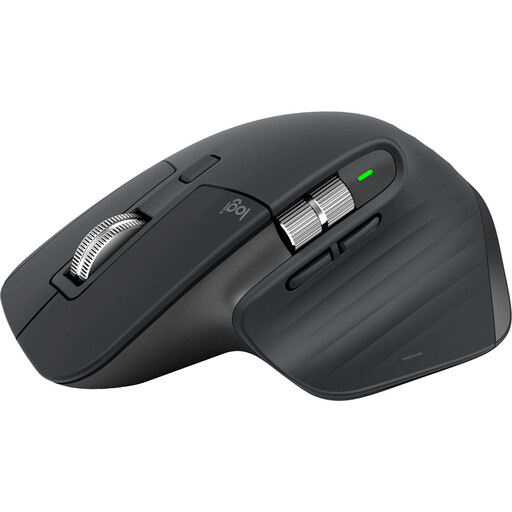
Logitech MX Master 3S Black mouse
This is a mouse, not a keyboard-and-mouse set. Check its connection against your work computer and your employer’s software policy if you intend to use programmable-button customisation.
View on Joybuy
Frequently asked questions
Do UK home or hybrid workers always have to buy their own equipment?
No. HSE says UK DSE rules can apply to permanent, long-term and hybrid home workers, and workers cannot be charged where an assessment indicates action such as providing DSE equipment. Check your employer’s assessment and provision process before buying equipment personally.
When does a DSE workstation need an employer assessment?
HSE says employers must assess workstations for workers who use DSE daily as part of their normal work for continuous periods of an hour or more. The assessment covers the whole workstation, the work and individual requirements; relevant home and office arrangements should be considered for hybrid workers.
Will any USB-C port run an external monitor through a dock?
No. DisplayPort explains that video over USB-C uses an Alternate Mode, so the laptop and accessory need compatible video capabilities. Check the exact laptop port and supported display configuration; a dock may have further conditions, such as the host MST requirement Targus specifies for dual displays on its DOCK430EUZ.
When does a laptop stand make sense for prolonged work?
A stand or riser is an option when you need to raise the laptop screen and can use a separate keyboard and mouse. HSE identifies that combination for prolonged laptop use. A stand does not add display area or connection ports, so consider those needs separately.
Can I choose a dock using its charging figure alone?
No. Charging depends on the particular dock, connected system and, sometimes, power adapter. Dell Technologies lists different WD25TB4 Power Delivery figures for Dell and non-Dell systems; Lenovo UK lists different ThinkPad USB4 Dock 5000 charging outputs with its 100W and 135W adapters. Match the dock’s configuration to your laptop’s requirements.


