Document-heavy desk workers
If you spend long periods writing, comparing files or switching between applications at one desk, screen space and separately positioned input devices may matter more than a kit designed to travel.


Start with the task your laptop setup makes difficult: an external monitor and separate keyboard and mouse suit long sessions with documents, while a webcam or headset addresses a camera or audio problem on calls. A dock can simplify repeated connections, but check your exact laptop’s video, charging and display support before choosing one; a USB-C connector alone does not establish those capabilities.
If you spend long periods writing, comparing files or switching between applications at one desk, screen space and separately positioned input devices may matter more than a kit designed to travel.
If meetings are central to your work, identify whether camera placement, microphone pickup or listening is the problem before choosing a webcam, headset or both.
If your laptop moves between workplaces, choose accessories you can connect repeatedly without carrying unnecessary equipment. Check the laptop’s display and charging capabilities before relying on a portable hub.
Choose the device for the task that needs attention, then check how it connects to your laptop and fits the way you use your desk.
| Priority | What to check | Your needs |
|---|---|---|
| Long desk sessions | Check the available desk space and where the screen, keyboard and mouse will sit. If a stand raises the laptop screen, consider separate input devices for sustained typing. | I spend long stretches comparing documents or typing at one desk, so I need screen and input positions that work together. |
| Display and dock compatibility | Check your exact laptop model’s video output, supported display count and charging requirements against the monitor or dock. Apple Support says Mac display limits depend on the model, resolution and refresh rate. | Before I connect another screen or several desk devices, I want to know what my laptop can actually run through its ports. |
| Calls | Decide whether camera position or call audio needs attention. Check the device’s connection and any meeting-platform compatibility your workplace requires. | If colleagues struggle to hear me, a microphone-equipped headset is more relevant than changing the camera. If framing is the issue, I would look at webcam placement instead. |
| Moving between workplaces | List the ports you use at each desk and compare a portable hub with a dock that stays connected. Check host power delivery and operating-system display notes; Anker UK says one of its dual-display hubs extends different content on Windows but mirrors the external displays on macOS. | I want a repeatable connection routine without carrying ports I do not use or assuming the same hub behaves identically with every laptop. |
Microsoft Support notes that USB-C hardware and software combinations can have limitations. A dock’s advertised connections do not establish what a particular laptop port can use.
Find the exact laptop model and compare its video output and charging specifications with the dock’s host requirements.
Apple Support says Mac display limits depend on the model and the displays’ resolution and refresh rate. Anker UK states that one dual-display hub mirrors its external displays on macOS, although Windows can extend different content to them.
Check both your Mac model’s display support and the exact hub’s macOS display-mode notes before planning a two-screen workspace.
Moving the screen also moves the attached keyboard. For long typing sessions, screen position and input position need separate consideration.
If you plan to work with the laptop raised, consider where a separate keyboard and mouse would sit.
Power delivery can depend on the host: Dell UK lists 130W for Dell systems and 96W for non-Dell systems for its Pro Smart Dock SD25.
Compare the power delivered to your particular laptop with its charging requirement, and check any brand-specific conditions.
Logitech lists keyboards, mice, webcams and headsets for desk and home-office use.
Dell UK provides model-specific specifications for laptop docks suited to desks with several connections.
Anker UK provides model-level port, charging and display information for USB-C hubs and docks.
Jabra lists business headsets, video-conferencing cameras and speakerphones for work calls.
These options address different parts of a home-working laptop setup: an external screen, call equipment, a dock and separate input devices. Choose the category that matches your task before comparing individual models.
 No image available
An external-screen option for a desk where document space is the priority. Check that your laptop supports the display connection you intend to use; if you plan to charge through USB-C, compare the monitor’s output with your laptop’s requirement. Plan where separate input devices would sit for sustained typing.
 No image available
A camera-and-audio option for frequent calls, with a four-microphone array, dual speakers, fixed focus and an adjustable 98° field of view named in the product details. Check whether its framing suits your desk and whether it works with your operating system and meeting platform.
 No image available
A dock to consider when you regularly connect desk peripherals to a laptop. The product name specifies dual HDMI and 100W Power Delivery Pass-Thru, but your laptop’s video and charging capabilities determine what you can use. Check how two displays behave with your operating system and whether the external power adapter needed for your setup is supplied.
 No image available
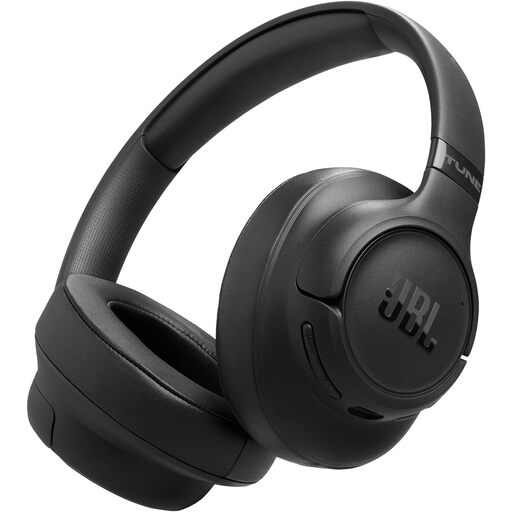
A headset option if you need separate listening and microphone equipment for calls. The product name identifies adaptive noise cancelling; check the connection and meeting-platform requirements for your work setup. If battery life matters, compare the figure for calls with the figure for music and note whether noise cancelling is in use.
 No image available
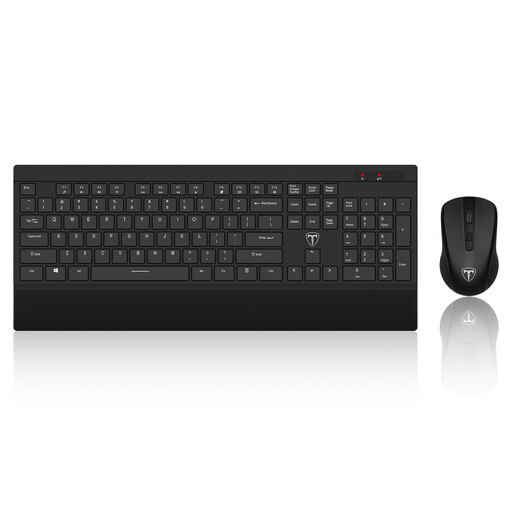
Separate typing and pointing devices are worth considering when you use a raised laptop or external monitor for long desk sessions. This set has a US keyboard layout; check that the keys suit you and that your computer has a suitable port for its wireless receiver.
No, if your laptop has a supported video connection that works with the monitor, you can connect it without a dock. Consider a dock when you also want to connect several peripherals or charging through one desk connection; check the exact laptop ports and display specifications first.
No. A USB-C connector does not guarantee the video output, charging functions or display count a particular dock needs. Check the laptop model’s supported video connection and external-display limit alongside the dock’s host requirements.
Both the Mac model and the hub’s display design matter. Apple Support says simultaneous display support depends on the Mac model, resolution and refresh rate; Anker UK states that one of its dual-display hubs mirrors content on its external displays under macOS while Windows can extend different content. Check the exact hub’s macOS notes rather than relying on its port count.
Choose a microphone-equipped headset first if being heard is the main problem; look at a webcam first if camera position or framing is holding calls back. Check the chosen device’s connection and any meeting-platform compatibility required for work.