What should you check first?
Start with the task and workstation issue, then check the connections and space needed for the equipment that would address it.
| Priority | What to check | Your needs |
|---|
| Workstation assessment |
For daily work involving continuous display screen use of an hour or more, check the employer’s assessment process. The HSE says hybrid assessments should cover both home and office arrangements. |
I want to address the issue at my actual workstation, rather than buy a bundle that may not fit either location. |
| Display space |
Compare the screen space your tasks require with the available desk space. Before adding a monitor, check the computer’s display output, the monitor input and the cable or adapter needed. |
Keeping a document and reference material visible together would make my work easier to arrange. |
| Dock compatibility |
Check the exact laptop port’s video and charging support, required monitor count, cable and operating-system compatibility. The USB Implementers Forum says a USB4 connection operates at the mutual capability of connected devices; Anker also advises checking video output and Power Delivery for its docks. |
I reconnect several devices at one desk and would rather check that a dock works with my laptop than choose by port count alone. |
| Screen and input position |
For prolonged laptop use, the HSE advises a separate keyboard and mouse so the screen can be raised on a riser or similar. Check desk space and permitted wired or wireless connections. |
My laptop screen needs a different position from its keyboard and trackpad during longer desk sessions. |
| Video meetings |
Identify whether camera, microphone, audio or privacy controls need changing. Check the exact accessory’s work-device and meeting-platform compatibility; features vary by model. |
Calls are frequent enough that I need to choose camera and audio equipment for my meeting setup, not just for its advertised features. |
| Powered accessories |
Check product markings and manufacturer details, and follow the supplied instructions. The Office for Product Safety and Standards provides a searchable UK product recalls and alerts service. |
For a powered dock or adapter, I want identifiable product information and a way to check for a relevant safety alert. |
Relevant brand references
These brands illustrate different peripheral routes; check the specifications of the exact model rather than applying one product’s features to a whole range.
Kensington
A docking-brand reference for a desk where a laptop connects to external displays and peripherals.
- Kensington describes its SD4781P dock as supporting up to two external 4K displays at 60Hz.
- That model-specific display claim does not establish compatibility with your laptop, cables or intended monitors.
Logitech
A reference for input devices and video-call peripherals rather than a complete workstation solution.
- Logitech says its Brio 505 webcam is certified for Microsoft Teams, Google Meet and Zoom.
- Check the particular model and work-device setup; a webcam’s platform claims do not apply to every Logitech peripheral.
Anker
A dock reference for connecting a compatible laptop to a fixed desk arrangement.
- Anker’s dock guidance directs buyers to check host video output, Power Delivery and the number of monitors required.
- Do not infer those capabilities from a USB-C port or from the number of sockets on a dock.
Joybuy options for a hybrid desk
These options cover a fixed-desk dock and monitor, a separate pointing device, and accessories for video calls. Choose the route that addresses your task and check each product against your work device and workstation.
 No image available
Targus USB-C Universal Dual HDMI 4K Docking Station
Consider this for a fixed desk if you regularly reconnect a compatible laptop to HDMI displays. The product name specifies dual HDMI 4K connections and 100W Power Delivery pass-through; confirm the laptop’s display support, intended monitor arrangement and power-adapter requirements before buying.
View on Joybuy
 No image available
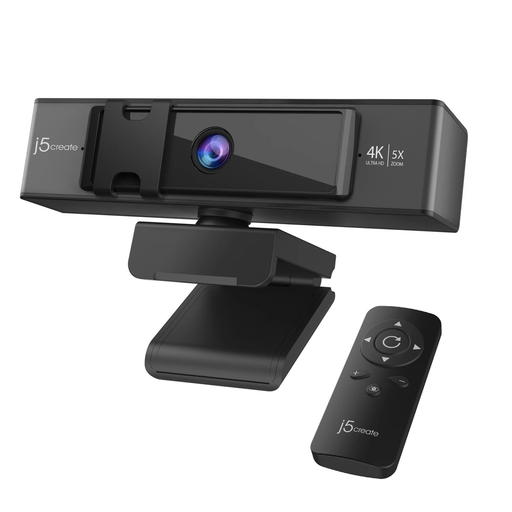
j5create JVCU435 USB 4K Ultra HD Webcam with Remote Control
A separate camera is worth considering when frequent meetings call for different camera controls from those on your laptop. The product name specifies 5x digital zoom and a remote control; check the work computer’s connection and your meeting-platform requirements.
View on Joybuy
 No image available
AOC Q32V4 31.5-inch 2K IPS Monitor
This external display is an option when laptop screen space limits how you arrange documents at a desk. Its product name specifies a 31.5-inch 2K IPS display, 4ms response time and built-in speakers; check desk space, computer output and the required cable.
View on Joybuy
 No image available
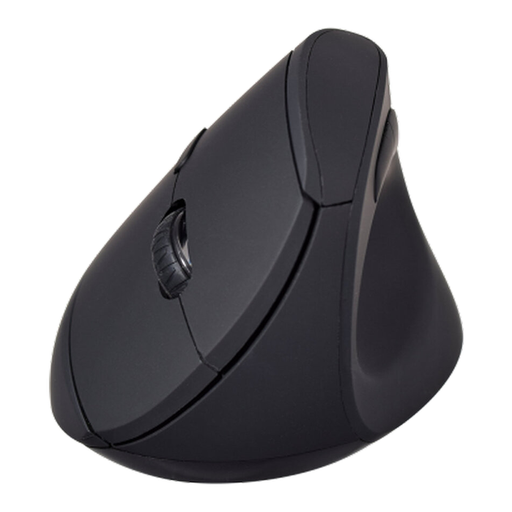
V7 MW500BT Bluetooth Vertical Mouse
A separate mouse can form part of a prolonged-use laptop arrangement where the screen is raised. The product name specifies Bluetooth and 2.4GHz modes, six buttons and an adjustable sensor up to 1600 DPI; check hand fit and whether your employer permits the intended wireless connection.
View on Joybuy
 No image available
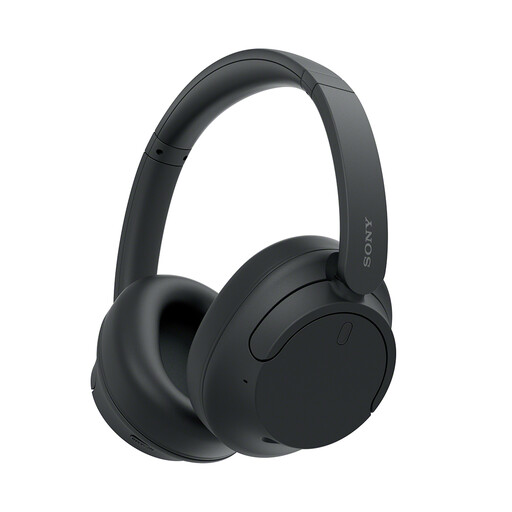
Sony WH-CH720N Noise-Cancelling Over-Ear Headphones (Black)
Consider separate headphones if your laptop’s audio arrangement does not suit regular calls or focused listening. Check fit, microphone and meeting-platform compatibility with your work computer. Do not use noise cancellation where you need to remain aware of your surroundings.
View on Joybuy
Common questions
When does a home-working display screen setup need an employer assessment?
The Health and Safety Executive says employers must assess workstations for people who use display screen equipment daily as part of normal work, continuously for an hour or more. Where those workers use equipment at home and in an office, the assessment should cover both situations.
Will any USB-C dock run my monitor and charge my laptop?
No: the connector alone does not establish display or charging capability. Check the exact laptop port, dock, cable, operating system and monitor requirements; the USB Implementers Forum says a USB4 connection operates at the mutual capability of connected devices, and Anker advises checking video output and Power Delivery for its docks.
Should I use a separate keyboard and mouse with a laptop riser?
For prolonged laptop use, the Health and Safety Executive advises a separate keyboard and mouse so the screen can be raised on a riser or similar. That guidance does not make the same accessory arrangement necessary for every brief laptop session.
What should I check when buying a powered dock or adapter?
Check the product’s markings, manufacturer name and address, and instructions, as advised by the Office for Product Safety and Standards. Its UK product recalls and alerts service can also be searched for a specific product.


