Regular hybrid DSE users
If you use a computer for sustained work at home and in the office, consider both workstations when raising a setup issue. The HSE says the assessment should cover both arrangements where workers use DSE in both places.


Start with the workstation issue, not a standard equipment bundle. The Health and Safety Executive (HSE) says an applicable display screen equipment (DSE) assessment should cover both home and office arrangements for workers using both; choose a screen, input devices, dock or call accessory to address an identified need, then check it against your work laptop and employer’s device policy.
If you use a computer for sustained work at home and in the office, consider both workstations when raising a setup issue. The HSE says the assessment should cover both arrangements where workers use DSE in both places.
If an employer-managed laptop is the centre of your desk, a monitor or dock is a separate compatibility decision. Check the exact laptop’s video connection, charging requirements and permitted peripherals before choosing one.
If meetings are a regular part of your job, check whether a webcam or headset works with your work computer, meeting platform and employer’s peripheral policy. Features can vary by model and operating system.
Identify the workstation problem before choosing a device. Then check the connections and approvals that determine whether it will work with your issued laptop.
| Priority | What to check | Your needs |
|---|---|---|
| Workstation assessment | Discuss the home and office arrangements, the work you do and any setup difficulty. The HSE says an applicable DSE assessment covers the workstation and both locations when you work at each. | My home desk and office desk may need different changes; I want the equipment choice to address the actual issue. |
| Screen position | Check whether the existing screen can be positioned appropriately in the assessed setup. For a monitor, check its inputs, placement options and connection to the work laptop. | A separate screen or a raised laptop may help me arrange sustained screen work, but I do not need to buy both by default. |
| Keyboard and mouse | If the laptop is raised or its screen is moved away, check that separate input devices can be placed and connected as needed. Confirm they are approved for the work device. | When I change the screen position, I still need a practical way to type and navigate at the desk. |
| Dock and display connections | Check the exact laptop’s USB-C Alt Mode or Thunderbolt support, intended displays, charging requirement and dock compatibility. Lenovo says functions of its docks can be limited on non-Lenovo notebooks. | I want my displays and desk peripherals connected without assuming that a USB-C-shaped port supports every dock function. |
| Calls and device approval | Check the meeting platform, operating system, connection type and any required software or certification for the exact accessory. Ask IT whether the peripheral is permitted; the National Cyber Security Centre identifies USB and Thunderbolt connections as potential routes to work devices and data. | For regular calls, I need equipment that works with my work computer and the organisation’s meeting and security requirements. |
A monitor or dock may leave the original workstation issue unresolved if the screen, input devices and working arrangement are considered separately.
Raise the issue through the employer’s DSE assessment process and choose equipment for the resulting setup, including both work locations where relevant.
A connector’s shape does not establish the laptop’s video, charging or full docking capabilities.
Compare the exact laptop specification with the monitor or dock maker’s compatibility information, including USB-C Alt Mode or Thunderbolt support and charging requirements.
The connected laptop and operating system can limit the display arrangement. Lenovo notes that dock functions may differ on non-Lenovo notebooks.
Check the planned number of screens, resolution and refresh rate against the exact laptop and dock combination.
The National Cyber Security Centre warns that USB and Thunderbolt peripherals can provide a route to a device and its data.
Check your organisation’s rules before connecting a dock, camera, headset or wireless accessory to a managed laptop.
Dell’s business docks are relevant when a fixed laptop desk needs charging and peripheral connections.
Lenovo’s dock documentation is useful when checking a ThinkPad or mixed-brand laptop setup.
Logitech’s business call accessories are relevant when meeting-platform compatibility matters.
These options cover a laptop dock, external monitors and call accessories. Match the type of equipment to your workstation need, then check the exact model against your work laptop and employer’s requirements.
 No image available
Consider a dock if the assessed desk setup needs connected displays and peripherals. The product name specifies dual HDMI 4K and 100W Power Delivery pass-through; check the exact laptop’s video and charging support, and obtain approval before connecting it to a managed device.
 No image available
This is a screen option when the workstation assessment points to a different display arrangement. Check your laptop’s USB-C video support and charging requirement; if you plan to move the monitor between locations, confirm its weight and what power accessories come with the listing.
 No image available
Consider this external monitor if the assessed workstation needs a separate screen and the desk has room for a 32-inch model. Its name identifies a height-adjustable stand and Mac positioning; verify video functions and charging with your exact work laptop, particularly if it is not a Mac.
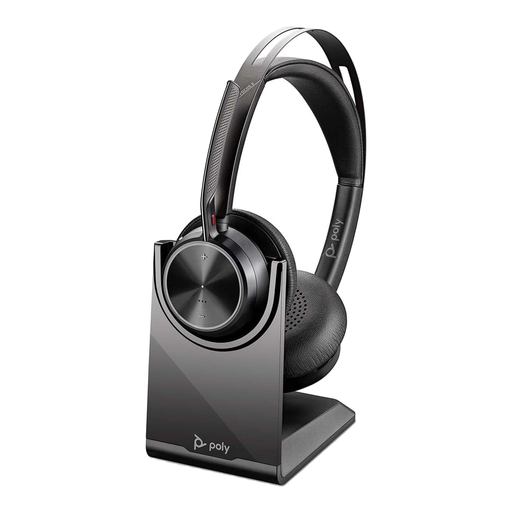 No image available
A headset is worth considering when work calls need a separate audio device. Confirm the exact headset’s connection and adapter arrangement, meeting-platform compatibility and approval for your managed computer before choosing it.
 No image available
This is an external-camera option for a call setup that needs one. The product name says 2K, while other supplied product details state Full HD 1080p; confirm the exact resolution, meeting-platform fit and employer approval before purchase.
It can. The HSE says employers must assess workstations for workers who use display screen equipment daily as part of normal work for continuous periods of an hour or more, and that an assessment should cover home and office where a worker uses DSE in both.
Raise the issue with your employer first if the DSE assessment requirements may apply. The HSE says the assessment should consider both home and office arrangements for workers using both; that gives you a basis for deciding whether a monitor, input device or other change addresses the issue.
Check your exact work laptop’s USB-C Alt Mode or Thunderbolt support, intended display arrangement, charging requirement and employer approval. Lenovo states that its USB-C and Thunderbolt docks require the relevant host-port support and that functions can be limited on non-Lenovo notebooks.
Check your employer’s device policy before connecting it. The National Cyber Security Centre identifies USB and Thunderbolt peripherals as potential routes to a device and its data, so a physical connection alone does not establish that an accessory is permitted.
Start with the meeting platform and work computer, then check the exact accessory’s connection, operating-system support and any required certification. Logitech, for example, states that its Brio 505 webcam is certified for Microsoft Teams, Google Meet and Zoom; that claim applies to that model, not to every call accessory.