What to check before choosing
Identify the limitation that matters most in your recurring home setup, then check the laptop and desk requirements for the accessory that addresses it.
| Concern |
What to check |
Who this matters to |
| Screen and input position |
Check space for a separate display or a raised laptop, and plan for a separate keyboard and mouse when elevating the laptop screen. The Health and Safety Executive pairs those input devices with a raised-laptop setup. |
When I spend long periods on documents at one desk, I need to place the screen without fixing my hands to the laptop keyboard; about 33% of consumers put screen and input position first. |
| Display and dock connections |
Check the exact laptop port for video output and charging support, then check the intended display configuration against the accessory’s requirements. Dell and Lenovo document differences between laptop-and-dock combinations. |
Repeatedly reconnecting a display and other desk devices makes dependable connections my main concern; for about 27% of consumers, that is the primary need. |
| Desk space and storage |
Measure the usable work surface and decide whether accessories must be put away between sessions. If using a laptop stand, allow room for separate input devices. |
If the work surface is shared, I need a setup I can clear away rather than leave assembled; about 20% of consumers prioritise that flexibility. |
| Calls and audio |
Match the webcam or headset connection to an available, permitted port and check camera placement. Logitech’s guidance recommends positioning a webcam around eye level with light in front. |
When meetings are the main difficulty, I need a camera and audio connection that work with my laptop; call setup comes first for about 20% of consumers. |
Joybuy products for different needs
These products cover a separate screen, desk connections, input devices and call accessories. Choose according to the limitation in your laptop setup rather than treating them as a single equipment bundle.
 No image available
ASUS PROART PA278CV IPS WQHD monitor
Consider this separate screen for recurring document work at a fixed desk. Its name identifies an IPS WQHD model; check your available desk space and the laptop connection you intend to use. If you want video and charging through one USB-C cable, confirm both functions for your laptop before choosing.
View on Joybuy
 No image available
V7 V7UC-U3CRJ45HDVG-BLK USB-C adapter
Consider this adapter when a desk setup needs display, network and USB connections. The product name specifies 4K HDMI, VGA, Gigabit Ethernet, 100W Power Delivery and dual USB 3.0 ports. Check the laptop’s USB-C video and charging compatibility; do not assume its HDMI and VGA connections can drive two independent displays at once.
View on Joybuy
 No image available
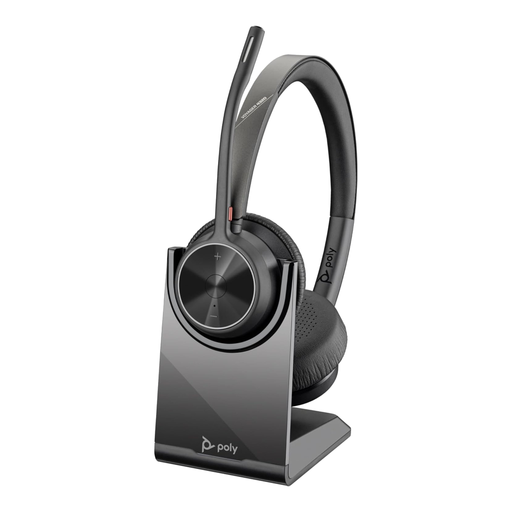
Poly Voyager 4320-M wireless headset with charging stand
Consider a headset when audio connection is the main issue in frequent calls. This variant’s name specifies USB Type-A and Bluetooth connection options and a charging stand. Check which connection methods your work laptop permits.
View on Joybuy
 No image available
Philips 3000 Series SPT6318B/05 wireless keyboard and mouse, UK English
Consider separate input devices if you plan to raise your laptop screen or use a separate display. This is a UK English wireless keyboard-and-mouse combination; check that your work laptop has a suitable connection for its USB-A receiver or permits an adapter.
View on Joybuy
 No image available
Targus webcam with autofocus
Consider an external webcam if camera positioning or focus is your main call concern. Autofocus is identified in the product name. Confirm the exact model’s resolution if you need a particular video format, and check its USB connection and permissions on your work laptop.
View on Joybuy
Questions about home laptop setups
Do display-screen equipment rules matter when I work from home?
For workers in Great Britain who work at home permanently or long term, the Health and Safety Executive says the Display Screen Equipment Regulations can apply. Ask your employer how your workstation should be assessed; the guidance is not a requirement for every worker to buy particular accessories personally.
What should I check before connecting a dock to a work laptop?
Start with your employer’s rules for personal peripherals, then check the exact laptop model and port capabilities against the dock. Dell and Lenovo’s guidance shows why video output, charging and the intended display configuration need specific compatibility checks rather than an assumption based on a USB-C connector.
Can I use a laptop stand without a separate keyboard and mouse?
For prolonged desk work with an elevated laptop screen, the Health and Safety Executive advises using a separate keyboard and mouse; a separate display is another arrangement to consider. Plan the space for the complete setup, not just the stand.
What should I check before using an external webcam for work calls?
Check that its connector fits an available, permitted port and that it works with your work laptop and approved calling application. For placement, Logitech recommends positioning the camera around eye level and using light from in front rather than strong backlighting.


