Start with your work laptop: check its ports, video-output capability, supported displays and charging requirements, as well as any employer rules, before choosing desk accessories. A compact hub may suit a laptop you carry between locations, while a dock and separate screen may make more sense at a regular home desk; neither arrangement will deliver the intended display or charging setup unless the exact devices and cables work together.
Who this setup is for
Laptop commuters
If you carry the same work laptop between home and office, a repeatable connection for your display, charging and everyday peripherals matters more than a long list of ports you will not use. Check the laptop and cable before choosing a compact hub.
Regular home-desk workers
If much of your home working day involves reading or editing documents, consider the screen arrangement and the position of your keyboard and mouse together. Confirm that your laptop supports the display connection before choosing a monitor arm or dock.
Workers with frequent video calls
If calls are the main reason to change your setup, identify whether camera placement, lighting or audio is causing the difficulty. Check the connection, meeting platform and any employer restrictions before adding a webcam or headset.
What to check before buying
Decide which part of the home setup needs attention first, then check that any accessory works with the laptop and the equipment you already use.
| Concern |
Buying check |
Who this matters to |
| Laptop and work-device compatibility |
Check the exact laptop's video output, supported display count and charging requirements. Ask IT which peripherals or drivers are permitted. |
If my work laptop cannot use the dock's display mode or my employer does not permit the device, extra ports will not solve my setup problem. Around 33% of consumers would put compatibility and work-device approval first. |
| Portable reconnection |
Count the connections you use at home, then check the hub's host cable and whether it needs a separate charger. |
When I carry my laptop between locations, I want to reconnect my home equipment without handling several separate cables. Quick reconnection would be the primary need for about 27% of consumers. |
| Screen space and positioning |
Confirm the laptop can drive the intended display arrangement. Check monitor inputs and, if using an arm, its fit with the monitor and desk. |
For long sessions with documents, I need a screen arrangement I can view and position comfortably, rather than simply adding another device to the desk. Around 27% of consumers would prioritise screen space and positioning. |
| Home video calls |
Check the camera or headset connection, supported meeting platform and the particular framing, lighting or audio feature you need. |
If regular calls are difficult because of my camera position or audio setup, I would address that problem before expanding my display connections. Call equipment would come first for roughly 13% of consumers. |
Common buying mistakes
-
Assuming all USB-C ports do the same job
A matching connector does not establish that the laptop supports the dock's video output, charging or USB4 functions. Microsoft Support and Anker UK both identify host capabilities as a condition of dock use.
Check the exact laptop port, the dock's host requirements and the cable specification before ordering.
An incompatible cable or adapter may need replacing before the intended connection works.
-
Reading “dual display” as two extended desktops
Microsoft Support explains that a splitter can duplicate one signal rather than create independent displays. Anker UK states that its Nano 8-in-1 model extends different content on two external monitors in Windows but mirrors content across monitors in macOS.
Check the laptop's supported display count and the exact hub's behaviour with your operating system before buying a second screen.
-
Buying work accessories before checking workplace requirements
A personally bought peripheral may not fit an employer's device rules. The Health and Safety Executive also advises that display screen equipment assessments cover both home and office where workers use equipment in both places.
Ask IT about approved devices and software, and use your employer's workstation assessment process where it applies.
-
Expecting webcam resolution to fix every call problem
A higher video mode does not address a poorly placed camera, unsuitable lighting, audio difficulties or restrictions on the work laptop.
Identify the call problem first, then check the webcam's connection and meeting-platform compatibility.
Brands to consider
These examples show why the exact model and laptop matter more than the brand name alone.
Anker
Anker offers compact USB-C hubs as well as larger docks for connected laptop desks.
- Anker UK lists dual 4K HDMI, up to 85W laptop charging output and 10Gbps USB ports for its Nano 8-in-1 model.
- For that model, Anker UK states that macOS mirrors content across monitors rather than showing different extended content on two external displays.
Kensington
Kensington's SD4781P is a desk-dock option to examine when USB-C and older USB-A laptops may share a workstation.
- Kensington specifies up to two 4K-at-60Hz external monitors, up to 100W Power Delivery and six USB ports for the SD4781P.
- Kensington states that USB-A devices require a separately supplied alternative power source.
Microsoft Surface
The Surface USB4 Dock is a model-specific option for a Surface laptop on Microsoft's compatibility list.
- Microsoft states that the dock supports two 4K monitors through USB-C and HDMI on compatible devices.
- Microsoft says an unlisted Surface is not compatible; the host must also accept the power it receives.
Logitech
Logitech's Brio 4K is a dedicated webcam to consider when the camera, rather than desk connectivity, needs attention.
- Logitech UK lists 4K at 30fps, 1080p at 60fps, autofocus and a privacy shutter for Brio 4K.
- The stated connection is USB-A; check the work laptop's port and any adapter or employer requirements.
Joybuy products for connected desk setups
These docks, hubs, webcams and headphones address connections and calls in a laptop-based home setup. Choose by the task you need to improve, then check fit with your work laptop and employer rules.
 Image unavailable
Targus USB-C Universal Dual HDMI 4K Docking Station, 100W PD pass-through
For a laptop desk that needs two HDMI connections alongside Ethernet and peripherals. The listing specifies HDMI 2.0, up to 4K at 60Hz per port, a seven-inch integrated cable and 100W Power Delivery pass-through.
An external 100W or higher adapter is required; confirm what is included and whether your laptop supports the intended display arrangement and charging input.
View on Joybuy
 Image unavailable
Targus 2K Webcam with Auto Focus
For calls where camera focus, placement or changing light is the concern. The stated specification lists 1080p at 30fps, a 67-degree field of view, a privacy slider and an adjustable clip.
The name says 2K while the stated video specification is Full HD 1080p at 30fps. Confirm the video mode, connection and meeting-platform compatibility you need.
View on Joybuy
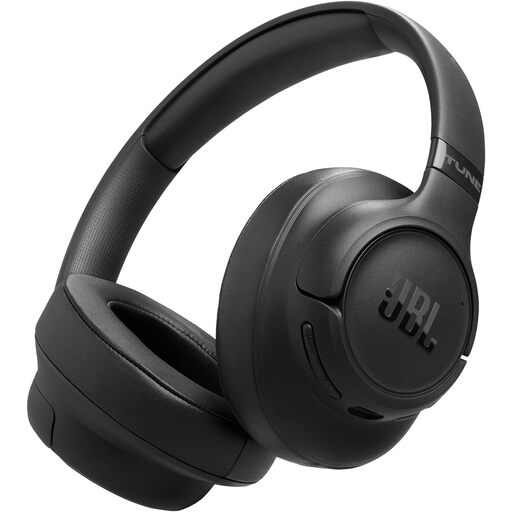 Image unavailable
JBL Tune 780NC wireless over-ear headphones, Black
For workers considering a headset they can carry between locations. The listing specifies Bluetooth 6.0, adaptive noise cancelling, two beamforming microphones, multipoint connection and a fold-flat design.
Check Bluetooth call support on the work laptop, meeting-platform compatibility and employer rules. The stated battery figure concerns music playback, not call time.
View on Joybuy
 Image unavailable
EMEET All-in-One 4K Webcam with Sony sensor, four microphones and dual speakers
For a home call position where a wider camera view and integrated audio are relevant. The listing specifies 4K video, an adjustable 98° field of view, a four-microphone array and dual speakers.
This model has fixed focus. Confirm its physical USB connection, mounting arrangement and compatibility with your laptop and meeting platform.
View on Joybuy
 Image unavailable
Baseus Metal Gleam Series II 10-in-1 USB-C hub, Cosmic Black
For a desk needing HDMI, USB, Ethernet and card-reader connections from one hub. The listing specifies two HDMI outputs with stated modes up to 4K at 120Hz and 4K at 60Hz, plus a maximum 100W Power Delivery input.
The laptop's USB-C port must support DP Alt Mode. Check its display support and the hub's operating-system behaviour; the stated PD input is not a laptop charging-output figure.
View on Joybuy
Frequently asked questions
Will any USB-C laptop run two external monitors through a dock?
No: the connector alone does not establish video output or support for two extended displays. Check the exact laptop's display capability and the dock's operating-system-specific mode; Microsoft Support notes that a splitter duplicates a signal rather than creating independent displays.
How do I check whether a dock will charge my laptop?
Compare the laptop's accepted charging wattage with the dock's delivered output and its power-supply requirements. Microsoft states that an insufficient host-power arrangement can reduce or disable functions on its Surface USB4 Dock, so a maximum power figure on its own is not enough.
Should I buy a monitor arm or stand before assessing my home workstation?
Assess the screen, keyboard, mouse and work task together before choosing either accessory. The Health and Safety Executive says employers must assess a workstation where a worker uses display screen equipment daily as part of normal work for continuous periods of an hour or more; where it is used at home and in the office, assessments should cover both settings.
Should I ask IT before connecting my own dock or webcam?
Yes, if the accessory will connect to an employer-managed laptop or be used for work access. Check approved peripherals, drivers and any companion software before purchase; the National Cyber Security Centre identifies device management as central to bring-your-own-device security.


