What should you check first?
Decide what your work arrangement calls for, then check screen and input-device placement before matching any monitor or dock to the laptop.
| Priority |
What to check |
Your needs |
| Workplace assessment |
For applicable home-working DSE arrangements, ask about the employer’s assessment and equipment process. The HSE says workers cannot be charged for equipment an assessment identifies as necessary; clarify approval and ownership before choosing an optional upgrade. |
I use a screen regularly for work and need to know which changes my employer’s assessment calls for before paying for equipment myself. |
| Screen and controls |
Check whether the laptop screen can be raised while a separate keyboard and mouse remain independently positioned. If considering another display, check its placement, desk space and the laptop’s video output. The HSE describes separate input devices and a raised laptop screen for prolonged laptop use. |
For longer sessions at a fixed desk, I want to position the screen without raising the keyboard and pointing device along with it. |
| Monitor and dock connections |
Match the laptop’s documented video path and supported display arrangements to the monitor, dock and cable. If charging through a USB-C connection, compare the laptop’s power requirement with the device’s stated power delivery; check operating-system requirements for the intended dock technology. |
I want my laptop to connect to the displays and desk accessories I actually use, rather than assuming every USB-C port handles the same functions. |
| Calls and meetings |
Check webcam placement and connector type, then confirm operating-system and calling-app compatibility. For a headset, check whether the computer and workplace allow its wired, Bluetooth or USB-receiver connection. |
On regular calls, I need a camera position and audio connection that work with my computer and meeting setup. |
Brands to consider by product line
These brands cover different parts of a home-working desk; compare specifications for the particular model, not the brand name alone.
Dell
Dell’s UK monitor and docking lines are relevant when comparing a separate display with a more connected desk.
- Dell UK lists HDMI, DisplayPort, DisplayPort-out with MST, Ethernet and USB-C upstream connections for the P2725HE monitor.
- Those monitor ports do not establish which video or multi-display modes a particular laptop supports; check both devices and the intended cable.
Logitech
Logitech’s UK business range includes keyboards, mice, webcams and headsets for the input and calling parts of a desk setup.
- Its range offers separate peripheral and call-audio choices, so these can be considered independently of the monitor or dock.
- Check connection and operating-system requirements for the exact webcam or headset; a product-line description does not establish compatibility with a work computer.
Anker
Anker’s UK docking range is relevant when one laptop connection needs to serve several desk accessories.
- Anker UK describes docks that connect laptops with monitors and peripherals.
- Anker’s guidance for its 651 USB-C Dock specifies laptop USB-C support for both Power Delivery and DisplayPort Alt Mode. Check the requirements of the particular dock and laptop rather than assuming that condition applies identically to every model.
Joybuy options for the desk
These options cover separate screens, a USB-C dock and video-call accessories. Choose the equipment your workspace calls for, then check the exact laptop and work-system requirements before ordering.
 No image available
BenQ MA320UP 32-inch 4K USB-C monitor
A separate screen for a fixed desk where there is room for a 32-inch monitor. The title specifies Nano Glossy IPS, 4K UHD, HDR P3 and a height-adjustable stand. Check the laptop’s USB-C video capability, the monitor connection and the desk space before choosing it.
View on Joybuy
 No image available
Targus USB-C Universal Dual HDMI 4K dock, 100W Power Delivery Pass-Thru
A dock to consider for a desk intended to connect two HDMI displays. Its title specifies dual HDMI 4K connections and 100W Power Delivery Pass-Thru; these do not establish what a particular laptop can output or accept. Check the host’s display modes and charging requirements, plus the required power adapter and what comes in the box.
View on Joybuy
 No image available
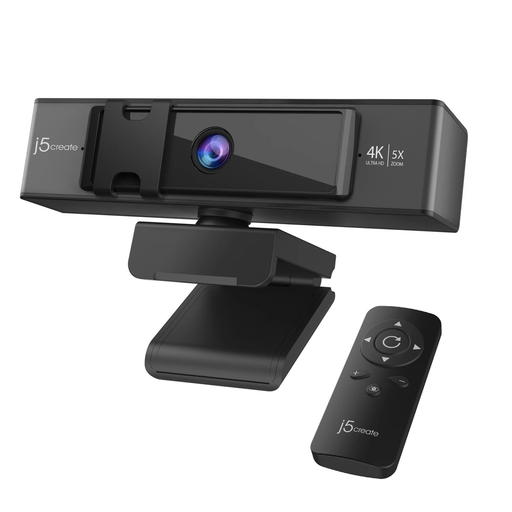
j5create JVCU435 USB 4K webcam with 5x digital zoom and remote
An external camera to consider when laptop-camera placement does not suit your calls. Its title specifies 4K Ultra HD, 5x digital zoom and a remote control. Check its connection, mounting position, operating-system support and work calling application before choosing it.
View on Joybuy
 No image available
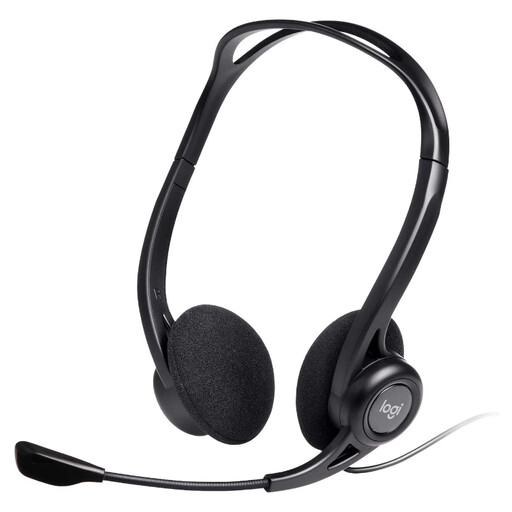
Logitech 960 wired USB headset with inline remote
A wired headset option for a desk used for regular calls. The product title identifies an inline remote and a noise-cancelling microphone, without establishing how the microphone will perform in your room. Check the computer connection and your workplace’s calling-platform requirements.
View on Joybuy
 No image available
UPERFECT 18.4-inch 4K QLED portable monitor with integrated mount
A separate screen option for a workspace that calls for a portable monitor. The title specifies a 3840 × 2160 display, USB-C and Mini HDMI connections, an integrated mount and VESA mounting. Check the laptop’s video output and the screen’s power and cable requirements for your intended connection.
View on Joybuy
Home-working setup questions
Does my employer have to provide a home-working monitor, dock or keyboard?
There is no universal equipment list: the individual DSE assessment determines what action is needed where the requirements apply. The HSE says a worker cannot be charged when a home-working assessment identifies action such as providing DSE equipment. Ask your employer about the assessment and equipment process before buying an item for work yourself.
Can DSE requirements apply if I split my week between home and work?
Yes, where the relevant conditions apply. The HSE says Great Britain’s DSE requirements can apply to workers who routinely split their time between home and the workplace, as well as those working at home permanently or long term. Northern Ireland has separate DSE regulations; the Health and Safety Executive for Northern Ireland identifies workers using DSE daily for an hour or more at a time as covered users.
Is a USB-C port enough to use a monitor dock?
No. Check the exact laptop’s documented video-output capability and the dock’s host requirements. Plugable’s guidance says its USB-C Alt Mode video route requires support from the host port and controller; for any intended setup, also compare supported display arrangements, charging needs, cables and monitor inputs.
Should I pair a laptop stand with a keyboard and mouse?
For prolonged laptop use, the HSE advises a separate keyboard and mouse so the laptop screen can be elevated on a riser or similar. A stand alone also raises the attached keyboard and trackpad, so plan the input devices and screen position together.
What matters when choosing a webcam or headset for work calls?
Choose a connection and placement that work with your computer and meeting setup. For a webcam, check its connector, operating-system and calling-app support, and where it will mount. For a headset, confirm the intended wired, Bluetooth or USB-receiver connection and any workplace IT restrictions.


