What should you check before buying?
Start with the applications and equipment needed at both locations. Then decide what travels with the laptop and what can remain connected at each desk.
| Priority | What to check | Your needs |
|---|
| Laptop fit |
Confirm that the laptop runs your required applications. Consider what you can carry regularly, including the laptop and any accessories you plan to take between locations. |
I need to do the same work at home and in the workplace without making the travel kit harder to carry than necessary. |
| Video and charging |
Check the exact laptop port for DisplayPort Alt Mode or an appropriate Thunderbolt or USB4 video connection. If the dock should charge the laptop, check its Power Delivery input and the dock’s charging requirements. Kensington and Anker describe these as host-dependent functions. |
I want to reconnect a monitor and charging cable at my desk, rather than discover that a physically fitting USB-C connection cannot provide one of those functions. |
| External displays |
Match the laptop’s supported display count with the dock’s connection method and the monitors’ required resolution and refresh rate. Apple, Dell and CalDigit document model- or chip-specific display limits; check whether a dock uses a method such as DisplayLink and requires a driver. |
Two screens need to extend my workspace, not simply show the same picture. I would check the whole laptop-and-dock combination before choosing extra video ports. |
| Desk connections |
List the displays, USB devices and wired-network connections used at each location. Compare a travel hub with a dock that can remain attached to fixed desk equipment. |
If my accessory goes in my bag each day, fewer connections and less to carry matter. At a fixed desk, I may need more devices ready to reconnect. |
| Workstation arrangement |
Check whether the screen, keyboard and mouse can be positioned appropriately at both desks. The Health and Safety Executive’s display-screen guidance covers home, mobile and hot-desk work as well as fixed workstations. |
For sustained desk work, I want an arrangement I can adjust at either location, rather than relying on the laptop screen and keyboard in every setting. |
Dock brands and their compatibility guidance
These brands offer different docking approaches; the relevant choice still depends on the exact laptop and desk equipment.
Anker
Anker’s range includes compact USB-C connections and desktop docks, including a Prime DisplayLink model marketed for macOS and Windows.
- The Prime 14-in-1 model lists multiple display connections and upstream charging.
- Anker says its Prime DisplayLink dock requires the latest DisplayLink driver. Check host video, charging and display compatibility rather than treating the dock’s listed maximums as a guarantee for every laptop.
Kensington
Kensington offers mobile USB-C docks as well as desk-oriented connectivity options.
- Its UH1400P mobile dock is positioned as a compact accessory that fits in a carrying case.
- Kensington specifies USB-C Power Delivery and DisplayPort Alt Mode requirements for the UH1400P host. Its USB-C guidance also cautions that connector shape does not establish a device’s video and power functions.
Dell
Dell publishes dock compatibility guidance that is particularly useful when checking an exact laptop model.
- Dell’s compatibility lists give buyers a model-specific starting point for a desk dock.
- Dell Support warns that laptops outside a dock’s compatibility list may have limited functionality or errors. Its display guidance also identifies restrictions for particular MacBook chips.
CalDigit
CalDigit’s Thunderbolt-focused docks are relevant when a compatible laptop needs more desk connections or multiple displays.
- CalDigit publishes Apple silicon compatibility guidance by chip family.
- That guidance shows why display support must be checked for the specific Mac model; choosing a dock with several outputs does not remove the host’s limits.
Joybuy options for hybrid laptop setups
These options cover a portable second screen, USB-C desk connections and a bag for moving a laptop between locations. Check each connection accessory against your own laptop before deciding how the two desks will work.
 No image available
ASUS ZenScreen MB166CR FHD portable monitor
A second screen is relevant if desk monitors are not available at both work locations. Check the laptop’s USB-C video support and how the monitor will receive power in your intended setup.
View on Joybuy
 No image available
Baseus Metal Gleam Series II 10-in-1 USB-C hub, Cosmic Black
For a desk with several connections, the named configuration includes two HDMI outputs, USB ports, RJ45, SD/TF slots and a USB-C PD input. Its title lists different maximum modes for the two HDMI outputs: 4K@120Hz and 4K@60Hz. Confirm the laptop’s video and independent-display support; the hub’s 100W PD input rating does not establish the power your laptop will receive.
View on Joybuy
 No image available
Targus USB-C Universal Dual HDMI 4K Docking Station with 100W PD pass-through
This dock is a candidate for a desk where two HDMI connections are needed. Check the exact laptop’s display modes and charging compatibility, and confirm whether the external power adapter needed for the intended setup is included.
View on Joybuy
 No image available
USB-C hub with 2 HDMI, DisplayPort, USB, RJ45 and SD/TF
The named connections may suit a desk with displays, wired networking and USB devices. Check the supported display modes and laptop compatibility before relying on the video outputs; also confirm the PD charging capability and physical size if those affect your setup.
View on Joybuy
 No image available
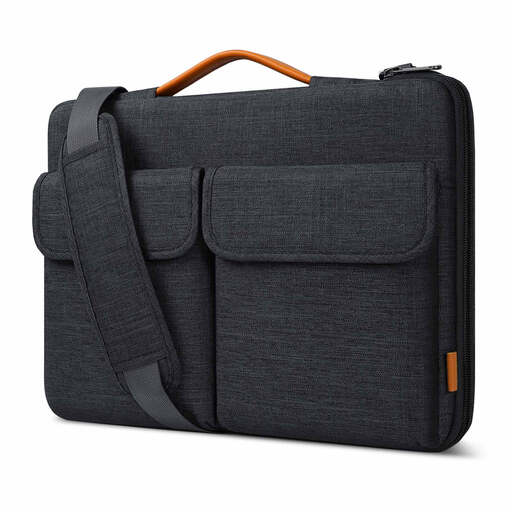
Inateck LB03008-15BG 15.6-inch laptop shoulder bag
A carrying option for a laptop that moves between home and work; the name describes it as splash-proof, not waterproof. Compare your laptop’s actual dimensions with the bag’s interior rather than relying on the 15.6-inch size label alone.
View on Joybuy
Questions about hybrid laptop setups
Will any USB-C dock work with my laptop?
No. Check the exact laptop port for suitable video output if you need a monitor, and for Power Delivery input if you expect dock-based charging. Kensington and Anker both describe USB-C dock functions that depend on what the host port supports.
Can a dock run more independent monitors than my laptop normally supports?
Not automatically. The laptop model or chip, operating system and dock connection method affect the result. Apple, Dell and CalDigit document host-specific display limits, so check the required screen count and modes against the exact combination before buying.
Should I carry a small hub or leave a powered dock at my desk?
A small hub suits a kit that travels with you when you usually reconnect one display and a few devices. A powered dock is more relevant where monitors, wired networking and peripherals remain at a fixed desk. In either case, confirm laptop video and charging compatibility before choosing the connection.
Do display-screen workstation rules matter when I work from home or hot-desk?
Yes, when the applicable work pattern meets the rules. In Great Britain, the Health and Safety Executive says employers must assess workstations used for display-screen work daily, for continuous periods of an hour or more as part of normal work; its guidance includes home, mobile and hot-desk workers.


