For long calls, start by considering a wired USB headset; for document-heavy work constrained by a laptop screen, consider an external monitor instead. Add a dock when you need to reconnect several displays and accessories at one desk, but check the exact laptop’s ports, display limits and charging requirements before buying. For work equipment, also check your employer’s approval and support arrangements.
Who needs which upgrade?
Laptop workers on frequent long calls
A wired headset is worth considering when microphone placement, accessible call controls and a dependable desk connection matter most. Check the connector against a free port on your laptop or dock, and consider how the headset fits over a full working day.
Document-heavy hybrid workers
An external monitor can give documents, spreadsheets and meeting windows more room than a laptop screen alone. Before choosing one or planning multiple screens, check the exact laptop model’s display support and available video connections, as Apple Support advises for Macs.
Desk-based workers reconnecting several peripherals
A dock becomes relevant when displays and accessories need to connect each time you return to your desk. Its usefulness depends on the laptop’s supported interface, display limits and charging needs, as well as whether your organisation approves and supports the setup.
What should you check before buying?
Choose the task you most need to improve, then check the connection and workplace requirements for that option.
| Priority |
What to check |
Your needs |
| Work calls |
Check microphone position, controls, fit for long calls and the USB connector or supplied adapter. If you need dedicated meeting controls, check the exact platform variant; Jabra distinguishes its UC and Teams variants. |
I spend long periods on calls and want a headset I can connect to an available port and wear comfortably. |
| Screen space |
Check the laptop’s supported external-display count, its video output and the monitor’s input. Apple Support advises checking Mac display limits and cables; Microsoft Support provides settings for arranging connected Windows displays. |
Documents and meeting windows compete for space on my laptop screen, so an external display may be more useful than extra accessory ports. |
| One-cable desk setup |
Check whether the laptop’s port carries the video signal you need, whether the dock or monitor meets its charging requirement, and which cables are required. USB Implementers Forum materials describe capabilities that vary between USB-C systems; a USB-C connector alone does not settle these checks. |
I want to reconnect displays and peripherals at my desk without assuming that one USB-C connection will provide every function. |
| Fixed video-call station |
Check whether a monitor includes the camera, microphone and speakers you need, and how those functions connect to your laptop. LG lists these features on its 27BA850-B; they are not features of every monitor. |
My laptop sits closed or away from the screen position I use for calls. I would rather check a combined monitor setup than add separate desk accessories without a plan. |
| Workplace approval |
Ask who provides or pays for equipment and repairs, whether the device needs IT approval, and who handles setup and support. Acas advises employers and staff to agree these home-working arrangements. |
Before buying for a work laptop, I want to know whether my employer will approve, support or provide the equipment. |
Common buying mistakes
-
Treating every USB-C port as identical
A matching connector shape does not establish that a laptop, cable and monitor can deliver the intended video and charging functions.
Check the exact laptop model’s video and charging specifications, then match the cable and connected device to them. Apple Support advises checking Mac ports and display limits before connecting a screen.
-
Choosing a dock by its display outputs alone
A dock’s stated display modes still depend on the host connection and the displays being used. Dell UK, for example, lists specific display modes for its WD25TB4 rather than an unconditional output for every laptop.
Start with the laptop’s supported external-display count and connection type. Then compare the dock’s output modes with the resolution and refresh rate you intend to use.
-
Buying work equipment before checking workplace rules
An otherwise suitable headset, monitor or dock may not fit your employer’s arrangements for approval, repairs or technical support.
Ask about the current equipment and expenses policy before purchasing. Acas advises agreeing who provides or pays for home-working equipment and repairs, and what support is needed.
If the employer does not provide or reimburse an item, the purchase may remain your responsibility.
-
Assuming noise cancellation guarantees a clear call
Microphone noise reduction, active noise cancellation and passive isolation describe different headset features. A product claim does not establish how it will perform in every room or how it will fit you.
For long calls, check microphone placement, connector, controls and fit. Treat noise-reduction claims as specific to the model rather than a substitute for those checks.
Relevant brand references
Logitech
The Zone Wired is a reference point for a wired USB headset intended for desk calls.
- Logitech describes dual microphones with noise-reduction technology on the Zone Wired.
- That description is a manufacturer claim, not a guarantee of microphone performance in a particular home environment.
Jabra
The Evolve2 40 SE is relevant when choosing a corded headset for a Unified Communications or Teams setup.
- Jabra describes UC support and a distinct Teams-oriented variant.
- Jabra’s manual says the computer connection depends on whether you buy the USB-A or USB-C variant; check the variant and your available port.
Dell
Dell’s WD25TB4 dock and WH5024 headset provide model-specific connection details for two different desk needs.
- Dell UK lists Thunderbolt 4 connectivity and up to 96W power delivery for non-Dell systems on the WD25TB4. It lists USB-C, a USB-A adapter, and macOS and Windows platform support for the WH5024.
- The dock’s usable display modes and charging arrangement still need to be checked against the host laptop and connected screens.
LG
LG has model-specific monitor options for screen space or a fixed video-call desk setup.
- LG UK lists a 27-inch 4K IPS display and USB-C 90W power delivery for the 27U730A-B. It lists a built-in webcam, microphone and speakers for the 27BA850-B.
- Those features differ by model. Check the intended laptop’s video, USB and charging support before planning a single-cable setup.
Joybuy products for different setups
These Joybuy options cover wired headsets for calls, external monitors for screen space and a dock for a multi-device desk. Choose the type of upgrade before comparing the models within it.
 No image available
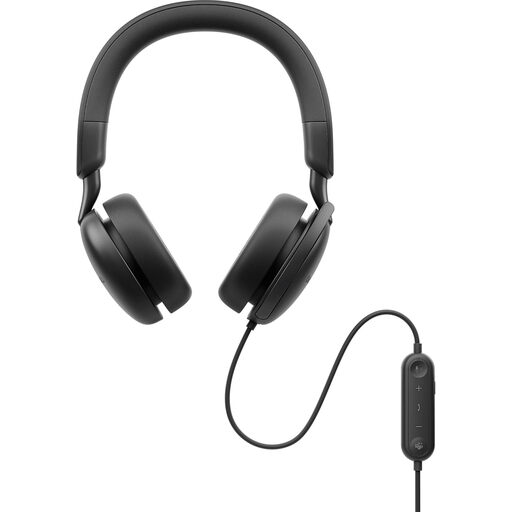
Dell Pro Plus WH5024 Wired ANC Headset
A wired option to consider for frequent desk calls. Dell UK specifies a USB-C connection and an included USB-A adapter for the WH5024; check which port is free on your laptop or dock. ANC is a listed feature, not a guarantee of call quality or individual comfort.
View on Joybuy
 No image available
BenQ MA270UP 27-inch 4K USB-C Monitor
A 27-inch 4K monitor to consider when laptop screen space limits document work. The product name specifies a Nano Glossy IPS panel and height-adjustable stand; consider reflections at your desk. Check your laptop’s USB-C video support and charging requirements before relying on a single-cable connection.
View on Joybuy
 No image available
ASUS ProArt PA248CRV IPS WUXGA Monitor
Another external-display option for document and application windows, identified as an IPS WUXGA monitor. Before buying, match its required connection to the exact laptop’s video output and check the included cables.
View on Joybuy
 No image available
Targus USB-C Universal Dual HDMI 4K Dock with 100W Power Delivery Pass-Through
A dock to consider when reconnecting displays and peripherals at a fixed desk. Its name specifies dual HDMI and 100W power-delivery pass-through; confirm the display modes your laptop supports rather than assuming both outputs will meet your intended configuration. Check the required external power adapter and what the supplied package includes, as well as workplace approval.
View on Joybuy
 No image available
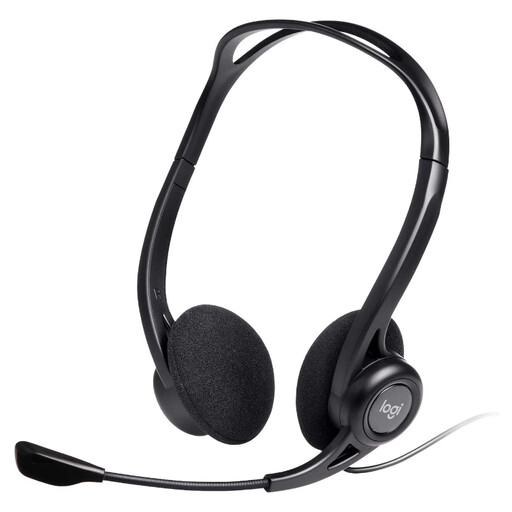
Logitech 960 Wired USB Headset with Inline Remote
A wired headset option for calls when an inline remote would be useful at the desk. Its product name describes a noise-cancelling microphone, but does not establish how much background sound it will reduce in your room. Check the USB connector against an available laptop or dock port.
View on Joybuy
Frequently asked questions
Does a USB-C port guarantee that a monitor or dock will work?
No. Check the exact laptop model’s video support and external-display limit, then match its port, cable and the monitor or dock to the display setup you want. Apple Support advises checking Mac ports, display limits and cables; USB Implementers Forum materials describe differing capabilities within USB-C systems.
Should I buy a USB-A or USB-C work headset?
Choose the connector for a port you can actually use on your laptop or dock. Jabra’s Evolve2 40 SE manual distinguishes its USB-A and USB-C variants, while Dell UK specifies a USB-C connection and included USB-A adapter for the WH5024. Check the exact variant or package rather than assuming an adapter is included.
What should I ask my employer before buying peripherals for work?
Ask whether the item needs approval, who provides or pays for it and repairs, and what IT support and security requirements apply. Acas advises employers and staff to agree home-working equipment and support arrangements; do not assume that buying an item yourself means it will be reimbursed or supported.
What happens after I connect a second screen to a Windows laptop?
Use Windows display settings to adjust the connected screens for your desk arrangement. Microsoft Support provides guidance on settings for each external display; if the screen is not available to arrange, check the laptop’s display support, connection and cable before choosing another accessory.


