One-laptop desk users
You want a wired mouse to stay plugged into a desk hub or dock, while connecting your laptop with one host cable. Display, charging or Ethernet connections may also matter, depending on your setup.


For one laptop, choose a hub or dock with a data port that fits the wired mouse, adding display, network or charging connections only if you need them. If two laptops must take turns using the same mouse, look for a dual-host KVM dock with a documented switching method. Before relying on video or charging, check the laptop’s port capabilities and the dock’s requirements.
You want a wired mouse to stay plugged into a desk hub or dock, while connecting your laptop with one host cable. Display, charging or Ethernet connections may also matter, depending on your setup.
You want the same wired mouse and other desk peripherals to move between two laptops without moving their cables. A dual-host KVM provides a deliberate way to switch the connected host.
Your mouse is one part of a desk setup that may also include monitors, wired networking or storage. The dock’s connections matter, but so do the laptop’s own display and power capabilities.
Decide whether the mouse serves one laptop or needs to switch between two; then check which other desk connections you will actually use.
| Concern | What to check | Who this matters to |
|---|---|---|
| One-laptop mouse connection | Check for a data port that fits the mouse plug, and count any other USB peripherals that will stay connected. | If I usually bring one laptop to the desk, I want to connect my mouse without moving its cable each time. Around 50% of consumers put that straightforward connection first. |
| Switching between laptops | Look for two supported host connections, a documented switch and suitable mouse ports; check operating-system and driver requirements. | When two laptops take turns at my desk, I need the mouse to follow the active computer. For around 30% of consumers, switching shared peripherals is the primary need. |
| Fuller desk connections | Match the needed display, Ethernet and charging connections to the exact laptop and dock; check whether a required charger and cable are included. | If my mouse sits alongside monitors or wired networking, I need the rest of the desk setup to work with my laptop too. Broader workstation connections come first for around 20% of consumers. |
A USB-C connection alone does not establish which video or power functions a laptop supports. Anker Support specifies Power Delivery and DisplayPort Alt Mode requirements for its 575 dock, while Apple Support advises checking display support for the exact Mac model.
Identify your laptop model and host-port capabilities before matching its display and charging needs to a dock.
A conventional dock connects peripherals to one host; it does not provide the deliberate host switching needed to share a mouse between laptops. StarTech.com describes a front toggle for switching hosts on its dual-laptop KVM dock.
If both laptops need the same mouse, check for two host inputs, an explicit switching method and any driver requirements.
UGREEN states that its examined Revodok Pro dock needs a 100 W Power Delivery charger and cable to provide its stated 85 W laptop charging output.
Check the dock’s power input, stated laptop output, charger and cable requirements, and your laptop’s charging needs.
For that UGREEN model, the required charger and cable are not included, so you would need to provide compatible ones.
UGREEN states that external displays connected through its examined dock are identical on macOS. Apple Support also says the number of supported external displays depends on the Mac model.
For separate Mac displays, check both the exact Mac’s display support and the dock’s macOS display-mode notes.
Anker offers USB-C hubs and desktop docks for connecting a laptop to desk peripherals.
The examined Revodok Pro desktop dock combines USB peripheral connections with display, Ethernet and power connections.
The examined dual-host KVM dock is designed to share desk peripherals between two laptops.
These hubs and adapters are options for connecting a wired mouse to one laptop, sometimes alongside other desk peripherals. If the mouse must switch between two laptops, check for a dual-host KVM instead.
 No image available
Consider this for a one-laptop desk where the wired mouse needs a USB-A port alongside other connections.
The named configuration includes one 10 Gbps USB-A port, two 480 Mbps USB-A ports, two HDMI connections, RJ45, SD/TF slots and USB-C PD input. Check the laptop’s video and charging support before relying on those functions.
 No image available
This is an option for one laptop when you want a mouse connection alongside wired networking or a display connection.
Its name lists two USB 3.0 ports, HDMI, VGA, Gigabit Ethernet and 100 W Power Delivery. Check the mouse plug, your laptop’s display capabilities and what is needed to supply charging power.
 No image available
Consider it for a one-laptop desk if its peripheral connections suit your wired mouse and you want additional desk connections.
The product name identifies a USB-C connection, 4K projection and TF/SD card slots. Check that an output port physically fits the mouse plug and that the laptop supports any video function you need.
 No image available
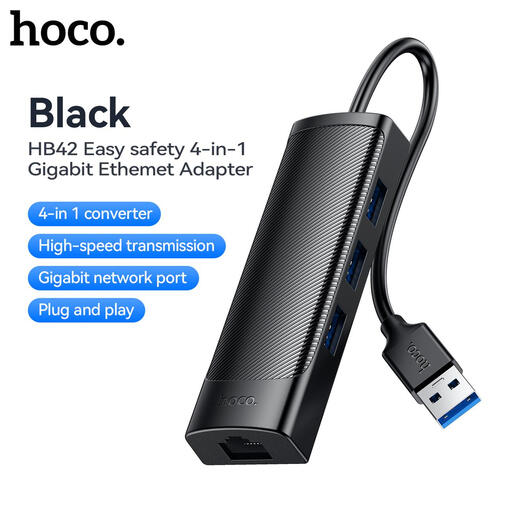
This is a mouse-and-network option if the laptop has a compatible USB-A host port rather than needing a USB-C dock connection.
The named configuration has three USB 3.0 ports, RJ45 and a 0.2 m cable. Check the computer-side connection before buying; this hub is not a substitute for laptop charging.
 No image available
Consider this for one laptop if you need peripheral ports alongside several types of desk connection.
Its name lists two HDMI connections, DisplayPort, USB 3.0 and USB 2.0 ports, RJ45, PD, SD/TF and audio. Confirm that a USB output fits your mouse and that your laptop supports the display and charging functions you intend to use.
Choose a dock with a data port that fits the mouse and a host connection compatible with your laptop. If you also need charging or a monitor, check those functions separately: Anker Support specifies Power Delivery and DisplayPort Alt Mode requirements for its 575 dock, and Apple Support says Mac display support varies by model.
A conventional one-host dock does not provide deliberate switching between two laptops. Look for a dual-host KVM dock or switch with documented peripheral sharing; StarTech.com describes a front toggle for switching its examined KVM dock between laptop hosts.
Two video ports alone cannot establish that result. Apple Support advises checking the exact Mac model’s supported display count, and UGREEN states that external macOS displays are identical on its examined Revodok Pro dock.
Check that the supplied plug and power supply are intended for use with your UK socket and the dock. Follow the manufacturer’s safety instructions, and check whether any charger or cable needed for the dock’s stated laptop charging output is included.