
24/7 Customer Support

Free returns

Same-day & Next-day Delivery

Quality Guaranteed

Unlock Your Welcome Offers: FREE Delivery | Up to 80% OFF | Free 30-day JoyPlus trial
Download the APP
Modern laptops from brands like Apple, Dell and Microsoft are powerful and portable, but their minimalist design often leaves users with a shortage of essential ports. If you find yourself constantly swapping cables or wishing you could connect a proper keyboard, mouse and multiple monitors, you are not alone. A single USB-C port is rarely enough for a productive workspace.
This guide is designed to help you navigate the options and understand the key features to look for in a USB-C docking station. We will break down what matters—from port selection to display capabilities—and present some of our top recommendations to help you create a more efficient and clutter-free desk setup.
Before you buy, it is important to analyse your specific needs. A device that is perfect for a graphic designer might be overkill for a student. Here are a few key considerations to guide your decision.
Start by taking stock of the peripherals you use daily. Do you need a stable, wired internet connection for video calls? Then a model with a Gigabit Ethernet port is a must. Do you frequently transfer files from a camera? An integrated SD or microSD card reader will be invaluable. Most users will need a mix of:
A good multiport adapter should cover your core requirements without unnecessary extras.
One of the main reasons to get a docking station is to create a multi-monitor workspace. However, not all hubs are created equal when it comes to video output.
A USB C hub with Power Delivery allows you to charge your laptop through the hub itself, using the same single cable that connects all your peripherals. This is the key to a true one-cable setup. Check the wattage—a MacBook docking station or a hub for a powerful Windows laptop like a Dell XPS should ideally offer at least 65W to 90W of power passthrough to charge the device effectively while it is under load.
Here are a few standout options that cater to different needs, from portability to all-out desktop power.
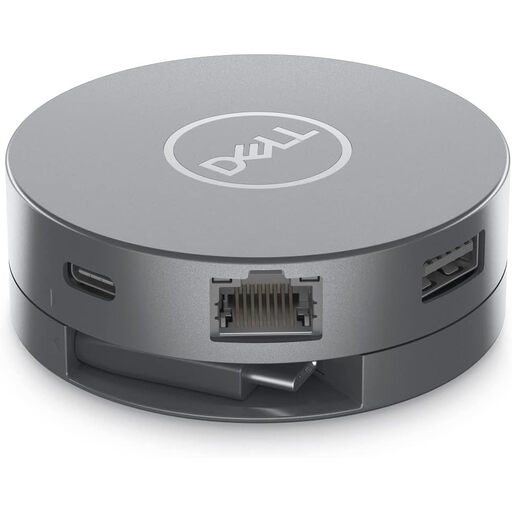
Why It Stands Out: The Dell DA305 is a compact and highly portable solution. Its unique twist-to-retract cable design makes it easy to pack away without tangles. It offers a versatile selection of ports, including both HDMI 2.0 and DisplayPort for connecting a single 4K 60Hz display. With 90W Power Delivery passthrough, it can keep most modern laptops charged.
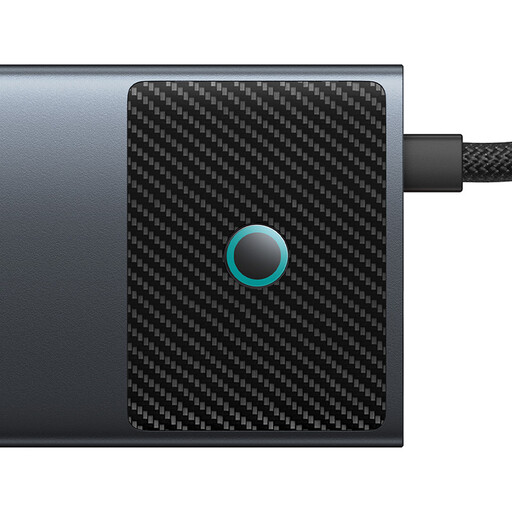
Why It Stands Out: This Baseus hub is a true powerhouse for users who need maximum connectivity. It is a genuine docking station for dual monitors, featuring two HDMI ports capable of driving one 4K display at an impressive 120Hz and a second at 4K 60Hz. With 10 ports in total, including 10Gbps USB-A and USB-C data ports, an SD/TF card reader and 100W Power Delivery, it can handle almost any peripheral you throw at it.
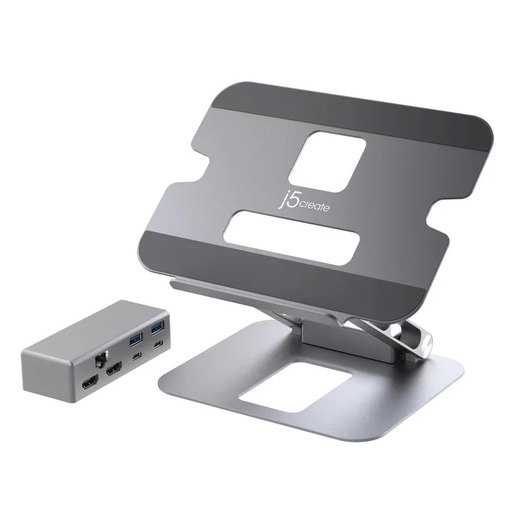
Why It Stands Out: The j5create JTS427 cleverly combines a USB-C docking station with an ergonomic laptop stand. This integrated design not only expands your connectivity but also improves your posture by raising your laptop to a more comfortable viewing angle. It supports a dual 4K 60Hz monitor setup, turning your laptop into the centre of a powerful and comfortable desk arrangement.
If these recommendations do not quite match what you are looking for, or if you would like to explore a wider variety of configurations, we have more to see.
[Explore our full range of computer dock solutions here.](https://www.joybuy.co.uk/explore/computer-dock/K87CbTSx)
1. What is the difference between a USB-C hub and a docking station? The terms are often used interchangeably, but there is a subtle difference. A USB C hub is typically smaller, more portable, and bus-powered (drawing power from the laptop). A USB-C docking station is usually a larger, more stationary device with its own power supply, offering more ports and higher power output for charging and driving multiple high-resolution displays.
2. Do all USB-C ports support video output? No, they do not. For a USB-C port to output video to a monitor, it must support DisplayPort Alternate Mode (DP Alt Mode) or Thunderbolt 3/4. Most modern high-end laptops (like MacBook Pro, Dell XPS, Surface Pro) have this feature, but it is always wise to check your device's specifications before purchasing a dock for video output.
3. How much Power Delivery (PD) do I need for my laptop? Check the wattage of the power adapter that came with your laptop. A 13-inch MacBook Air or similar ultrabook might only need 30-45W. A 16-inch MacBook Pro or a performance Windows laptop could require 85W or more. To be safe, choose a docking station with a PD rating that matches or slightly exceeds your laptop's original charger to ensure it charges properly, especially while in use.