
24/7 Customer Support

Free returns

Same-day & Next-day Delivery

Quality Guaranteed

Unlock Your Welcome Offers: FREE Delivery | Up to 80% OFF | Free 30-day JoyPlus trial
Download the APP
Modern laptops, with their sleek profiles and minimalist designs, often leave us wanting for one thing: more ports. If you've ever found yourself juggling adapters to connect a monitor, a mouse and an external drive to your MacBook Pro or Dell XPS, you understand the challenge. A single USB-C port is powerful, but it's rarely enough for a productive workflow.
This is where a USB-C docking station or hub becomes an essential accessory. It acts as a central command centre for your digital life, transforming your portable laptop into a fully-fledged desktop powerhouse with just one cable. As a Joybuy Product Recommendation Officer, my role is to help you navigate the options and find a solution that fits your specific needs, without the marketing clutter. This guide will walk you through key features to consider and highlight a few standout options.
Selecting the right hub can feel overwhelming with all the technical specifications. Focusing on a few key areas will simplify your decision.
Consider what you need to connect daily. There's no one-size-fits-all solution.
Not all ports are created equal. The speed at which they transfer data and deliver power is critical.
Always confirm that the hub is compatible with your laptop's operating system (Windows, macOS and Linux) and, crucially, that your laptop's USB-C port supports the necessary functions. For video output, the port must support DisplayPort Alternate Mode (DP Alt Mode). Most modern high-end laptops do, but it's always wise to check your device's specifications.
Here are a few options that cater to different user needs, from comprehensive workstation hubs to specialised, portable adapters.
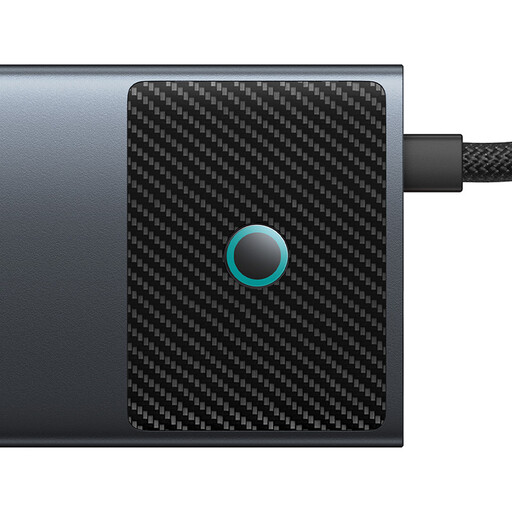
Why It Stands Out: This is a true all-in-one solution for power users. The standout feature is its advanced display capability, offering one HDMI port that supports 4K@120Hz and a second at 4K@60Hz. Combined with 10Gbps USB-A and USB-C data ports, Gigabit Ethernet and 100W PD passthrough charging, this 10-in-1 USB-C hub is built for demanding professional and creative workflows.
Pros:
Who is it for? Professionals, video editors, designers and gamers who need to create a powerful and versatile laptop docking station with support for high-resolution, high-refresh-rate displays and fast data speeds.
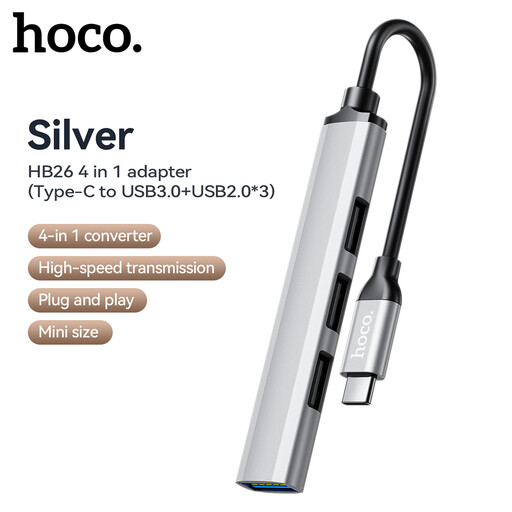
Why It Stands Out: Simplicity and portability are the core strengths of the HB26 adapter. It focuses on one primary job: expanding your USB connectivity. It turns a single USB-C port into one high-speed USB 3.0 port and three standard USB 2.0 ports, perfect for connecting everyday peripherals.
Pros:
Who is it for? Laptop users who primarily need to connect a keyboard, mouse, USB flash drive or other basic USB-A accessories and value portability over advanced features like video output or PD charging.
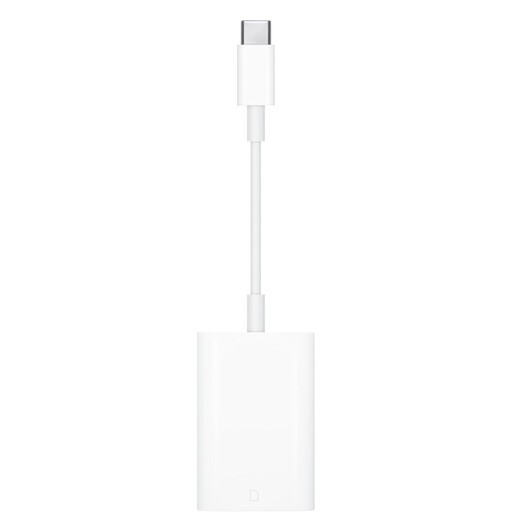
Why It Stands Out: For photographers and videographers in the Apple ecosystem, this adapter is a specialised tool built for performance. It supports UHS-II SD cards, enabling very fast data transfer speeds that can significantly reduce the time it takes to offload high-resolution photos and 4K video. Its design ensures seamless integration with MacBooks and iPads.
Pros:
Who is it for? Photographers, videographers and content creators who need the fastest, most reliable way to move files from an SD card to their USB-C equipped MacBook, MacBook Air, or iPad.
If the recommendations above don't quite match what you're looking for, your ideal setup might require a different combination of ports or features. From simple single-port adapters to more complex multi-function hubs, there's a solution for every need.
Explore our full range of USB to USB adapter options to find the one that completes your workstation.
The terms are often used interchangeably, but generally, a USB-C docking station is a larger, more powerful unit, sometimes with its own external power supply. It's designed for a stationary desk setup and typically offers the widest array of ports. A USB-C hub is usually smaller, more portable, and powered directly by the laptop (bus-powered), making it ideal for travel or simpler setups.
No, they do not. For a USB-C port to transmit a video signal to a monitor via a hub or adapter, it must support DisplayPort Alternate Mode (DP Alt Mode) or be a Thunderbolt 3/4 port (which includes DP Alt Mode functionality). Most performance-oriented laptops feature this, but it's always best to check your device's official specifications before purchasing a hub for video purposes.
A quality hub from a reputable brand is designed with safety in mind. It's normal for a hub to become warm during use, especially when handling high-speed data transfer and PD charging simultaneously. However, a well-designed hub will manage heat effectively. To ensure safety, choose hubs that list safety features and use them with a power adapter that matches your laptop's requirements. Avoid using low-quality, uncertified hubs, as they may lack proper power management and could potentially pose a risk to your devices.