Start with the part of hybrid working that slows you down: choose an external monitor for document space, a dock or hub for repeated cable connections, and a webcam or headset for call problems. Portable keyboard and mouse options suit workers who want familiar controls in more than one location. Before buying a dock, check what your exact laptop port can do; for call accessories, check device permissions on a managed work laptop.
Who these setups suit
Document-heavy hybrid workers
If you compare documents, spreadsheets and reference material at a home desk, extra screen space may address a more immediate need than new input devices. Check how many external displays your laptop supports before planning the setup.
One-cable desk switchers
If you carry the same laptop between home and office, a dock or hub can reduce cable swapping. The connection you want still depends on the laptop port and the dock's stated display and charging requirements.
Video-call-dependent commuters
If meetings are the weak point, focus on whether your camera, microphone or headset can be selected in the meeting app. Microsoft Support notes that browser permissions and organisation-managed settings can also affect device use.
What to prioritise
Choose the accessory that addresses your main constraint before adding equipment for the rest of the desk.
| Concern |
What to check |
Who this matters to |
| Document space |
Check the laptop's supported external-display count and match its video output to the monitor input. |
If documents and meeting windows compete for space at my home desk, I want a screen arrangement that lets me see the work I need. About 31% of consumers put document space first. |
| Desk connections |
For a dock, check the required video mode, display limits, charging support and any software requirements against the exact laptop. |
When I bring my laptop home, reconnecting the display and other desk devices is the part I want to simplify; roughly 31% of consumers prioritise those connections. |
| Calls |
Check device selection in the meeting app, camera and microphone permissions, and any employer-managed restrictions. |
If colleagues cannot reliably see or hear me in meetings, a usable camera or audio connection matters more to me than extra screen space. Around 23% of consumers make call participation their primary need. |
| Portable controls |
Check operating-system compatibility and how a keyboard or mouse connects; consider whether a stand fits your separate-input setup. |
I already have a workable screen and call setup, but want familiar controls when I change locations. About 15% of consumers put portable controls or laptop positioning first. |
Buying pitfalls
-
Assuming every USB-C port supports a full dock setup
As Kensington explains, USB-C describes a connector; video and charging capabilities depend on the laptop port. A dock can fit physically without providing the display or one-cable charging arrangement you expect.
Check the exact laptop model against the dock's required video mode, display configuration and Power Delivery requirements.
-
Expecting a splitter to create an extended desktop
Microsoft Support explains that a display splitter duplicates a signal rather than creating two independent signals.
Before planning two separately extended screens, check the laptop's display support and the dock's stated multi-monitor configuration.
-
Replacing call hardware before checking access settings
A connected webcam or headset may still be unavailable to a browser-based meeting. Microsoft Support notes that device selection, permissions and IT-managed settings can affect Teams device use.
Test the meeting app and browser settings first, then check which connection methods your work laptop permits.
Brands to consider
Dell
Dell's UK monitor range includes USB-C displays for a primarily fixed home desk.
- Dell UK lists model-specific USB-C connections and, on some models, power delivery of up to 90 W.
- Match the particular monitor's video and charging specifications to your laptop; these features do not apply to every model.
Anker
Anker offers compact hubs and desktop docks for reconnecting several desk devices.
- The range offers different connection arrangements for portable and fixed-desk use.
- Anker's stated display and charging functions vary by dock; check host-port and any driver requirements for the model you choose.
Kensington
Kensington's connectivity range includes mobile docks for a laptop carried between locations.
- Kensington lists Windows, macOS, ChromeOS, iPadOS and Android compatibility for its UH1400P mobile dock.
- That model's stated external-display limit is a single 4K display, and its host requirements include Power Delivery and DisplayPort Alt Mode; do not assume the same specifications across the range.
Logitech
Logitech's business range covers keyboards, mice, webcams and headsets for desk and meeting use.
- Logitech's catalogue includes wired, Bluetooth and multi-device input options.
- Check the connection method and operating-system compatibility of the individual product before choosing it for a work laptop.
Joybuy keyboard and mouse selections
These keyboard-and-mouse sets address the input-device part of a hybrid-work setup. Choose between them according to where you will use the set, the connections available on your laptop and any layout requirements.
 Image unavailable
HP 680 CFT Dual-Mode Keyboard/Mouse Combo
Consider this dual-mode set if you want keyboard and mouse controls for more than one work location. If a UK keyboard layout matters, confirm the layout before buying; also check the battery arrangement for your intended use.
Joybuy
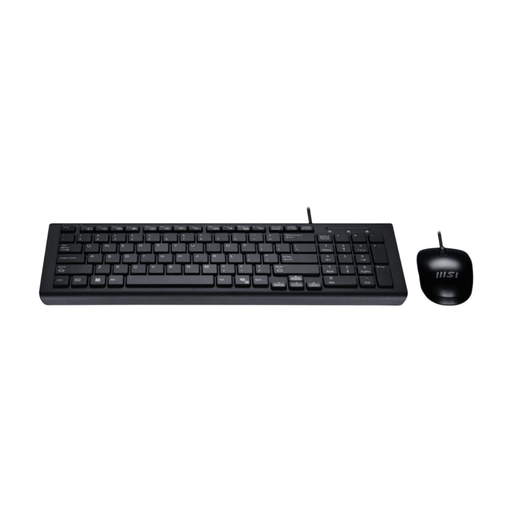 Image unavailable
MSI GK-701 Office USB Keyboard and Mouse Set, UK Layout
This UK-layout USB set is an option for a desk where you want both input devices together. Check that your laptop has suitable connections; if the Copilot key matters to you, check its stated Windows 11 function against your work setup.
Joybuy
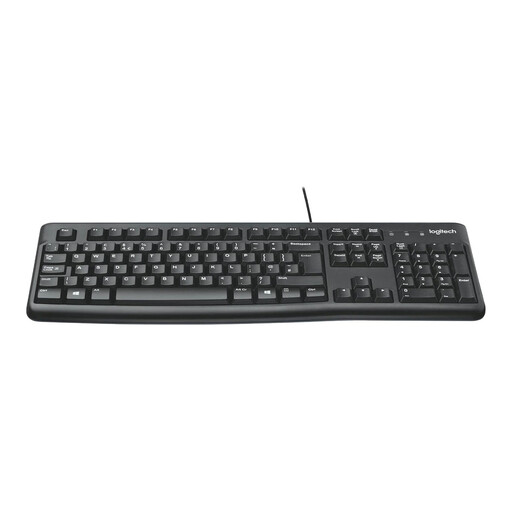 Image unavailable
Logitech MK120 Wired Keyboard and Mouse Combo
This wired set suits a desk where leaving keyboard and mouse cables in place is practical. Check the available ports and cable placement, and confirm compatibility before choosing it for a non-Windows work laptop.
Joybuy
Common questions
Will any USB-C dock run a monitor and charge my laptop?
No. Kensington explains that a USB-C connector does not guarantee video or charging support. Check the laptop's specific port against the dock's required video mode, such as DisplayPort Alt Mode where specified, and confirm Power Delivery support if you want charging through the same cable.
Can a simple splitter extend my desktop across two monitors?
A splitter alone duplicates the display signal rather than creating two independent screens, according to Microsoft Support. Check the laptop's supported display configuration and the dock's multi-monitor specifications before buying for an extended desktop.
Why might a new webcam or headset fail in a work meeting?
The meeting app may be using another device, or browser, operating-system or employer-managed settings may restrict access. Microsoft Support recommends checking device selection and permissions in Teams; test those settings before assuming the new accessory is faulty.
Do hybrid-working rules mean I must buy my own monitor?
The Health and Safety Executive's display-screen-equipment guidance does not itself establish a personal requirement to buy a monitor. It says the rules can apply to home workers and people who routinely split time between home and a workplace; use your employer's equipment and assessment process where applicable.


