Build the desk you use most around your work laptop: check its display connection, charging requirement and employer device rules before choosing a monitor, dock or hub. Add a webcam, headset or separate keyboard and mouse where your calls or working position call for them. A USB-C connector alone does not guarantee that every display, charging or peripheral function will work.
Who is this setup for?
Laptop-based workers with a fixed home desk
If the same laptop travels between home and work, focus on the connections you need to restore at your main desk: display, charging and any regularly used peripherals. Check the laptop’s capabilities before choosing a one-cable arrangement.
Workers with frequent remote meetings
If calls are a regular part of your week, consider whether camera placement and call audio at each location meet your needs. Check meeting-software requirements and employer rules before adding USB devices.
Workers short of desk or bag space
If equipment needs to travel or fit on a small desk, compare a compact hub and portable input devices with leaving a larger dock and peripherals at one location. The right arrangement depends on what must stay connected.
What should you check before buying?
List what you connect at your main desk, then check the laptop and workplace rules before choosing which devices need to stay there or travel with you.
| Priority | What to check | Your needs |
|---|
| Desk connections |
Count the displays and peripherals used together. Compare their ports with a dock, hub or USB-C hub monitor, including any required laptop charging. |
I want to reconnect my usual desk devices without plugging in each one separately. |
| Laptop compatibility |
Check the exact laptop model, video-output protocol, intended display arrangement and charging requirement. Lenovo says its USB-C and Thunderbolt docks require a supported laptop protocol; the USB Implementers Forum says a USB4 connection runs at the devices’ best mutual capability. |
A matching USB-C plug is not enough for me: the screen and charging functions both need to work with my laptop. |
| Screen and input position |
Consider where the screen will sit during sustained work and whether a separate keyboard and mouse would let you position it independently. Check available desk space at each location. |
I spend long periods at the computer and need a workable screen and typing arrangement at home as well as at work. |
| Remote meetings |
Check camera mounting, available USB ports, headset connection and compatibility with your meeting software. Compare the actual device and version rather than relying on a headline feature. |
For regular calls, I care about where the camera sits and how I will use audio in each meeting space. |
| Employer-managed devices |
Confirm permitted cameras, receivers, docks and any required software with IT. Microsoft documents controls that organisations can use to restrict USB devices on managed Windows computers. |
Before buying a peripheral for my work laptop, I need to know whether my employer permits its connection method. |
Common buying mistakes
-
Assuming every USB-C port does the same job
A dock can physically connect without providing the intended display or charging arrangement. Lenovo specifies laptop protocol requirements for its USB-C and Thunderbolt docks.
Check the laptop’s exact port capabilities, charger requirement and intended displays against the dock’s documentation before ordering.
-
Buying peripherals before checking work-device rules
Microsoft documents controls that can restrict USB devices on managed Windows computers. A suitable-looking webcam or receiver may therefore need employer approval.
Ask IT which devices, connection methods and any required software are permitted on your work laptop.
-
Planning the home desk without the workplace setup
The Health and Safety Executive says that where workers use display screen equipment at home and in the office, the assessment should cover both situations.
Use your employer’s display-screen-equipment assessment process to identify what is needed at each location before settling on a desk arrangement.
-
Choosing meeting devices by a headline feature alone
A camera or headset still needs an available connection and to work with the intended device and meeting software. Features and compatibility statements apply to particular models and versions.
Check the exact connector, operating-system requirements, meeting platform and employer peripheral policy.
Relevant brand references
Lenovo
Lenovo’s ThinkPad Universal USB-C Dock is a reference point for comparing a fixed-desk dock with your laptop’s port capabilities.
- Lenovo states that its USB-C and Thunderbolt docks work with laptops supporting the specified USB-C Alt Mode, DisplayLink or Thunderbolt protocols.
- Check the exact laptop and intended functions; the connector shape alone does not establish compatibility.
Dell
Dell’s P2425HE illustrates a monitor-led desk arrangement with USB-C hub and charging functions.
- Dell describes the P2425HE as an FHD hub monitor offering up to 90W power delivery.
- Check whether your laptop and cable support the display and charging arrangement you intend to use.
Logitech
Logitech’s webcam, wired headset and compact keyboard-and-mouse lines provide different ways to equip a meeting desk.
- Logitech lists USB-A or USB-C connectivity for its Brio webcam and Zone Wired 2 headset; its MK470 keyboard includes a number pad.
- Check the chosen model’s connection and workplace-device requirements rather than assuming the same compatibility across these products.
Joybuy desk equipment options
These options cover a dock, monitor, webcam, headset and keyboard-and-mouse set for a laptop-based desk. Choose the device that fills a need at your home or workplace setup, then check it against your laptop and employer requirements.
 No image available
Targus USB-C Universal Dual HDMI 4K Docking Station, 100W Power Delivery Pass-Thru
Consider a dock if several desk devices need reconnecting each time you bring your laptop home. The product name specifies dual HDMI 4K and 100W Power Delivery Pass-Thru; check the exact laptop’s video support and charging requirement, as well as employer approval.
View on Joybuy
 No image available
ASUS ProArt PA24ACRV IPS QHD Monitor
An external monitor is an option for a desk used for sustained laptop work. Check the laptop’s display connection and charging needs against this exact model, and confirm which cables come with the version you order.
View on Joybuy
 No image available
Targus 2K Webcam with Auto Focus
A separate webcam may suit a desk where laptop-camera placement is awkward for regular calls. Confirm the video resolution before buying: the model name says 2K, while the supplied detailed specification says Full HD 1080p. Check available ports and employer USB rules too.
View on Joybuy
 No image available
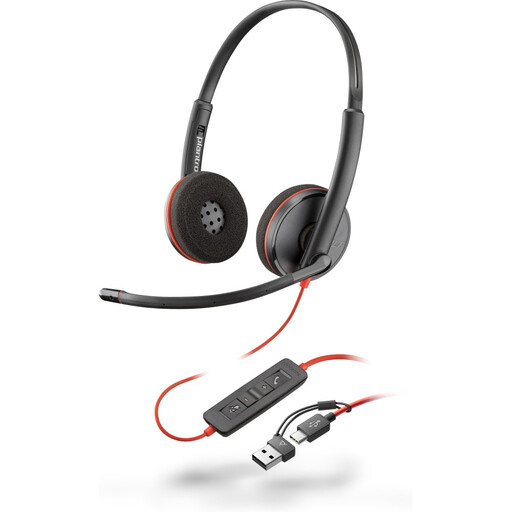
Poly Blackwire 3220 Stereo USB-C Headset with USB-C/A Adapter
A wired headset may suit calls taken at a desk when cable-free movement is less important. Check that the cable arrangement, USB connection and meeting software suit your work device and employer policy.
View on Joybuy
 No image available
HP 680 CFT Dual-Mode Keyboard and Mouse Combo
A separate keyboard and mouse let you plan an input position apart from the laptop screen. Before choosing a wireless connection for a managed laptop, check whether your employer permits Bluetooth or a receiver.
View on Joybuy
Frequently asked questions
Will any USB-C dock run my monitor and charge my work laptop?
No: check the laptop’s exact port specification, the dock’s required protocol and the charging requirement. Lenovo says its USB-C and Thunderbolt docks require supported USB-C Alt Mode, DisplayLink or Thunderbolt capability, while the USB Implementers Forum says USB4 connections operate at the devices’ best mutual capability.
Could my employer restrict a webcam or USB receiver?
Yes. Microsoft documents controls that organisations can use to restrict USB devices on managed Windows computers. Ask IT about the intended peripheral, its connection method and any required software before buying it for a work laptop.
Should I use a USB-C hub monitor or a separate dock?
A hub monitor is worth considering when its display, charging and peripheral connections meet the needs of a mainly fixed desk. Consider a separate dock if the monitor does not provide the connections your setup requires. In either case, check the laptop’s video capability and charging requirement against the exact device.
Should a hybrid-work desk assessment cover home and office?
Where workers use display screen equipment in both places, the Health and Safety Executive says the assessment should cover both situations. Use your employer’s assessment process to consider the equipment and working arrangement at each desk.


