What should you check before buying?
Start with the work your computer must do, then check the connections at each desk and the equipment you need to carry.
| Priority | What to check | Your needs |
|---|
| Work computer |
Confirm required applications, files and sign-in methods. For a tablet, also check the peripheral and external-display support needed for the same tasks. |
I need to carry on with my work at either location, not just open files on a device that cannot run the tools I use. |
| Desk connections |
Match the exact computer and operating system to the dock or adapter. Check the required monitor, USB and network connections, plus the connection cable. |
Reconnecting several peripherals at my regular desk matters more to me than carrying an adapter for an occasional connection. |
| Extra displays |
Check the computer’s external-display limit and the full cable, dock or adapter path. Microsoft Support notes that a splitter duplicates a signal rather than creating two independent extended screens. |
I want a separate screen for documents or reference material while I work or take a call. |
| Charging |
Compare the computer’s recommended charging wattage with power delivered to the host through the chosen charger, dock or display. Check ratings for the computer you will actually connect. |
My computer needs a suitable power connection at the desk as well as a charging plan for travel between locations. |
| Calls and video |
Check the calling platform, operating system and connection type. If physical answer or mute buttons matter, confirm their support for your installed software. |
I rely on predictable call controls at shared desks, or need a separate camera for regular video meetings. |
| Carrying the setup |
Decide which accessories stay at a desk and which travel with the computer. Check the bag’s fit and the charger and cables required at each location. |
I would rather carry only the equipment I use away from my regular desk. |
Brand ranges worth checking
These brand references help identify compatibility questions; they do not indicate which products are available in the selection below.
Dell
Dell offers docks for connecting a laptop to a regular desk setup.
- Dell’s WD25 product page states power delivery of up to 100W for Dell systems and 96W for non-Dell systems.
- Those WD25 ratings do not establish the display configuration or charging result for every laptop; check the exact host and connection.
Lenovo
Lenovo’s ThinkPad and USB-C dock information is relevant when comparing a dock with your laptop model.
- Lenovo says some docks can connect to other manufacturers’ laptops that support USB-C docking standards.
- Lenovo also identifies functional limitations with non-Lenovo laptops. Check the particular dock, host computer and operating system.
Logitech
Logitech’s business webcam and Zone headset ranges offer options to investigate for personal video calls.
- Logitech lists calling-platform certifications for products in these ranges, including Microsoft Teams and Zoom.
- Check certification for the exact device and software; it does not establish individual comfort or suitability for your room.
Joybuy options for displays, connections and calls
These options cover docks and an adapter for connecting peripherals, a portable screen, and devices for work calls. Choose the computer and charging arrangement they will connect to before deciding which accessory fits your setup.
 No image available
Targus USB-C Universal Dual HDMI 4K Docking Station with 100W PD pass-through, retail packaging
Consider this dock for a desk where you repeatedly reconnect HDMI displays and other peripherals.
Check your computer’s supported display configuration and the charging power it can receive through the dock. Confirm whether the external power adapter required for your setup is included.
View on Joybuy
 No image available
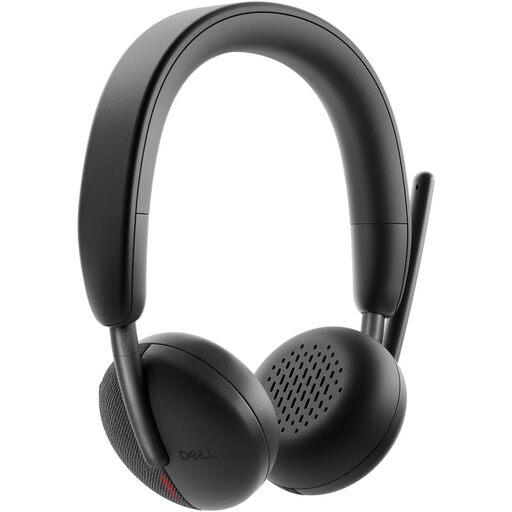
Dell Pro Headset WL3024
A headset is a practical route when individual calls are a regular part of work at both locations.
If you depend on physical meeting controls, confirm how this model works with your installed calling software and operating system; also consider fit for your usual calling space.
View on Joybuy
 No image available
ASUS ZENSCREEN MB166CR FHD portable monitor
This portable monitor is relevant if you need a second workspace away from a fixed desk.
Check how your exact computer outputs video, how many external screens it supports and whether your intended connection will work with this model.
View on Joybuy
 No image available
EMEET All-in-One 4K Webcam with Sony sensor and 4-mic array
Consider a separate webcam when your regular video-call setup needs a different camera and built-in call audio.
The product name also specifies dual speakers, fixed focus, an adjustable 98° field of view and USB connection. Check the connection and your meeting software before choosing it for a particular desk.
View on Joybuy
 No image available
V7 V7UC-U3CRJ45HDVG-BLK USB-C adapter
An adapter suits occasional connections when you move between desks with different displays or wired peripherals.
Its name specifies 4K HDMI, VGA, Gigabit Ethernet, dual USB 3.0 ports and 100W Power Delivery. Confirm your computer’s video-output and charging requirements, especially if you need more than one independent external screen.
View on Joybuy
Questions about hybrid-work equipment
Will one USB-C connection run my monitor, dock and charger?
Not necessarily. Microsoft Support notes that USB-C hardware and software combinations can have limited functionality; Apple says a USB-C or Thunderbolt display adapter for a Mac must support the appropriate display connection standard. Check your exact computer’s port capabilities, display limits and charging support.
Why does a monitor work directly but not through my dock?
The dock, adapter or cable may change the connection path. Microsoft Support identifies these devices as possible sources of display conflicts and notes that an adapter may not support more than one monitor. Test one display and the connection components separately, then check the computer’s supported display configuration.
Can a Lenovo USB-C dock work with a non-Lenovo laptop?
It can if the laptop supports the relevant USB-C docking standards, but Lenovo warns that some functions have limitations on non-Lenovo computers. Check the particular dock against your laptop model and operating system rather than assuming every feature transfers.
How do I choose a charger for a USB-C-chargeable Mac?
Use a USB Power Delivery charger or compatible display and compare its delivered wattage with the minimum Apple recommends for your exact Mac model. When charging through a dock, check the power delivered to the computer rather than relying on the dock’s headline power rating alone.
Do I need a Teams-certified headset or speakerphone?
Certification is particularly relevant if you rely on physical answer, mute, volume or other meeting controls. Microsoft says these controls are supported on certified devices with the installed version of Teams on Windows and Mac; check the exact device and software if those buttons matter to your workflow.


